
Address Table Expiry: The Silent Killer of Long Transfers
Somewhere between your transfer client and the server sits a device that remembers every connection passing through it. It forgets each one after a fixed period of silence. It does this on purpose, for good reasons, and it does not tell anyone when it happens. Small files sail through. Large files die at the same minute mark every time, with the file complete on the server and the client insisting it failed. The firewall team says nothing was blocked, and they are technically right: nothing was blocked. Something was forgotten.
This article is about those memories and their expiry: the state table inside a firewall and the translation table inside a NAT router. It explains why they forget and what forgetting looks like from each end of the wire. It covers the tell-tale symptoms that separate this cause from every other dropped session. It ends with the fixes available on each side. It is part of our Timeouts, Keepalives, and Dropped Sessions series. The broader subject of how these devices treat transfer traffic — NAT types, helpers, rule design — lives in our firewalls and NAT for file transfer series. This article stays narrowly on the timers.
Two Tables, One Habit
A stateful firewall does not evaluate every packet against its rule list. It evaluates the first packet of a connection and decides whether to allow it. If so, it writes an entry in its state table. The entry says "connection from this address and port to that address and port is permitted." Every later packet that matches the entry is forwarded without another look at the rules. The entry is the firewall's memory that this conversation was approved.
A NAT router uses network address translation to let a whole office share one public address. It keeps a similar record in its translation table. Suppose an inside machine at 192.168.1.50 opens a connection from port 51522. The router rewrites the source to its own public address and a public port it picks, say 203.0.113.5:40311. It writes down the pairing. Replies arriving at 40311 are rewritten back to 192.168.1.50:51522. Without the entry — the mapping — the router has no idea where an incoming packet belongs.
Both tables share one habit: every entry carries an idle timer. Each packet that matches the entry resets the timer to its full value. When the timer reaches zero, the entry is deleted. The reason is not malice but arithmetic. Memory is finite. A table that never forgot would fill with entries for machines that crashed, laptops that left the building, and sessions that ended without a clean close. Expiry is the garbage collection that keeps the device running. The timer length is a guess about how long a real connection can plausibly be silent.
Why Idle Time, Not Age
The timer counts silence, not lifetime. A connection that has carried a packet in the last minute is, as far as the device is concerned, alive. It does not matter how many hours it has existed. A connection that has carried nothing for the full timer period is dead, no matter how recently it was opened. This is why the failure is so selective: it only kills connections that go quiet. The connections that go quiet during a file transfer are very specific ones.
For SFTP and HTTPS, one connection carries everything, and it is busy for as long as bytes are moving. It goes quiet only between files. For example, a script uploads one file, spends twenty minutes generating the next, and then tries to upload again on the same session. For FTP and FTPS, the situation is worse and far more common. The session's control connection — the command channel on port 21 — is silent for the entire duration of every transfer. That is because the file travels on a separate data connection. A two-hour upload means two hours of control-connection silence. The mechanics of the two connections are laid out in FTP's control and data channels; the rest of this article assumes them.
Typical timer values differ enormously by device class, which is why the same job can work through one office and fail through another. The table shows ranges you should expect; every product has its own defaults, and every administrator may have changed them.
| Device | Typical idle timer, established TCP | On expiry |
|---|---|---|
| Enterprise stateful firewall | One hour is the most common default; thirty minutes and several hours both occur | Silent drop by default; some can send a reset to both ends |
| Small-office or consumer NAT router | Anywhere from five minutes to a day; small tables mean short timers | Mapping deleted; inside host gets a new public port on its next packet |
| Linux connection tracking (a host or router firewall) | Five days for established TCP — generous, rarely the culprit | Silent drop |
| Load balancer or cloud gateway | Often a few minutes — built for web requests, not long sessions | Varies; resets are common |
| Any device, UDP | Thirty seconds to a few minutes — UDP has no "established" state to trust | Silent drop |
Two rows deserve a note. The Linux connection-tracking default is so long that a host firewall on the server itself is almost never the problem. And the UDP row explains why protocols like TFTP struggle across NAT. With no connection to recognize, the device forgets a UDP flow after seconds of silence.
What Expiry Looks Like From Each Side
The diagram shows the moment of failure in the classic case: an FTP upload through a NAT router. Its table has two entries for the session — one for the control connection, one for the data connection. Sixty minutes into a two-hour upload, the control entry has aged out while the data entry stays fresh.
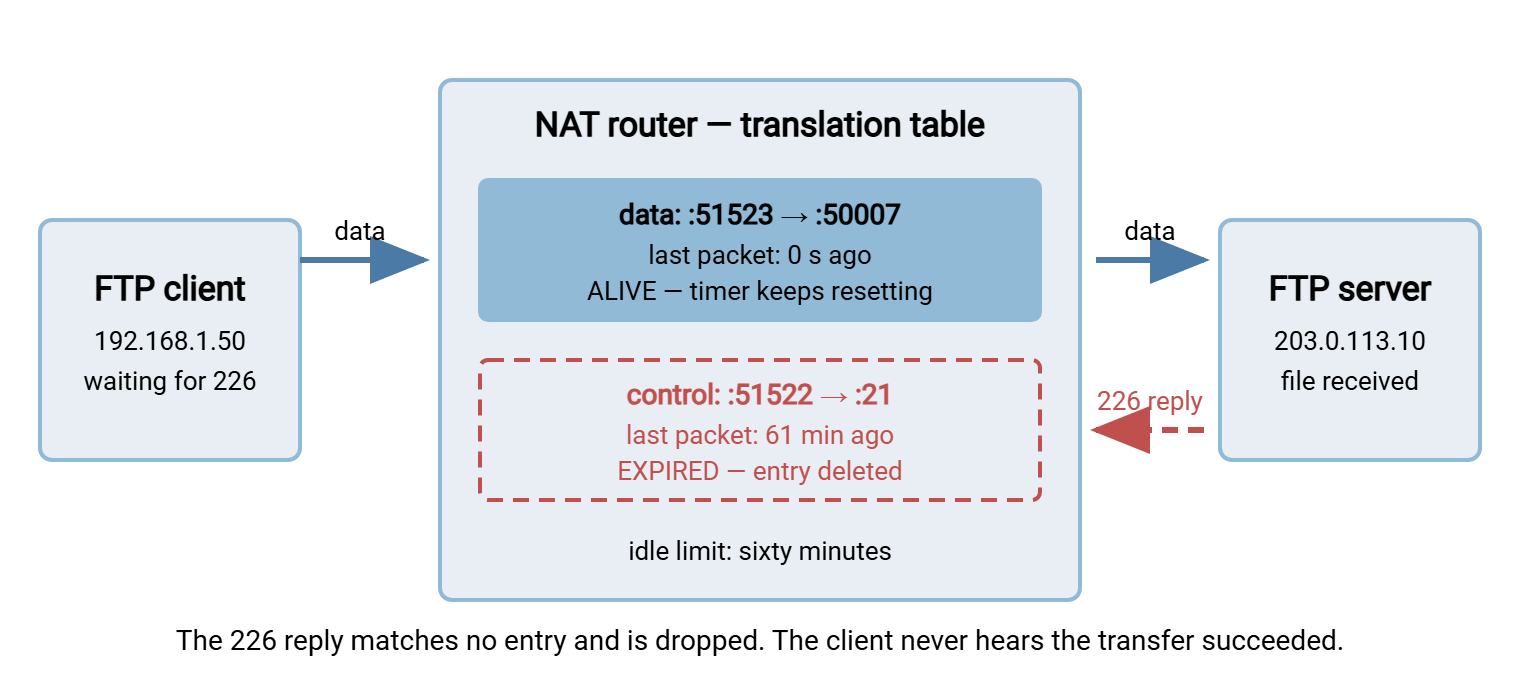
What each party experiences depends on which device forgot and which direction the next packet travels.
- Firewall, silent drop, packet from outside (the server's
226reply): the packet is discarded. The server's operating system retransmits it for its full schedule, gets nothing back, and eventually the server's application sees a timeout. The client, sending nothing, notices nothing until its own stall timer fires. Both sides report timed out, minutes apart. - Firewall, silent drop, packet from inside: the client sends a command; the firewall treats it as the first packet of a new connection. Because it is a data packet rather than a connection-opening packet, most firewalls drop it. Same result: silence, then timeout.
- Firewall configured to reset on expiry: both endpoints receive a reset the moment the entry is deleted. That is one hour into the transfer, long before it finishes. Both sides report connection reset by peer at the same second. The data connection, still perfectly healthy, is abandoned by the client because its session is gone.
- NAT router, packet from inside: the client's next packet gets a new mapping, usually on a different public port. It arrives at the server from an address-and-port pair the server has never seen, carrying data for a connection that does not exist. The server's operating system answers with a reset. The client reports connection reset by peer, and the server's log shows nothing at all — its FTP program never saw the packet.
- NAT router, packet from outside: the reply has no mapping and is dropped. Silence, then timeout.
The vocabulary of resets, closes, and silence is unpacked in anatomy of a dropped session. The point to carry from this list: the same expiry produces different error text depending on who speaks next. That is why the error text alone cannot rule table expiry in or out. The timing can.
The Round-Number Tell
Networks do not fail at exactly sixty minutes by coincidence. When a transfer dies at the same elapsed time on every attempt, a timer fired, and the elapsed time names the timer. The trick is to measure from the right starting point. The timer counts from the last packet on the connection that died, not from the start of the job. For an FTP control connection, the last packet before the silence is the server's 150 reply at the start of the transfer. So the control connection dies at transfer start plus the timer. For an SFTP session idle between files, the clock starts at the end of the previous file.
This produces the single most diagnostic symptom in the subject: files that take less time than the timer succeed, and files that take longer fail. It is not simply "large files fail". A large file on a fast link that finishes in fifty minutes gets through a one-hour timer fine. A medium file on a slow branch link that takes seventy minutes does not. Duration is the variable, not size. If you can find the threshold — forty-minute uploads work, seventy-minute uploads fail — you have the timer's value within a rough range. The table of device classes tells you what to look for.
| Drop lands at about | Usual owner of a timer that size |
|---|---|
| One to five minutes | Load balancer, cloud gateway, consumer NAT, or a client response timeout (see idle timeouts on both ends) |
| Ten to fifteen minutes | Server idle timeout, VPN idle timer, or the operating system's retransmission limit reporting an earlier silent drop |
| Thirty minutes | Firewall TCP idle timer on the stricter products |
| Sixty minutes | Firewall TCP idle timer — the most common default in the field |
| Two hours | The operating system's default TCP keepalive interval finally probing — a sign keepalives are on but far too slow |
Add the retransmission delay when reading timestamps. A silent drop at minute sixty is not reported at minute sixty. It is reported when someone tries to send and gives up. For a control connection, that is the end of the transfer plus roughly fifteen minutes of retransmissions on Linux. The drop and the error are separated by however long the connection stayed silent after it was forgotten. Confusing the two moments sends people looking for a two-hour timer that does not exist.
Remember: measure the timer from the last packet on the connection that died, not from when the job started. Subtract the retransmission delay from the moment the error appeared. A "two-hour-fifteen" failure on a two-hour upload is a one-hour timer on the control connection, reported late.
The Symptoms That Give It Away
Table expiry has a fingerprint distinct from every other cause of a dropped session. Check the list; three or more matches make it the leading suspect before you open a single configuration page.
- Duration threshold. Transfers shorter than some fixed time succeed; longer ones fail. Size is only a proxy for time.
- The file is complete on the server. The data connection was busy and survived; only the control connection's final reply was lost. The server's log records a successful upload followed, much later, by its own idle close. A server that writes each session's start, transfers, and end to its log hands you this evidence directly. Sysax Multi Server logs to a file or a database.
- The firewall log is empty. Expiry is housekeeping, not a block. Nothing is logged unless the administrator enabled state-expiry logging, which almost nobody does.
- It works from inside. The same job run from a machine on the server's own network, with no stateful device between, succeeds every time.
- Session-based protocols fail only when idle. SFTP jobs that push files back to back succeed; the same jobs with a long processing pause between files fail. The busy connection lives; the quiet one dies.
- Error text varies with direction. Sometimes "timed out," sometimes "reset by peer," for what is clearly the same failure. As the earlier list showed, the error depends on who sends the next packet.
- It started when nothing changed at either end. A new firewall, a firmware update, a branch office moved behind different equipment, a load balancer inserted in front of the server. The endpoints' configurations are untouched and the timer between them shrank.
The one symptom that does not point here is a failure at the very beginning of a transfer. Table expiry needs silence to work with. A connection that dies within seconds of opening was blocked, misrouted, or mis-negotiated. The first thing to check is who opens the data connection — the active-versus-passive distinction. This is explained in why firewalls block active FTP.
Fixes on Each Side
There are three places to fix table expiry, and the right one depends on what you control. The ordering below is by preference: fixes you can make yourself, then fixes that need another team.
At the client: generate packets
The entry expires because nothing crosses it. Make something cross it. A TCP keepalive is a tiny probe sent by the operating system on an idle connection. The far operating system answers automatically. The probe refreshes every table on the path without the transfer program doing anything special. The operating-system defaults are useless for this purpose because the first probe waits two hours. The interval must be reduced to well under the shortest timer you expect. The program must also ask for keepalives on its socket. A starting point on a Linux client:
# /etc/sysctl.d/keepalive.conf — values in seconds
net.ipv4.tcp_keepalive_time = 120    # first probe after two quiet minutes
net.ipv4.tcp_keepalive_intvl = 30    # then every thirty seconds
net.ipv4.tcp_keepalive_probes = 5    # give up after five unanswered
# applies only to sockets that enable SO_KEEPALIVE; most transfer
# clients have a "TCP keepalive" option that does exactly that
An application keepalive does the same job one layer up. Examples include the SSH protocol's alive messages (ServerAliveInterval on the client), or an FTP NOOP sent between transfers. The full set of settings for each protocol on Linux and Windows, including the cases where a keepalive makes matters worse, is in keepalives: TCP, SSH, FTP NOOP, and HTTP.
At the server: generate packets from the other direction
An entry is refreshed by packets in either direction. So a keepalive sent by the server works just as well — as long as the entry still exists. This matters when you run the server and cannot touch the hundreds of partner clients that connect to it. Enabling TCP keepalives on the server side, at a two-minute interval, protects every client behind every partner's firewall without asking any of them to change anything. The limitation: once a NAT mapping has already expired, a probe from the server has no mapping to match and is dropped. So the server's keepalive must be frequent enough to prevent expiry rather than recover from it.
At the middlebox: lengthen or link
If you own the firewall, two options exist. The first is to raise the TCP idle timer for the transfer server's addresses and ports specifically. Raising it globally wastes table space on every connection in the building. The second, for FTP, is the protocol helper (sometimes called an application-layer gateway). This feature reads the FTP control connection and recognizes the data connection it announces. It ties the two entries together so that activity on one refreshes both. Helpers have their own complications, and the design tradeoffs are covered in the firewalls and NAT series. Both options require a change request, a change window, and someone else's agreement. That is why the client-side keepalive is nearly always the first fix and often the only one needed.
At the job: shorten the silence
When none of the above is available in time, change the shape of the job. Split one two-hour upload into several thirty-minute pieces on separate sessions. Reconnect for each file rather than holding one session open through long processing pauses — a pattern discussed for scripted SFTP in SFTP automation. And ensure the transfer can resume from where it stopped rather than restarting from zero. That way, a drop costs minutes instead of hours. Our resume and checkpoint restart series covers that per protocol. A scheduled job with retry and error handling — the kind Sysax FTP Automation is built to run unattended — turns a drop into a delay. But it is the backstop behind the keepalive, not a substitute for it.
Gotcha: raising the server's idle timeout does nothing here. The server was not the device that forgot the connection, and its timer never fired. Loosening it only means abandoned sessions stay open longer. Fix the silence, not the server.
Wrapping Up
Stateful devices remember connections in tables. Tables have idle timers, and idle timers kill the connection that goes quiet. In file transfer, that is the FTP control connection during every long transfer, and the SFTP session during every long pause. The device does its job silently, so the evidence lives in the timing. Look for a duration threshold, a file that is complete on the server, and a firewall log with nothing in it. The error arrives at a suspiciously round minute count plus the retransmission delay. The fix is packets: a keepalive from either end at an interval shorter than the shortest timer on the path, with resume as insurance.
Continue with keepalives per protocol for the settings themselves. Continue with diagnosing intermittent drops when the timer is not the same every time and the pattern is harder to see.
Frequently Asked Questions
Why do only large files fail?
Why doesn't the firewall log show anything?
Does this happen to SFTP too?
Is it better to fix this at the client or on the firewall?
Why does the same failure sometimes say "reset" and sometimes "timed out"?
From the Sysax team: we build secure file transfer software for Windows — Sysax Multi Server, an FTP, FTPS, SFTP, and HTTPS server, and Sysax FTP Automation for scheduled, scripted transfers. Free trials are on the download page.