
Idle Timeouts on Server, Client, and Everything Between
Every device that touches a file transfer has an opinion about how long a quiet connection deserves to live. The server has one. The client has one. The firewall at each end and the address-translation router in the branch office have one each. None of them consult each other, and none agree on what "quiet" even means. A transfer that satisfies four of those five opinions still dies, and the one that killed it rarely leaves a note.
This article walks through the idle timers one party at a time. It explains what each counts as activity, what its default tends to be, and what it does when it fires. Then it spends real time on the case that causes most of the trouble. That is the FTP control connection that goes silent for two hours while a large file flows over the data connection. The article finishes with a tuning approach that keeps both ends patient enough without leaving abandoned sessions open all night. It is part of our Timeouts, Keepalives, and Dropped Sessions series, and builds on the vocabulary from anatomy of a dropped session.
What "Idle" Means to Each Party
A connection is idle when nothing has crossed it for a while. The trouble starts with the word "nothing," because each party in the path measures a different thing. A server counts commands: if no command has arrived for N minutes, the session is idle. That is true even if a data transfer is roaring along on another connection. A client counts replies: it sent a command and is waiting. If no reply comes within its response timeout, it decides the server is gone. A firewall or NAT device counts packets: it understands neither commands nor replies, only whether any packet has passed through that particular connection recently.
The table sets the four side by side. The defaults are typical rather than universal, but the shape of the table is what to remember.
| Party | What counts as activity | Typical idle limit | What happens when it fires |
|---|---|---|---|
| Server | A command from the client (FTP), or any protocol message (SFTP) | Five to fifteen minutes; SSH servers often none | Polite close, usually with a reason (421 Timeout) |
| Client | A reply to the command it is waiting on, or bytes arriving in a transfer | Fifteen seconds to a few minutes | Client closes and reports "timed out" |
| Stateful firewall | Any packet on that exact connection | Thirty minutes to a few hours for TCP | Entry deleted; later packets silently dropped (some send a reset) |
| NAT router | Any packet on that translation | Five minutes to a day; consumer gear is shortest | Mapping deleted; the inside host reappears on a new port |
Notice the mismatch in the first two rows. The server waits minutes for a command; the client waits seconds for a reply. That is fine during normal chatter. But it becomes a problem the moment the server has a legitimate reason to be slow. For example, it might be scanning a large upload before it sends the final reply.
Server-Side Idle Timers
Servers own the most visible timer and the one people reach for first, so it is worth being precise about how each protocol's server behaves.
FTP and FTPS servers
An FTP server tracks the control connection: the long-lived conversation on port 21 where commands travel. It closes this connection when no command has arrived for its configured idle period. Before closing, a well-behaved server sends a 421 reply, "service not available, closing control connection," often with the word Timeout after it. Most servers also have a separate timer for the data connection: the temporary connection that carries a file or a listing. This timer fires if a transfer stalls with no bytes moving. Defaults on both commonly sit between five and fifteen minutes.
One detail is easy to miss: a decent FTP server suspends its control idle timer while a data transfer is in progress. It is the one receiving the file and knows the client is busy. This is why a two-hour upload through a server with a ten-minute idle timeout succeeds when client and server share a network. The server is not the problem in the classic long-transfer failure. The devices between are, because they do not know one connection is related to the other.
SFTP servers built on OpenSSH
OpenSSH has no idle timeout in the FTP sense. Its two relevant settings in sshd_config are ClientAliveInterval and ClientAliveCountMax, and they do something different from what their reputation suggests. ClientAliveInterval is the number of seconds of silence after which the server sends a probe to the client through the encrypted channel. ClientAliveCountMax is how many probes may go unanswered before the server disconnects. The defaults are 0 — probing disabled — and 3.
So with the defaults, an OpenSSH server never disconnects an idle client on its own. A client that went home for the weekend with an SFTP window open stays connected until a reboot or a firewall ends it. And when you do set an interval, a healthy connected client answers every probe automatically. So it is still never disconnected for being idle — only an unreachable client is. The setting is a dead-connection detector, not an idle limit. A typical configuration:
# /etc/ssh/sshd_config
ClientAliveInterval 60      # probe after sixty seconds of silence
ClientAliveCountMax 3       # give up after three unanswered probes
# net effect: a vanished client is dropped about three minutes
# after its last packet; a healthy idle client is never dropped
A true idle limit on an SFTP service is a security control that ends abandoned sessions. It comes from the SFTP server product rather than from OpenSSH's probes. Our guide to SFTP server configuration covers the wider options. Dedicated Windows servers typically expose an idle limit in their administration interface. Sysax Multi Server records each session's start and end in its activity log. So you can see exactly when a session ended and match that moment against the client's complaint.
Web servers keep idle timers at a different scale. A persistent HTTP connection waiting for its next request is closed after a handful of seconds, harmlessly. The timers that bite are the request timeouts on a slow upload body. These vary by server and by whatever reverse proxy sits in front of it.
Client-Side Timers
Clients carry three timers, and confusing them produces wrong diagnoses.
- Connect timeout: how long to wait for the initial connection to be accepted. If this fires, the session never existed; that is a connectivity problem, not a drop.
- Response timeout: how long to wait for the server's reply to a command. Graphical clients default this short — FileZilla to twenty seconds and WinSCP to fifteen, adjustable in their connection settings. It fires most often when the server is doing something slow after the transfer. That might be a checksum, a virus scan, or moving the file into place before the final reply.
- Stall or transfer timeout: how long a transfer may go with no bytes moving before the client abandons it. This protects you from a silent middlebox drop; without it, a hung transfer waits out the operating system's full retransmission schedule.
Command-line tools show these timers explicitly. For SFTP and SCP through OpenSSH, the client-side mirror of the server's probes lives in ~/.ssh/config:
# ~/.ssh/config
Host sftp.example.com
    ServerAliveInterval 30     # client probes the server after thirty quiet seconds
    ServerAliveCountMax 3      # disconnect after three unanswered probes
    ConnectTimeout 20          # give up on the initial connection after twenty seconds
ServerAliveInterval defaults to 0, meaning the client never probes; ServerAliveCountMax defaults to 3. Setting the interval has the same double effect as on the server: it detects a dead connection early. And because each probe is a real packet, it keeps middlebox timers refreshed. More client options are in SSH config for transfers.
For lftp, one relevant setting is net:timeout. This controls how long to wait for data or a reply before treating the connection as dead; five minutes by default. Another is net:reconnect-interval-base, the base delay before reconnecting after a failure, thirty seconds by default. The third is net:max-retries. For curl, --connect-timeout and --max-time bound the whole operation. Meanwhile, --speed-time with --speed-limit acts as a stall timer. It aborts if the rate stays below the limit for that many seconds. Both tools are covered in lftp power usage and curl for file transfer.
Remember: a client that reports "timed out" after fifteen seconds did not lose the network. It ran out of patience. Before touching anything on the server, find out what the server was doing at that moment. A post-upload scan or checksum that takes twenty seconds will trip a fifteen-second response timeout every single time.
The Classic FTP Gap
Now the case this series keeps returning to. An FTP session uses two connections, and during a long transfer they behave in opposite ways. The data connection is busy: packets flow continuously and every timer on the path is refreshed. The control connection is completely silent: the client sent STOR, and the server replied 150. Neither side will say anything else until the last byte lands. The diagram shows both connections through a firewall with a one-hour idle timer during a two-hour upload.
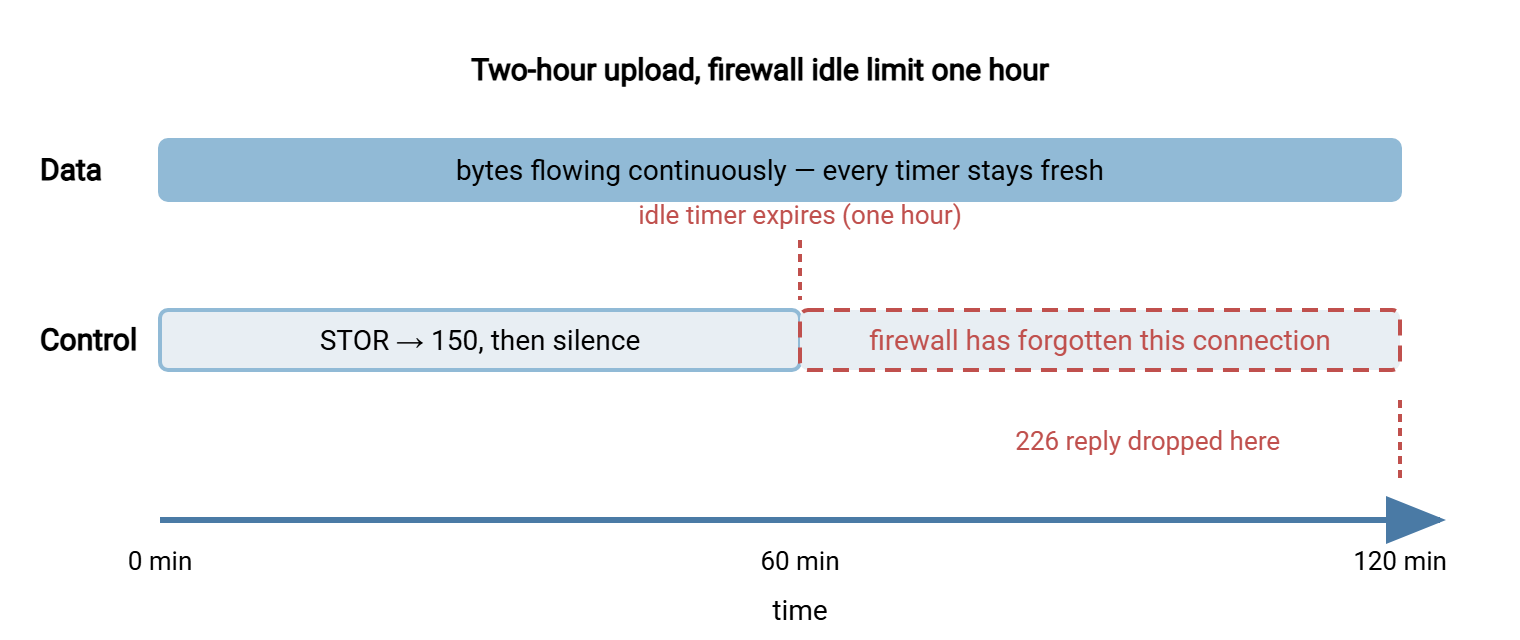
Walk through it with the clock. At minute zero the client logs in, sends STOR, receives 150 Ok to send data, and begins pushing bytes on the data connection. The firewall now holds two state entries. At minute sixty the control entry's idle timer expires and is deleted; the data entry, refreshed by every packet, is untouched. At minute one hundred and twenty the last byte arrives and the server sends 226 Transfer complete on the control connection. That packet reaches the firewall, matches no state entry, and is dropped. The client waits for a reply that will never come and eventually reports a timeout. The file is complete on the server. The job is marked failed. If the automation retries from scratch, the file is sent again.
Three things make this gap nasty. The server did nothing wrong and its log says so. The client did nothing wrong and its log says "timed out." And the firewall did exactly what it was configured to do, without logging anything, because it merely cleaned up an old entry. Nobody's log contains the word "firewall." The state table itself is the subject of address table expiry.
Who keeps the control connection alive?
The obvious answer — "have the client send a NOOP command every few minutes during the transfer" — is only half right. NOOP is the FTP command that does nothing except ask for a reply, and it is a fine keepalive between transfers. During a transfer, though, many servers will not answer it until the transfer finishes. That is because the control connection is waiting on the outcome of STOR. The packet still crosses the firewall and refreshes the timer, which is what you needed. But a client that then waits for the reply can trip its own response timeout.
The reliable fix is a TCP keepalive on the control connection. This is a probe sent by the operating system, below the level of FTP commands. The far operating system answers automatically without the FTP server ever knowing. The keepalive refreshes every middlebox on the path and needs no cooperation from the application. The catch is that operating-system defaults are far too slow: two hours between probes on both Linux and Windows. So the interval must be lowered. The details for each protocol and operating system are in keepalives: TCP, SSH, FTP NOOP, and HTTP.
Everything Between
The firewall in the example is the usual culprit, but it has a family. Every device that tracks connections has an idle timer, and any of them can be the shortest on the path:
- Stateful firewalls at either end, with per-protocol timers that are often shorter for "unknown" traffic on non-standard ports than for recognized services.
- NAT routers, especially consumer or small-office gear, whose tables are small and whose timers are aggressively short to make room.
- Load balancers in front of a server farm, with their own per-connection idle timer. It often defaults to a minute or two — built for web traffic, not hour-long uploads.
- VPN concentrators, which track flows inside the tunnel and may expire them independently of the firewall.
- Proxies and gateways that terminate the connection and open a second one to the real server: two connections, two sets of timers.
The practical rule: the connection lives exactly as long as the shortest idle timer on the path allows. And you usually cannot see all of them. Designing rules so these devices treat transfer traffic sensibly is the subject of our firewalls and NAT for file transfer series. Here it is enough that they exist and that their timers must be assumed short until proven otherwise.
Tuning Both Ends to Be Patient Enough
With the timers laid out, tuning is a matter of ordering them. Three rules cover almost every case.
- Keepalive interval shorter than the shortest middlebox timer. If the most aggressive device you know of expires idle TCP after five minutes, send a keepalive every two. If you do not know the shortest timer, assume a few minutes; a probe every sixty seconds costs nothing measurable.
- Server idle limit longer than the longest legitimate silence. Ten or fifteen minutes for interactive users; shorter for automation accounts that log in, push one file, and leave. The silence you are protecting is the gap between commands, not the length of transfers, because a competent server pauses the timer during transfers.
- Client response timeout longer than the server's slowest reply. Measure the gap between the last byte of your largest upload and the server's final reply, then double it. If a post-transfer scan takes forty seconds, a fifteen-second response timeout guarantees failure.
Applied to the worked example:
Branch firewall     TCP idle timer: one hour (unchanged — assume you cannot touch it)
Client (FTP)        TCP keepalive on the control connection: every two minutes
                    response timeout: ninety seconds (server scans uploads for ~40 s)
                    stall timeout: five minutes
Server (FTP)        control idle timeout: fifteen minutes, paused during transfers
                    data stall timeout: five minutes
The two-minute keepalive refreshes the firewall's control entry sixty times during the upload, so it never expires. The ninety-second response timeout gives the server room to finish its scan before the client gives up. Nothing on the server had to be loosened, and nothing had to be requested from the firewall team. The fuller exercise, with settings for several common setups and resume as the backstop, is in tuning both ends for long transfers.
The security tradeoff, honestly
A server idle timeout is also a security control. An SFTP session left open on an unlocked workstation is an open door, and a short idle limit closes it. Raising the limit to make long jobs survive trades some of that protection away. The better answer, almost always, is to leave the server's limit sensible and fix the problem at the client with keepalives. That way, the server's timer is never the one that fires. Where a longer limit is genuinely required, scope it to the specific automation account rather than the whole server. Why idle limits are on the checklist at all is covered in our hardening program overview.
Reading the Timeout in the Logs
Each timer leaves a distinctive fingerprint. An OpenSSH server whose ClientAliveCountMax was exhausted writes:
Mar 14 02:47:19 sftp01 sshd[4182]: Timeout, client not responding from user svc_branch07 198.51.100.24 port 51844
Mar 14 02:47:19 sftp01 sshd[4182]: Disconnected from user svc_branch07 198.51.100.24 port 51844
"Client not responding" is the giveaway. The client did not ask to leave; the server's probes went unanswered, which means packets were not getting through. That points at the path, not at either endpoint. On the client, the same event looks like a broken pipe on the next write:
client_loop: send disconnect: Broken pipe
Connection closed.
Transfer of dataset-q.bin failed: connection lost
An FTP server's own idle timer, by contrast, announces itself on the control connection, and a reachable client logs the announcement:
Mar 14 14:20:05 Response: 421 Timeout.
Mar 14 14:20:05 Error: Connection closed by server
Mar 14 14:20:05 Error: Could not read from transfer socket: ECONNRESET
The 421 line is the whole story: the server chose to close, for idleness, and said so. If the client was mid-transfer when this appeared, the server did not pause its timer during transfers — a server setting to fix. If the client was between transfers, the session simply sat too long, which is the timer doing its job. The full reply-code vocabulary is in FTP commands and reply codes.
Gotcha: "Timeout, client not responding" from an SSH server and "421 Timeout" from an FTP server sound alike and mean opposite things. The first says the client vanished — look at the path. The second says the client was present but silent — look at the client's behavior or the server's idle setting.
Wrapping Up
Idle timeouts are not one setting but a chain of them, and the connection survives only as long as the shortest link. The server measures commands, the client measures replies, and everything between measures packets. The FTP control connection during a long transfer produces none of the three. That is why it is the connection that dies. The fix is rarely to make the server more tolerant. It is to make the client generate packets often enough that no timer on the path reaches zero. It is also to give the client enough patience for the server's slow moments.
From here, keepalives per protocol covers the exact settings that generate those packets. The guide to tuning for long transfers assembles them into complete configurations. When a job dies anyway, an automation client with retry and error handling, such as Sysax FTP Automation, can rerun it unattended. But a retry that resends two hours of data is a backstop, not a fix. The fix is the keepalive.
Frequently Asked Questions
Does ClientAliveInterval disconnect idle SFTP users?
Why does my FTP upload finish on the server but fail on the client?
Should I just raise the server's idle timeout?
What is a reasonable client response timeout?
From the Sysax team: we build secure file transfer software for Windows — Sysax Multi Server, an FTP, FTPS, SFTP, and HTTPS server, and Sysax FTP Automation for scheduled, scripted transfers. Free trials are on the download page.