
Where Transferred Files Quietly Accumulate
"Where does the payroll file live?" "We send it to the bank on Friday." That is the whole answer you will get from finance. It is true as far as it goes, which is one hop. On a real network the file also exists in an export folder on a workstation, and an outbox on the transfer server. It exists in an archive folder an automation job moved it into, a temp file left by a failed retry, and every backup taken since. Nobody decided to keep those copies. They simply were never deleted, which on a server is the same thing as being kept.
Every copy carries the full obligations of the original. Each one must be protected. It must be counted if there is ever a breach. It must be produced if a lawyer or regulator asks. It must be searched if someone exercises their right to see the data you hold about them. A file you forgot you had is not a file you are excused from. It is a file you are failing to manage, quietly, in seven places at once.
This article, part of our Retention & Deletion series, is about finding those copies. You will walk one file's journey end to end. You will learn the usual hiding places on sending systems, transfer servers, and everything behind them. You will finish with a folder inventory you can actually keep current. The map you build here is the raw material for every retention decision that follows.
Transfers Copy — They Almost Never Move
A file transfer is a copy operation, a fact so basic that it gets overlooked, and it is the root cause of accumulation. When a file "goes" from one system to another, the bytes are duplicated across the network and written to new storage. The original stays exactly where it was. Even an operation labeled "move" is really a copy followed by a delete. That second half is a separate step that tools make optional, administrators disable "to be safe," and failure paths skip entirely.
Think of a photocopier, not an envelope. Mailing a letter removes it from your desk; photocopying it for a colleague leaves you holding the original, and now there are two. File transfer is the photocopier. Every hop in a workflow adds at least one more copy. That includes workstation to server, server to partner, partner to their internal system. Usually it adds more than one, because systems on both sides stage, archive, and back up what passes through them.
Once you internalize that, the question changes shape. It is no longer "where did the file go?" but "where did copies of the file come to rest, and who is going to delete each one?" For most organizations, the answer to the second half is: nobody, ever, until a disk fills up.
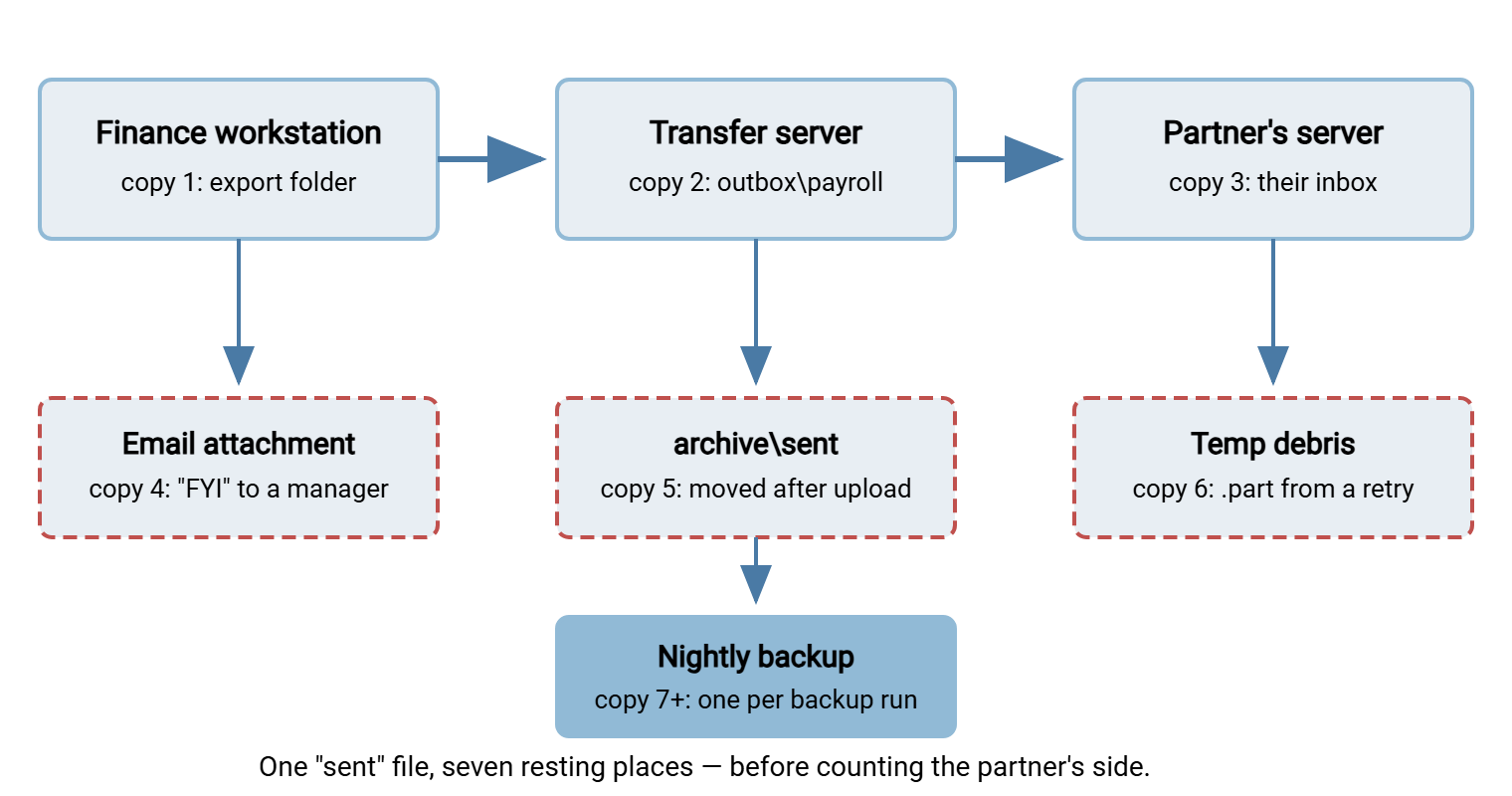
The diagram below follows a single payroll file through an ordinary partner transfer and marks every place a copy rests. The solid boxes are the places people remember; the dashed ones are the places they forget.
The Usual Hiding Places
Every environment is different, but the hiding places are remarkably consistent. Walk through these six categories on your own network and you will find most of your forgotten data.
The sending side
Files begin life somewhere: an accounting system's export directory, a "to send" folder on someone's desktop, a scanner's output share. These origin folders almost never clean themselves. The application keeps exporting, the person keeps saving, and the folder becomes an accidental archive of everything ever sent. It is often on a workstation with far weaker protection than the server the file was headed to. The server got the encryption. The desktop got the archive.
The transfer server's working folders
The server is where copies concentrate. An inbox (or upload area) holds what partners and internal systems drop off. An outbox holds what is waiting to be picked up. A download does not remove the file, so after pickup, the copy sits there until something deletes it. A staging folder is a working directory where files wait between processing steps, such as decryption or renaming. It collects strays whenever a step fails midway. If your directory layout has never been designed deliberately, our guide to designing directory trees shows what a clean structure looks like. A clean tree also makes accumulation visible instead of scattered.
Per-user home directories
Servers that give each account its own home folder create hundreds of small, unsupervised warehouses. Users treat them as free personal storage: "I'll leave it here in case I need it again." Home directories belonging to people who left the company are the purest form of forgotten data. They hold files with no owner, no purpose, and no one who will ever notice their deletion.
Archive and "processed" folders
Automation workflows commonly move a file to archive\sent or processed\ after a successful transfer. That is precisely so the source folder stays clean and nothing is sent twice. That is a sensible design with one flaw: the archive folder grows forever unless a second job empties it. Most environments build the first job and never the second. These folders are usually the single largest accumulation on a transfer server. And archives that stay navigable shows what a designed one looks like instead. An archive folder with no second job is not an archive. It is a hoard with a tidy name.
Northgate Retail's store-orders workflow moved every uploaded file into archive\sent after a successful transfer. The original administrator had documented this design as "clean by construction." Nobody built the job that emptied it. The folder passed forty gigabytes without anyone noticing. Then, one quarter-end, the volume filled at eleven at night. The upload step failed with a disk-full error. The on-call engineer spent two hours deciding which four years of order files were safe to delete with no owner awake to ask. The purge job took twenty minutes to write the next morning. It had taken four years to become urgent.
Temp files and failure debris
Interrupted transfers leave partial files — .part, .tmp, .filepart, or a bare filename that never got renamed to its final form. Retries leave duplicates with numbered suffixes. Quarantine folders hold files a virus scanner flagged and nobody reviewed. Individually these are small; collectively they are a sediment layer that says nobody is watching.
Copies outside the file system you were thinking about
Two more layers hold copies that no folder listing will show you. Email is the first: when someone attaches the same report "as an FYI," the file now lives in mailboxes, mail servers, and mailbox backups. Our article on the journey of an email attachment traces just how many copies one attachment spawns. Backups are the second: every backup of a volume containing transferred files is another complete copy of them. It has a schedule and retention cycle of its own. You do not manage backup copies file by file, but you must know they exist, because "we deleted it" is only half true while backups remain.
Everything above happens again on the receiving side. When you are the recipient, your inbox folders, your post-download processing areas, and your backups accumulate the partner's files in exactly the same pattern. And when you are the sender, remember that whatever you push to a partner will linger in their estate on the same terms. That is worth a sentence in the partner agreement, because you cannot see, let alone manage, the copies that rest on someone else's servers.
Why Accumulation Happens to Careful People
Accumulation is not laziness. It is the natural result of four forces that operate in every IT team, including the careful ones.
Success paths get cleanup; failure paths do not. The happy path of a workflow is designed, tested, and often tidies after itself. The failure path is improvised at the moment something breaks. When an administrator is restoring a stalled feed under pressure, deleting leftover files is the last thing on their mind. The debris stays.
Deleting feels risky; keeping feels free. Deleting the wrong file causes a visible incident with your name on it. Keeping an unneeded file costs nothing anyone can see — no alert fires, no ticket opens. Every individual decision therefore lands on "keep," even though the sum of those decisions is a liability. Why keeping everything is the riskier choice is the subject of our retention basics article.
Shared folders have no owner. A folder that three teams write into is a folder no team feels responsible for emptying. Ownership gaps, more than any technical cause, are why files sit untouched for years. A folder with three owners has none, and a folder with none lives forever.
Storage stopped hurting. When disks were small, filling one forced a cleanup and everyone remembered where the junk was. Cheap storage removed the pain signal without removing the problem. The files are still there, still sensitive, just no longer forcing anyone to look at them. A full disk was a crude retention policy, but it was one.
The Mapping Exercise: Follow One File
You cannot manage what you have not mapped, and mapping is easier than it sounds. Take one representative flow — the weekly payroll upload, the nightly partner feed — and trace a single file through it. Write down every location where a copy rests. Here is the procedure:
- Pick one real file from a recent run of the flow. Note its name, size, and the date it moved.
- Start at the origin. Find the folder it was exported or saved into. Is the file still there? What else is in that folder, and how old is the oldest item?
- Walk each hop. At the transfer server, check the upload area, any staging folder the workflow uses, and any archive folder files are moved to afterward. Look for your file — or its ancestors from previous weeks — in each.
- Check the pickup side. If a partner or internal system downloads the file, confirm whether the server copy remains after pickup. It almost always does.
- Look for debris. Search the same folders for partial files, numbered duplicates, and anything in a temp or quarantine directory related to the flow.
- Add the invisible layer. Note which of those volumes are backed up and on what cycle. Every copy you found above is multiplied by the backup schedule.
Two sources of truth make this faster. The first is your automation tool's own configuration: every scheduled job names its source and destination. So the job list is a ready-made map of staging and archive folders. In Sysax FTP Automation, for example, each scheduled task spells out the folders it reads from, writes to, and moves files into. Reviewing the task list tells you where files accumulate before you ever open Explorer. The second is the server's activity log, which shows which folders actually see uploads and downloads. Sysax Multi Server records every session and file operation to its activity log. So a month of log data separates the folders that are alive from the ones that are merely full.
To put ages and sizes on what you find, a few lines of PowerShell give you a census of any transfer root:
# Oldest file, file count, and size for each top-level folder
Get-ChildItem D:\Transfer -Directory | ForEach-Object {
  $f = Get-ChildItem $_.FullName -Recurse -File
  $oldest = ($f | Sort-Object LastWriteTime | Select-Object -First 1)
  $age = [int]((Get-Date) - $oldest.LastWriteTime).TotalDays
  "{0,-18} {1,5} files  oldest {2,4} days  {3,7:N1} GB" -f $_.Name,
    $f.Count, $age, (($f | Measure-Object Length -Sum).Sum / 1GB)
}

inbox              214 files  oldest  388 days     2.1 GB
outbox              52 files  oldest  740 days     0.4 GB
staging            460 files  oldest  119 days     6.8 GB
archive            931 files  oldest  912 days    38.5 GB
home               387 files  oldest  655 days    11.2 GB
Numbers like these end arguments; I have closed a forty-minute meeting by pasting that table into it. Consider a folder whose oldest file is over two years old, in a flow whose data is stale after a month. That is not an archive — it is an unmanaged liability with a folder name. When the census points at a folder and nobody can say what fills it, finding what ate the disk takes the hunt down a level.
The Folder Inventory: Write Down What You Found
Record the walk in a simple inventory — one row per location. This table becomes the backbone of your retention work. Every later decision (how long to keep, what to purge, what needs an owner) attaches to a row of it. A realistic first pass looks like this:
| Location | What lands here | Written by | Oldest file | Owner |
|---|---|---|---|---|
D:\Transfer\inbox\acme |
Partner order files | Acme's upload account | About one year | Sales ops |
D:\Transfer\outbox\payroll |
Weekly payroll extracts | Finance export job | About two years | Finance |
D:\Transfer\staging\edi |
Files mid-decrypt/rename | Automation tasks | Four months | IT (us) |
D:\Transfer\archive\sent |
Everything ever uploaded | Post-transfer move step | Over two years | None — assign one |
D:\Transfer\home\* |
Per-user leftovers | Individual accounts | Unknown — audit | Each account's owner |
Backups of D: |
Copies of all the above | Backup platform | Backup retention cycle | Backup admin |
Keep the inventory somewhere versioned and boring — a spreadsheet or a page in your documentation system. It does not need to be beautiful. It needs to be true, and it needs a review date.
Remember: every copy is as sensitive as the original, but rarely as protected. The export folder on a workstation and the forgotten archive on the server hold the same payroll data as the encrypted channel you so carefully configured. They are where an intruder or an auditor will actually find it.
Reading the Map: What the Inventory Tells You
With the inventory in front of you, patterns jump out that no amount of abstract policy discussion would surface.
Dead folders. Locations full of files but showing no recent activity — the flow was retired, the partner left, the project ended. These are your easiest wins: confirm with the owner, then archive or delete the lot. The server's activity log settles "is anything still using this?" with evidence instead of guesswork.
Unowned folders. Any row where you could not name an owner is a decision nobody is empowered to make. Assign ownership before you touch retention; a deletion nobody approved is an incident, while a deletion the owner approved is housekeeping.
Duplicate chains. The same file resting in four places means four protection obligations for one business purpose. Usually one location is the authoritative copy and the rest exist "just in case." Naming the authoritative copy lets you shorten the leash on all the others.
Personal data multiplies everything. Wherever a row contains information about people — payroll, HR, customer lists — the copies are not just storage waste but regulated data. The obligations under privacy law scale with every location you hold it in. Our personal data in file flows series covers what those obligations look like. The short version is that every extra copy makes a subject's "what do you hold about me?" question harder to answer honestly.
If you want to extend the exercise from one flow to your whole estate, the same walk-and-record method scales up. Our file flow census article covers the flow-level version. The two inventories reinforce each other: flows tell you why folders exist, folders tell you what flows leave behind.
From Map to Decisions
The inventory is deliberately free of judgment — it records what is, not what should be. The judgment comes next, and it comes in stages that the rest of this series walks through in order.
First, each row needs a retention period: how long files in that location should exist, and why. That is partly a business question and partly a legal one, which means it is not yours alone to answer. Our article on data retention basics explains how periods get set and how to read a retention schedule someone hands you. Then the periods need enforcement that does not depend on anyone remembering: automated purge policies turns each row into a scheduled cleanup job you can trust. Finally the whole thing gets written down once, briefly, in a form an auditor can absorb in a minute. The working retention policy article provides the skeleton.
Plan to re-walk the map twice a year, and any time a flow is added or retired. Mapping is not a project; it is a habit with a calendar entry.
The Short Version
Transfers copy; they do not move. Copies come to rest in origin folders, inboxes, outboxes, staging areas, archives, home directories, temp debris, mailboxes, and backups. Every one of them carries the same obligations as the original. Follow one file through one flow. Write down every place it rests, and put ages and owners on each location. You have turned an invisible liability into a list you can manage. The next step is deciding how long each location's files deserve to live, which is exactly where retention basics picks up. Finance will still say they send it to the bank on Friday, and they are right about one hop.
Frequently Asked Questions
Why do files stay on the transfer server after the recipient downloads them?
Are temp and partial files really worth worrying about?
How do I find files nobody has touched in months?
Get-ChildItem -Recurse -File piped through a Where-Object filter on LastWriteTime lists everything older than a cutoff. Be aware that last-access times are unreliable on most Windows systems. So "old" usually means "not written in a long time," which is still a good first filter.Do backups count as copies I have to manage?
Who should own a shared transfer folder?
From the Sysax team: we build secure file transfer software for Windows. Sysax Multi Server is an FTP, FTPS, SFTP, and HTTPS server. Sysax FTP Automation handles scheduled, scripted transfers. Free trials are on the download page.