
Layer Five: The Transfer Worked but the File Is Wrong
"It says complete on your end?" "It says complete on every end." The job log reads 226 Transfer complete, the client says 100%, and the monitoring dashboard is green. The person on the other end says the file will not open. Or it has half the rows it should, or is yesterday's data with today's name. This is the fifth layer, and it is the strangest one to troubleshoot, because nothing failed. Every component did exactly what it was asked, and the result is still wrong. The tools are not lying. They are answering a narrower question than the one you asked.
This final article in our Systematic Troubleshooting of Failed Transfers series covers two things. First, it covers the content layer: how to compare a file at both ends. It explains how to tell a truncated file from a mangled one from a merely stale one, and where each of those comes from. Second, it covers the part of troubleshooting that most people skip: writing up what you found. That way the next person, who may be you in six months, does not start from zero. A fix that lives only in one administrator's memory is a fix that will need to be found again, and memory keeps no change log.
The Layer Where Every Tool Says Success
Transfer protocols promise to deliver the bytes they were given. They do not promise that the bytes were the right ones, or that the source file was finished when it was read. They do not promise that the text inside means the same thing on both platforms. So the tools are telling the truth: the transfer did work. The failure happened before the transfer started (the source was wrong or unfinished). Or it happened during the transfer in a way the protocol considers legitimate (a text-mode conversion). Or it happened after the transfer ended (a post-processing step changed the file). Content problems are diagnosed by comparing, not by reading error messages. Comparison needs two numbers from each end: size and hash. There is no error message to read. That is the error message.
Step 1: Compare Sizes at Both Ends
The size in bytes is the cheapest and most revealing fact about a transferred file. Get the exact number, not the rounded one a file manager shows. On Linux, stat -c %s report.csv prints the byte count and ls -l shows it in the fifth column. On Windows, PowerShell's (Get-Item report.csv).Length gives the same. On a remote server you cannot log in to, the transfer client will tell you. Use ls -l inside an SFTP session, or the FTP SIZE command, which most clients expose. That command answers 213 followed by the byte count.
# source (Linux)
$ stat -c %s report_20240314.csv
4830112

# destination (Windows PowerShell)
PS> (Get-Item D:\Transfers\acme\inbox\report_20240314.csv).Length
4710068

# destination seen through the client
sftp> ls -l /inbox/report_20240314.csv
-rw-r--r--    1 feed_acme sftpusers   4710068 Mar 14 02:11 report_20240314.csv
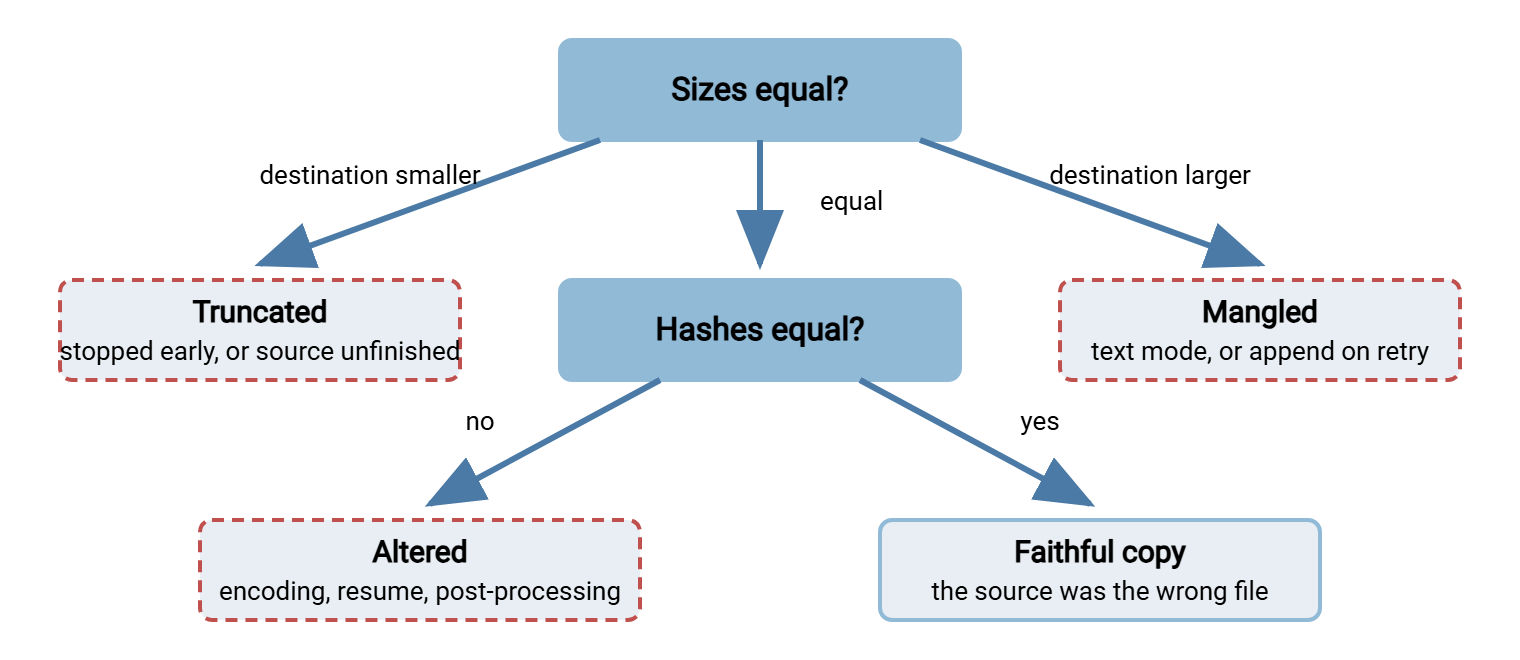
Four outcomes, each pointing somewhere different:
- Destination smaller. The file was truncated: the transfer stopped early, or the source was still being written when it was read. Go to the truncation section below.
- Destination larger by a suspiciously round amount — exactly the number of lines in the file, or exactly the size of the source added to itself. The first is a text-mode transfer adding a carriage return to every line; the second is a retry that appended instead of overwrote. Both are covered under "mangled."
- Destination is zero bytes. The file was created and never written. The source was empty or missing when the job ran. Or the upload was interrupted at the very start and a retry never happened.
- Sizes equal. The bytes may still differ. Go to the hash.
The diagram below turns the size comparison and the hash comparison into one decision path, from "sizes equal?" to the four shapes of a wrong file.
Step 2: Compare Hashes
A hash is a short fingerprint computed from every byte of a file; change one byte anywhere and the fingerprint changes completely. Two files with the same hash are, for all practical purposes, identical. Computing one takes seconds for most files, and every platform has a built-in tool:
# Linux
$ sha256sum report_20240314.csv
9f2c...a41e  report_20240314.csv

# Windows PowerShell
PS> Get-FileHash D:\Transfers\acme\inbox\report_20240314.csv -Algorithm SHA256

# Windows command prompt
C:\> certutil -hashfile D:\Transfers\acme\inbox\report_20240314.csv SHA256
Compare the two values character for character (paste them one above the other; do not eyeball). If you cannot run a command on the far end, download the file back to a scratch location and hash that. This is a round trip through the same protocol and settings, which tests the path as well as the file. When sizes match and hashes differ, the bytes were altered without changing the count. The cause is a character-encoding conversion, a resume that stitched a new tail onto an old head, or a post-processing step that rewrote the file in place. When both match, the transfer was faithful, and the problem is that the source was wrong. What hashes are and how to build them into jobs is the subject of hashing explained and verifying transfers end to end. This article only needs you to run one and compare.
The Four Shapes of a Wrong File
Truncated: it stopped early and nobody said so
A destination file shorter than its source usually has one of four histories. The source was unfinished when the job read it. The application producing the file was still writing when the transfer started, so the transfer faithfully copied a half-written file and reported success. The tell is a source that is now larger than when it was sent. Another is a job that runs at almost the same minute the file is produced. The session dropped mid-transfer and the client did not treat it as an error, or the server kept the partial file. Look for a 426, a Connection closed, or a gap between the 150 and the timestamp of the next command. The destination ran out of room: disk full or quota reached. SFTP reports this as a generic Failure that some scripts ignore. The server's free space and the file's size will not add up. And a resume went wrong: the job resumed onto a partial file after the source had changed. That produced a file whose head and tail come from different versions (the case resume verification and integrity is built to catch).
The first history is by far the most common, and it is a design problem rather than a transfer problem. Files must not be picked up until they are complete. The patterns that guarantee that — temporary names, marker files, size-stability checks — are in our why partial files happen article and the series around it. The job did not copy the wrong file. It copied the right file too early, faithfully.
Mangled: the bytes were "helpfully" converted
FTP has two transfer types. Binary (also called image mode, the TYPE I command) copies bytes exactly. ASCII (TYPE A) treats the file as text and converts line endings between platforms. A single line-feed character on Linux becomes a carriage-return-plus-line-feed pair on Windows. For a text file that is what you want, and the destination grows by exactly one byte per line. A file with 120,000 lines arrives 120,000 bytes larger. For anything that is not text — a zip archive, a PDF, an encrypted file, a spreadsheet — the same conversion corrupts it irreparably. That is because bytes that happened to look like line endings have been changed. The fingerprint: the archive "is not a valid zip file," the size differs by a small amount, and the job's verbose log shows TYPE A before the transfer. Modern clients default to binary, but scripts, old batch files and some server-side defaults do not. Old batch files do not update their opinions.
The related failure is character encoding. The file is text and the sizes may match. But accented characters, currency symbols or non-Latin names arrive as question marks or as two-character garbage. Nothing in the transfer changed; the writer and the reader disagree about what the bytes mean. Both problems have quick detectors. On Linux, file report.csv reports ASCII text, with CRLF line terminators or UTF-8 Unicode text at a glance. od -c report.csv | head shows the actual line-ending bytes. On Windows, Format-Hex -Path report.csv | Select-Object -First 4 shows the first bytes. A 0D 0A pair marks Windows line endings. EF BB BF at the very start marks a byte-order mark that some parsers choke on. Everything about the trap and its prevention — modes, line endings, encodings and file names — lives in our ASCII, Binary, and Encoding Corruption series. Here, the task is to recognize the shape and switch the job to binary.
The wrong file entirely
Sizes match, hashes match, and the recipient is still right: the content is not what they expected. The transfer was perfect; the source was wrong. The ways that happens are dull and frequent. The producing application failed and left yesterday's file in place, so the job dutifully sent it again. Compare modification times at the source with ls -l or Get-Item, and you will see the file is a day old. Two jobs write to the same file name, and the second overwrites the first before the partner reads it. A job picks up from the wrong folder after a path change, a mapped drive that pointed elsewhere, or a working directory that differs between an interactive test and a scheduled run. A file name with a datestamp is reused, and a duplicate-detection rule on the far end quietly discards the new arrival as already seen. The transfer, for once, is the innocent party, and will have trouble proving it.
For all of these, the evidence is at the source: the file's modification time, the producing job's log, and whether the same name appears twice in the transfer log. Naming files so that this cannot happen is covered in why file names matter for automation. The duplicate-name problem specifically is covered in our why duplicates happen article.
Altered after arrival
The last shape appears when the transferred file was correct at the moment it landed and wrong by the time anyone looked. Something ran on it after arrival. It could be a decryption step that failed and left the encrypted file with the wrong name, or an archive extraction that stopped halfway. It could be a virus scanner that quarantined the file and left a placeholder, or a script that "cleaned" the file in place. Or it could be a second transfer that overwrote it minutes later. The server's log shows the file arriving with the correct size. A later timestamp on the file, or a later entry in the processing job's log, shows the change. Post-arrival processing is where the write-up matters most, because the transfer team and the processing team are often different people. Each can prove their step worked. Both proofs will be correct. Neither will help. Our guides to the anatomy of a transfer pipeline and quarantine workflow design describe how to make those steps leave evidence.
Remember: matching hashes at both ends prove the transfer was faithful, which moves the problem to the source or to whatever ran after arrival. A hash check takes thirty seconds and ends most arguments about whose step broke the file.
Content Triage in One Table
| Symptom | Likely cause | Confirming test |
|---|---|---|
| Destination shorter; source now larger than it was | Picked up while still being written | Producer's finish time vs job's start time |
Destination shorter; 426 or closed connection in the log |
Session dropped, partial file kept | Verbose log; server free space and quota |
| Destination larger by exactly the line count | ASCII mode, Linux to Windows | TYPE A in the log; file shows CRLF |
| Archive or PDF "invalid"; small size difference | ASCII mode on a binary file | TYPE A in the log; hashes differ |
| Destination exactly twice the size | Retry appended instead of overwriting | APPE or a resume offset in the log |
| Sizes equal, hashes differ, text looks garbled | Character-encoding mismatch | file / first bytes; compare a known accented character |
| Sizes and hashes equal, content stale | Source was yesterday's file | Source modification time; producer's log |
| Correct on arrival, wrong later | Post-processing, quarantine, or overwrite | File timestamp vs arrival time; processing logs |
Writing It Up: The Handoff
You have found the cause and applied the fix. The investigation is not finished until it is written down, and not because anyone enjoys paperwork. The same failure will happen again, probably to someone else. The write-up is the difference between a five-minute fix and a repeat of the whole afternoon. A good write-up is short, factual, and structured so that the next reader can skip to what they need. This template fits in a ticket comment:
FLOW:        ACME nightly upload (job acme_upload on jobsrv02 -> sftp.acme.example.com)
REPORTED:    Mar 14 08:40 by ACME ops - "report file has 60% of expected rows"
SYMPTOM:     destination 4,710,068 bytes vs source 4,830,112; hashes differ; no error in job log
LAYER:       5 (content) - transfer faithful to what it read; source was unfinished
EVIDENCE:    producer log shows report finished 02:11:40; job started 02:10:01
             sftp -v log: 226 at 02:11:02 with 4,710,068 bytes
CAUSE:       job scheduled 10 min after producer's usual finish; producer ran late
FIX:         job now waits for report_YYYYMMDD.done marker instead of a fixed time (changed Mar 14 10:15)
VERIFIED:    manual re-run 10:20 - sizes and SHA-256 match at both ends; ACME confirmed row count
PREVENT:     added size+hash check to the job; alert if mismatch  (owner: transfer team)
             producer team to write marker file after close  (owner: app team, due next release)
LINKS:       ticket 4471; runbook "ACME nightly upload" updated section 3
Five habits make write-ups useful rather than merely present. State the symptom as numbers, not adjectives — "4,710,068 vs 4,830,112 bytes," not "file was short." Name the layer, because it tells the next reader which article and which tests apply. Separate cause from fix. The cause is what was true; the fix is what you changed. Confusing them is how "we restarted the service" gets recorded as a root cause. Record verification — what you checked to know the fix worked — so that a future reader can repeat it. And list prevention with an owner; a prevention item without a name is a wish.
Where the write-up lives matters as much as what it says. A ticket comment is the minimum. (I have re-diagnosed my own fix from a ticket comment I did not remember writing.) The flow's own runbook is the right home. Every recurring transfer should have a page that names its owner, its schedule, its endpoints and its known failure modes. A good troubleshooting write-up becomes a new entry in that last section. Building and maintaining those pages is the subject of our Documenting Transfer Flows series. The article runbooks per flow is the page that shows what the known-failures section looks like. For a failure that caused real business impact — a missed cut-off, a partner escalation — the write-up grows into a short blameless review. The article running your own postmortem has a template for that.
Closing the Loop
The best outcome of a content investigation is not the fix; it is the check that would have caught the problem before a partner did. Almost every shape above is detectable by the job itself. Compare the source size with the destination size after upload. Compute a hash on both ends and refuse to report success until they match. Refuse to pick up a file whose size changed in the last minute. Log the transfer type and fail if a binary file went out in ASCII mode. A scheduled-transfer tool such as Sysax FTP Automation lets you attach pre- and post-processing steps and error handling to a job. That makes a size or hash comparison after the upload part of the job rather than a separate script someone has to remember to run. Whatever the tool, the principle is the same: success should mean "the right bytes arrived," not "the connection closed cleanly." The mechanics of building that in are in integrity in automation.
Northgate Retail's price file is the case I keep in mind. The nightly export to their stores dropped mid-transfer one night. The job's retry resumed the upload from where it had stopped, which would have been fine except that the export had been regenerated in between. The destination file had the old head and the new tail, the right size to the byte, and a hash that did not match. The size-and-hash step someone had added to the job the previous spring refused to report success. So the downstream job that loads prices into the tills waited for a marker file that never came. The transfer team re-sent the file whole at seven in the morning. The stores opened with one price list instead of two halves of different ones. The check had taken twenty minutes to add and had spent most of a year saying nothing.
That completes the five layers. Connectivity proves there is a path. Authentication proves the server believes you. Permissions prove you may act. Protocol proves the two sides can carry out the act. Content proves the act produced the right result. Work them in order, gather facts before changing anything, change one thing at a time, and write it down. With that approach, there is no failed transfer you cannot take from first report to documented fix. The tools will still say success; now you know which question they answered. If you arrived here directly, the layered method is where the series begins, and Layer Four is the layer just beneath this one.
Frequently Asked Questions
The sizes match. Do I still need to compare hashes?
Can a file be corrupted in transit over SFTP or FTPS?
The partner says our file is corrupt but it opens fine here. Who is right?
How much detail belongs in the write-up?
Where should the write-up go if we have no runbooks yet?
From the Sysax team: we build secure file transfer software for Windows. Sysax Multi Server is an FTP, FTPS, SFTP, and HTTPS server. Sysax FTP Automation handles scheduled, scripted transfers. Free trials are on the download page.