
Automating FTP Downloads, Sync, and Triggers on Windows: Scripts, Schedulers, and Watch Folders
At 7:55 every morning, somebody in accounts opens an FTP client, logs in to the same site, downloads the same file, and saves it to the same folder. She has done this for three years. When she is on holiday, a colleague does it from a sticky note on her monitor that lists the steps and, unfortunately, the password. The whole operation depends on one person's memory and one square of yellow paper. Nobody thinks of it as a system. It is one, and it is the least reliable system in the building.
This article replaces the ritual. It shows how to automate an FTP or SFTP download and upload on Windows with a batch file that actually works, and how to schedule it. It is honest about what that batch file still does not do. Then it covers the two requests that follow: FTP sync, which keeps two folders the same, and FTP triggers, which act when a file arrives. It ends with the point at which automation software earns its place over a script.
It is part of our File Transfer Automation Ladder series, which describes the climb from a manual task to a managed one. This page is the practical middle of that ladder.
Four Things People Mean by FTP Automation
"Can we automate the FTP?" is four different requests. They need different tools, so it pays to find out which one is being asked.
- Batch FTP. A fixed list of transfers runs without a person typing: send these files, fetch those. "Batch" is the old word for a job that runs unattended from a prepared list of commands.
- Scheduled transfer. The batch runs by the clock, for example at two every morning.
- FTP sync. The tool compares a local folder with a remote one and transfers only what differs, so that one side becomes a copy of the other.
- FTP trigger. A transfer or an action starts because something happened, usually a file appearing in a folder, and not because a clock said so.
Underneath all four is the same requirement: scriptable FTP, meaning a client that can be driven by commands in a file instead of by a mouse. Every approach on this page starts there. The reasons to bother, and the cases where you should not, are in why automate file transfers.
A Windows Batch Script to FTP Files
The traditional Windows batch script to FTP files uses the built-in ftp command with a text file of commands. You will find it in every old forum answer, and you should not use it. That client cannot do passive mode or encryption, so it fails through most firewalls and sends the password in the clear when it does work. It also carries on cheerfully after an error and reports success.
Current Windows includes a better tool. curl speaks FTPS, returns a proper error code, and can read credentials from a protected file. Here is a batch file to copy files to an FTP server. It uploads every CSV file in a folder over FTPS, logs each one, and moves sent files aside so they are not sent twice.
@echo off
rem upload.cmd - batch file to copy files to FTP server over FTPS
setlocal
set HOST=ftp.example.com
set OUT=C:\Transfers\outbound
set LOG=C:\Transfers\logs\upload.log
set CRED=C:\Transfers\secure\netrc.txt

for %%F in ("%OUT%\*.csv") do call :send "%%F" || exit /b 1
exit /b 0

:send
curl --ssl-reqd --netrc-file "%CRED%" -sS -T %1 ftp://%HOST%/inbound/ >> "%LOG%" 2>&1
if errorlevel 1 (
    echo %date% %time% FAILED %~nx1 >> "%LOG%"
    exit /b 1
)
echo %date% %time% sent %~nx1 >> "%LOG%"
move %1 "%OUT%\sent\" > nul
exit /b 0
Three details make this better than the forum version. The --ssl-reqd option refuses to send anything unless the connection is encrypted. The credentials live in a separate file, not in the script. The file netrc.txt holds one line of the form machine ftp.example.com login acme password ..., and its permissions should allow only the account that runs the job to read it. And the script stops with a non-zero exit code at the first failure, so whatever runs it can tell that something went wrong.
To automate an FTP download the same way over SFTP, the OpenSSH sftp client included in Windows takes a file of commands with its -b option and logs in with a key, so there is no password to store at all:
rem download.cmd
sftp -b C:\Transfers\get.txt -i C:\Transfers\secure\acme_key acme@sftp.example.com >> C:\Transfers\logs\download.log 2>&1
exit /b %errorlevel%

rem contents of C:\Transfers\get.txt:
rem   lcd C:\Transfers\inbound
rem   cd /outbound
rem   get -a *.csv
rem   bye
In batch mode sftp stops at the first command that fails and returns an error code. The -a on get resumes a partly downloaded file instead of starting again. The careful version of a first script, with the reasoning behind each line, is in your first scripted transfer, done right. If you prefer PowerShell to batch files, see our PowerShell transfer automation series.
Give It a Clock
A script that someone has to remember to run is the 7:55 ritual with fewer clicks. Windows Task Scheduler runs it for you. From an elevated command prompt:
schtasks /create /tn "Acme nightly upload" /tr "C:\Transfers\upload.cmd" /sc daily /st 02:00 /ru TransferSvc /rp *
That creates a task that runs every day at two in the morning under an account named TransferSvc, and it prompts once for that account's password. Three settings matter more than the time of day:
- Run it under a dedicated account. A job that runs as a named person stops when that person leaves or changes their password. Use a service account with rights to the transfer folders and nothing else.
- Run whether or not anyone is logged on. The default for tasks created in the graphical tool is to run only when the user is logged on, which works perfectly until the first reboot.
- Record the result. Task Scheduler keeps the last exit code. A script that always exits with zero has nothing useful to tell it.
This is what most people mean by FTP scheduler software: something that owns the clock. Task Scheduler is the one already installed. The details are in Task Scheduler for transfers, and what changes when nobody is watching is covered in from script to schedule.
What the Batch File Still Does Not Do
The script above is honest work, and for one small job it may be all you need. It is also missing most of what makes automation trustworthy. Each gap below is a way the job can fail at night without anyone finding out until somebody asks where the file is.
| Gap | What happens | What fixes it |
|---|---|---|
| No retry | A thirty-second network blip at 02:00 loses the whole night's transfer | Retry a few times with a pause between attempts |
| Nobody is told | The failure is written to a log that no one reads | An email or alert on failure, sent to a team address |
| Missing file is not a failure | The partner sent nothing; the script found nothing to do and reported success | Check that the expected file arrived by a deadline |
| Partial files | The job picks up a file that is still being written and sends half of it | Write under a temporary name and rename when complete |
| Overlapping runs | Last night's run is still going when tonight's starts on the same files | A lock, or a scheduler setting that prevents a second instance |
| Duplicates | A file is downloaded again every night because nothing remembers it | Move or mark processed files; compare by size and date |
| Credentials in a file | Anyone who can read the folder can read the password | Keys instead of passwords; protected storage; tight permissions |
Every row can be solved in a script, and I have solved all of them in scripts at one time or another. The result is a three-hundred-line batch file that only its author understands. That is the usual way an organization acquires its first piece of undocumented critical software. Retry design is covered in retry strategies and backoff, and credential handling in job credentials storage.
Remember: an automated transfer has succeeded only when the right file arrived, complete, and somebody would have been told if it had not. "The script ran without error" is a weaker statement, and it is the one most scripts make.
FTP Sync: Keeping Two Folders the Same
FTP sync, or FTP file sync, means making a folder on one machine match a folder on another by transferring only the differences. Instead of "send these files," the instruction is "make that side look like this side." It suits website publishing, distributing a set of reference files, and off-site copies.
A sync tool lists both folders, compares each file by size and modification time, and then transfers what is new or changed. Before you run one, settle three questions, because the tool has a default for each and the default may not be yours.
- Which way? One-way sync makes the destination a copy of the source. Two-way sync tries to merge changes from both sides, which is far harder to get right and rarely what a file transfer needs.
- What about deletions? A true mirror deletes files from the destination when they vanish from the source. That is the dangerous setting.
- How are files compared? Size and date are quick and usually sufficient. They are fooled by clocks in different time zones and by files that change without changing size.
Meridian Parts ran a nightly mirror, with deletion switched on, from a file server to an off-site SFTP server. It was their second copy of the engineering drawings. One evening the source drive failed to mount after a restart. The source folder was therefore empty. The sync job ran on schedule, compared an empty folder with forty thousand drawings, and did exactly what a mirror does. By morning the off-site copy was a faithful replica of nothing. The drawings were restored from a tape that, by good fortune, somebody had not yet stopped making. Meridian's sync now refuses to run if the source holds fewer files than it did the day before, and deletion is a separate weekly job that a person approves.
The lesson generalizes. A sync is not a backup, and a mirror with deletion faithfully copies your mistakes. For sync file transfer between sites, prefer one-way, without deletion, plus a separate and deliberate cleanup. The differences between these models are in transfer vs sync vs share.
FTP Triggers: Acting When a File Arrives
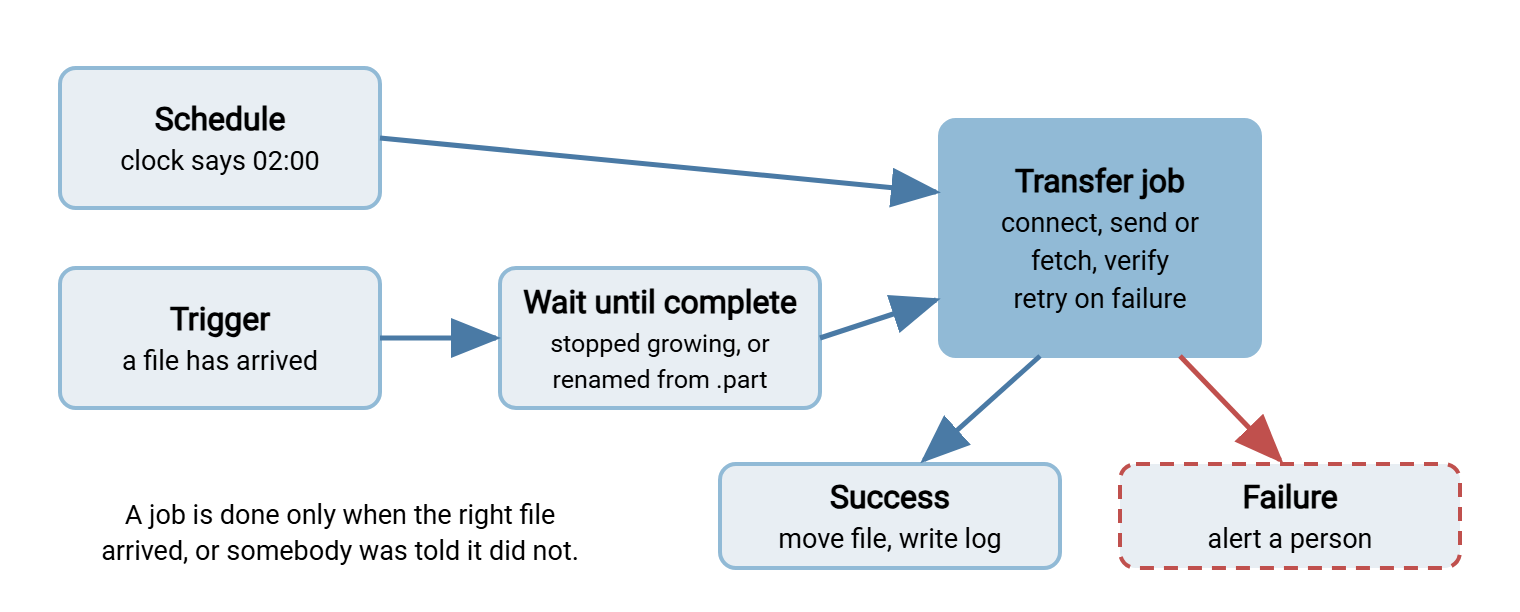
A schedule asks "is it two o'clock?" A trigger asks "has something happened?" For files that arrive at unpredictable times, a trigger means the work starts within seconds of arrival instead of at the next scheduled run. People use "FTP trigger" for two different mechanisms.
A watch folder on the sending side. A program monitors a local folder. When a file appears in it, the program uploads the file. Staff or another application save into the folder and the transfer takes care of itself. This is also called a hot folder.
An event on the server side. The file transfer server itself notices that an upload has finished and runs an action: send an email, move the file, start a program, or encrypt the file. No polling is involved, because the server knows the instant a transfer completes. Sysax Multi Server, for example, can run actions such as email notification or OpenPGP encryption when a file is uploaded.
Both kinds share one trap. A file appears in a folder the moment the first byte is written, not the last. A trigger that fires on appearance will pick up half a file. The server-side event avoids this, since it fires when the upload ends. A watch folder needs a rule: wait until the file has stopped growing, or have the sender write under a temporary name and rename the file when it is complete. A trigger with no such rule works in testing, where files are small, and fails in production, where they are not. The pattern is built step by step in building a watch folder workflow, and the idea is introduced in moving up to event-driven file transfers.
The diagram below shows the two ways a job can start and what has to happen at the end of it.
When FTP Automation Software Beats a Script
FTP automation software is a client built to run unattended. It bundles the things the gap table listed: a script language made for transfers, its own scheduler, folder monitoring, retries, duplicate rules, notifications, and protected credentials. The question is not whether it is better than a batch file. It is whether you have enough jobs, or important enough jobs, to be worth it.
A script and Task Scheduler are the right answer for one or two transfers that would be merely annoying to miss. Dedicated software starts to pay when any of these becomes true. There are more than a handful of jobs. A missed file has a cost somebody can name. The person who wrote the scripts is not the person who will maintain them. Or an auditor asks how you know last Tuesday's transfer happened.
Our product in this category is Sysax FTP Automation. Its task scripts are plain text, and a transfer reads much as you would describe it aloud:
#download the reports folder over SFTP, then disconnect
ftpconnectssh "sftp.example.com", 22, "acme", "password";
ftpsetpath local, "c:\\inbound";
ftpsetpath remote, "/outbound";
settransfertype auto;
ftpdownload folder, "reports";
ftpdisconnect;
endscript;
The same script can be run from the command line, placed on the product's own scheduler, or attached to a monitored folder so that it runs when a file appears. Rules for duplicate files can skip, overwrite, resume, or rename by comparing size or date. Passwords can be stored as protected strings so they are not readable in the script, and SSH keys can be used instead. A wizard generates common upload, download, backup, and sync tasks without any script writing. There is a free edition for personal use.
Whichever route you take, write each job down. This sheet is the difference between an automated transfer and a mystery.
TRANSFER JOB SHEET

Job name:               Acme nightly orders upload
Owner (a team):         Operations
What moves:             *.csv from C:\Transfers\outbound
From / to:              this server  ->  sftp.example.com:/inbound
Protocol and port:      SFTP, 22
Login:                  account acme, SSH key (location recorded in the vault)
Starts:                 schedule: daily 02:00   /   trigger: file arrival
Runs as:                service account TransferSvc
Expected:               1 to 5 files, by 02:30
On failure:             retry 3 times, 5 minutes apart, then email ops@example.com
If nothing arrives:     alert at 03:00
After success:          move files to outbound\sent, keep 30 days
Log:                    C:\Transfers\logs\upload.log, keep 13 months
Partner contact:        named person and phone number
Last tested end to end: ________
One sheet per job, kept somewhere the whole team can find. Collecting them into a list is the subject of the automation inventory.
The Version to Tell a Colleague
FTP automation means four things: a batch of transfers run from a script, a schedule to start it, sync to keep two folders alike, and triggers to act when files arrive. On Windows, use curl or sftp in a batch file, not the old ftp command, keep credentials out of the script, and let Task Scheduler run it under a service account. A bare script has no retries, no alerts, and no idea that a missing file is a failure. Sync should be one-way and without automatic deletion unless you have thought hard about it. Triggers must wait for complete files. Automation software is worth having once the jobs are numerous or a missed file has a cost.
To see where your own jobs sit, read the stages of transfer automation maturity. For SFTP jobs in particular, non-interactive SFTP covers keys and unattended logins.
Frequently Asked Questions
How do I automate an FTP download on Windows?
Can a Windows batch file upload files to an FTP server?
What is FTP sync?
What is an FTP trigger?
Do I need FTP automation software, or is a script enough?
How should a scheduled transfer store its password?
From the Sysax team: we build secure file transfer software for Windows. Sysax Multi Server is an FTP, FTPS, SFTP, and HTTPS server. Sysax FTP Automation handles scheduled, scripted transfers. Free trials are on the download page.