
What Changes When Files Get Large
A forty-gigabyte file is not a bigger version of a forty-megabyte file. The small one finishes in two seconds, and if anything goes wrong you click retry and forget it. The big one runs for half an hour. That is long enough for a firewall to lose patience or a router to forget the connection. A disk can fill, or a scheduled reboot can land in the middle. When it fails at ninety percent you have lost twenty-seven minutes, and the retry will take another thirty. Nothing about the network changed; the file just got long enough for ordinary bad luck to find it.
This article walks through what actually changes as files grow from megabytes to gigabytes. It explains why the odds of failure climb with every minute a transfer runs and where timeouts hide along the path. It covers how much disk a "single" file consumes while in flight and what verification costs. It also explains why resume goes from nice-to-have to mandatory. Every number is worked on one realistic example so you can redo the arithmetic for your own files. By the end you will have a checklist to run before any multi-gigabyte move. This is the opening article of our Large File Strategies series; the later articles cover each tactic in depth.
First, Some Honest Arithmetic
Everything in this article rests on one example. You need to move a 40 GB file — say a database export or a virtual machine image. It must travel over a 200 megabit per second link to a partner's SFTP server. How long should that take?
Link speeds are quoted in bits; file sizes are quoted in bytes, and there are eight bits in a byte. So 200 megabits per second is 25 megabytes per second at the theoretical maximum. In practice, packet headers, encryption framing, and protocol overhead eat five to ten percent, so a sensible planning figure is about 22 megabytes per second. Forty gigabytes is forty thousand megabytes; divided by twenty-two that is roughly 1,800 seconds: call it thirty minutes.
Watch the units: in this series a gigabyte means a thousand million bytes, because that is what link speeds and most transfer tools use. Some operating systems report sizes in binary gigabytes (1,073,741,824 bytes) while still printing "GB." So the same file can show as 40 GB in one place and 37.3 GB in another. When you plan a transfer, check the size in plain bytes and work from there.
Thirty minutes does not sound alarming, and on a good day it isn't. The problems begin on the other days.
Failure Is a Function of Time
Here is the fact that separates large transfers from small ones: the probability that a transfer fails depends on how long the connection stays open, not on how big the file is. Size matters only because it decides the duration. Every path has some background rate of session-killing events. Examples are a firewall dropping an idle-looking flow, a router rebooting, or the far server restarting for patches. A two-second transfer will almost never meet one. A five-hour transfer almost certainly will.
Let's put a number on it. Suppose that on your path an open connection has about a two percent chance of being dropped in any given ten-minute stretch. That is not a terrible network; ninety-eight percent of windows pass without incident, and small transfers never notice. The chance of surviving three consecutive windows is 0.98 × 0.98 × 0.98, about 0.94. So a thirty-minute transfer fails roughly six percent of the time, one attempt in seventeen. The table extends the same arithmetic to bigger files on the same 200-megabit link.
| File size | Transfer time | Ten-minute windows | Chance the transfer fails | Average attempts (restart from zero) |
|---|---|---|---|---|
| 40 GB | 30 minutes | 3 | 6% | 1.06 |
| 100 GB | 75 minutes | 7.5 | 14% | 1.16 |
| 400 GB | 5 hours | 30 | 45% | 1.83 |
| 1 TB | 12.5 hours | 75 | 78% | 4.5 |
Read the last two columns slowly. At 400 GB nearly half of all attempts fail. A restart from zero throws away everything already moved, so the average job needs almost two full attempts. At a terabyte the average job needs four and a half tries — at twelve and a half hours each. That is most of a working week for one file. A faster link shortens each transfer and exposes it to fewer windows. But whatever your speed there is a size beyond which "just run it again" stops being a plan.
Timeouts Everywhere in the Path
Where does that background rate come from? Mostly from timeouts: limits, built into nearly every device between you and the far end, on how long a connection may stay open or stay quiet. Each was set by someone protecting their own box, and none of them knows your transfer is legitimate. A large file is simply the first thing that runs long enough to trip them.
The diagram below shows a typical path from a client to a server and marks the places where a limit can end a long transfer.
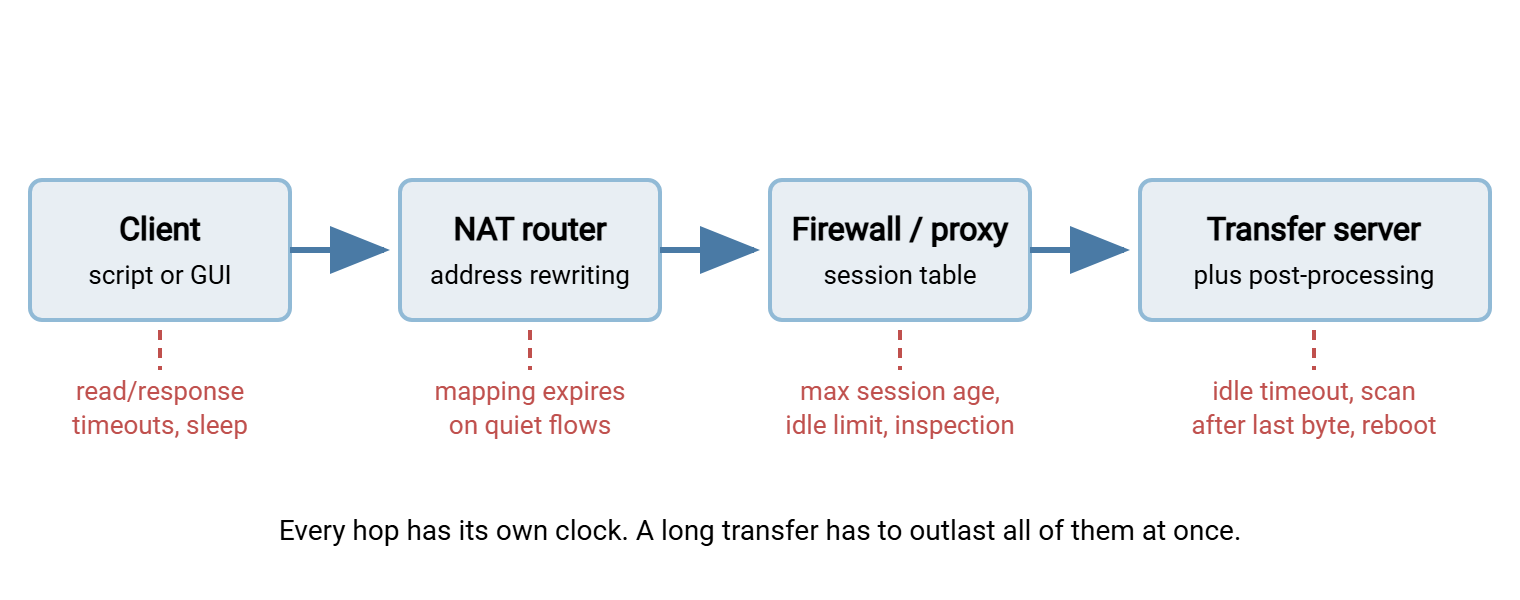
The ones that catch large files most often:
- The quiet control channel. FTP and FTPS use two connections: a control connection that carries commands and a separate data connection that carries the file. During a thirty-minute transfer the control connection sends nothing. A NAT router is the device that lets many machines share one public address by rewriting packets. It keeps a table of live connections and forgets any that go silent, often after five to fifteen minutes. When the file finishes, the client's next command goes down a connection the router no longer remembers. The session dies after the bytes arrived: the classic "file is complete but the job reported failure" mystery.
- Maximum session age. Some firewalls and proxies cap the total lifetime of a connection regardless of activity — an hour is a common default. A seventy-five-minute transfer cannot succeed through such a device, however healthy the network.
- Client read timeouts. After the last byte, the server may spend a long time flushing the file to disk, virus-scanning it, or moving it into place. This happens before it sends the final "transfer complete" reply. A client that waits at most sixty seconds gives up and reports a failure for a transfer that succeeded.
The fixes — keepalives, timer settings on both ends, NAT tables sized for long flows — belong to our timeouts and keepalives series and the firewalls and NAT series. The point here is simpler: a big file has to outlast every clock in the path at once. So find out what those clocks are set to before the first byte moves.
Staging and Free Space: One File, Several Copies
The second thing that changes is disk. A large file's footprint is a planning problem. During a transfer the file usually exists in more than one place at once — often more than once on the same machine.
Trace the 40 GB export through an ordinary pipeline. On the sender it exists as the original; compress it before sending and there is a second copy beside it. On the receiver, well-designed flows upload to a temporary name — say export.bin.part. They rename to the final name only when the transfer completes. So nothing reading the folder ever sees a half-written file (the reasoning is in our article on temp names and atomic renames). A rename on the same volume is free. But if the temporary area is on a different volume, "rename" becomes a full copy. In that case, the receiver briefly holds two copies too. Then it decompresses: a third. Then a virus scanner unpacks it: possibly a fourth.
None of this is wrong; it is just invisible with small files. With large ones it produces the most frustrating failure in the business. The transfer runs for twenty-nine minutes, the volume fills with 300 MB to go, and everything fails at the very end. Check free space before starting, on every machine the file will touch, and check for the peak — the moment the most copies coexist:
# Linux receiver: how much room is on the inbound volume?
$ df -h /srv/inbound
Filesystem      Size  Used Avail Use% Mounted on
/dev/sdb1       500G  431G   69G  87% /srv/inbound

# Windows receiver, PowerShell: free space on the D: volume in GB
PS> Get-Volume -DriveLetter D | Select-Object SizeRemaining
SizeRemaining
-------------
  74076651520
Sixty-nine gigabytes free looks fine for a 40 GB file. Then you remember that it will be staged, renamed, and decompressed to 80 GB on that same volume. Account quotas complicate this further: a server may show hundreds of gigabytes free while the receiving account is capped at fifty. The failure message is rarely helpful. Our quotas and cleanup series and storage growth series cover the server side; the sender's job is simply to ask before pushing.
Verification Has a Price Tag
A small file gets verified in a blink. A hash is a short fingerprint computed from every byte of a file. Any change to the file changes the fingerprint. A hash is the standard way to prove a copy is identical to the original (our hashing explained article covers the fundamentals). Computing one means reading the entire file, and for a large file that is not free.
Modern processors hash at several hundred megabytes per second per core, so the limit is usually the disk. A spinning disk reads sequentially at around 150 to 250 megabytes per second. So our 40 GB file takes three to four minutes to hash. A fast solid-state drive might do it in under a minute. Now do it on both ends, because a hash on one side proves nothing by itself. That adds six to eight minutes on top of a thirty-minute transfer. On a fast local network where the transfer itself takes forty seconds, hashing both ends genuinely doubles the elapsed time.
There are ways to bring that cost down without giving up the assurance. One is hashing while the bytes stream past instead of re-reading the file afterward. Another is hashing per chunk so a mismatch costs one chunk rather than the whole file. There are also cheap size checks before the full hash. Those are the subject of verifying large transfers without doubling the time. For now, budget verification as a real line item, and never skip it because the transfer "looked fine." A transfer that stops early usually looks fine.
Tools That Quietly Assume Small Files
The third change is the one nobody warns you about: a surprising amount of software has a size ceiling baked in, visible only when you cross it.
- Filesystem limits. The FAT32 filesystem is still the default on many USB sticks, camera cards, and some appliance partitions. It cannot hold a single file larger than 4 GB. The copy fails with a misleading "not enough space" error on a drive with plenty of room. NTFS, exFAT, and ext4 have no practical per-file limit.
- Two-gigabyte tools. Older programs and libraries store a file position in a 32-bit signed number, which tops out at 2 GB. Transfers stop at exactly 2,147,483,647 bytes, or sizes show as negative numbers.
- Memory buffering. A script that reads a file into a variable and then sends it works perfectly on a 5 MB report. On the export, it consumes 40 GB of memory — or crashes. Streaming calls that handle a small buffer at a time exist in every language; the convenient one-liner rarely uses them. Our PowerShell file operations article shows the streaming approach.
- Web uploads. A browser upload through a web form runs into request-size limits, buffering in reverse proxies, and a page that must stay open for the duration. There are HTTP techniques for big files, described in large files over HTTP, but a plain form upload is not one of them.
- Portals and desktops. Many partner portals cap uploads at a couple of gigabytes, and desktop clients need the workstation awake for the whole transfer. A closing laptop lid has ended more large transfers than any firewall.
None of these limits announces itself in advance. When a large transfer dies at 2 GB, 4 GB, or some other power of two, suspect a ceiling before you suspect the network.
Why Resume Stops Being Optional
Put the failure table and the timeout list together and the conclusion writes itself. Beyond some size the transfer will be interrupted sometimes; the only question is what an interruption costs. If the answer is "start from zero," the cost grows with the file. In that case, above a few hundred gigabytes on a typical link the job may never finish. If the answer is "pick up where we stopped," the file size stops mattering.
Run the terabyte row again with resume — the ability to continue a transfer from the byte where it stopped rather than from the beginning. Over 12.5 hours we expect about one and a half drops. Each costs a minute to notice and reconnect plus a moment to re-check where we left off. That is two or three minutes on a twelve-hour job, versus four and a half full attempts without it. Resume does not make the network more reliable. It makes reliability irrelevant.
Resume is not automatic. It needs a protocol that supports it, a client that asks for it, and a server that permits it. The transfer must also be designed so the resumed file lands under the right name and gets verified. How each protocol implements resume — restart markers in FTP, offsets in SFTP, byte ranges in HTTP — is the subject of our resume and checkpoint restart series. Designing your particular transfer so that resume works unattended is designing large transfers to resume. Resume may not be available at all — a far end that cannot do it, or a path with a hard session-age cap. In that case, the alternative is to split the file into chunks small enough that each finishes comfortably inside the limits. Then a failure costs one chunk instead of everything.
Remember: for a large file, a retry is not a fix; it is another roll of the same dice. Either the transfer can resume, or it is chunked so that each piece is short enough to retry cheaply. A multi-gigabyte job with neither is a job waiting to be rerun by hand at three in the morning.
Automation matters for the same reason. Consider a scheduled job that detects the failure, waits, and resumes without a person in the loop. It turns a five-hour transfer with a forty-five percent failure rate into a job that simply finishes. A scheduling client with built-in retry and error handling, such as Sysax FTP Automation, supplies the retry loop. The transfer's design decides whether each retry resumes or restarts.
The Multi-Gigabyte Checklist
Everything above condenses into a checklist to run before any transfer that will take longer than a few minutes.
- Do the arithmetic. Size in bytes, link speed in bytes per second (megabits divided by eight, less ten percent), expected duration. Write the duration down; every other item refers to it.
- Know the clocks. Server idle timeout, client response timeout, NAT and firewall session limits, any maximum session age. Each must exceed the expected duration, or the transfer must be chunked below it. If you do not know a value, assume five minutes idle and one hour maximum age.
- Check free space at the peak. On every machine the file touches, count the copies that coexist at the busiest moment and confirm that much room plus a margin. Check account quotas separately from volume space.
- Check the ceilings. Destination filesystem type (no FAT32), client and library size limits, memory use of the sending script, any portal or web upload caps.
- Decide the interruption plan. Resume, or chunk. Confirm resume support on both ends by deliberately interrupting a small test transfer before trusting it on the real one.
- Decide the verification plan. Which hash, computed where, compared how, and how long it will take.
- Decide whether to compress. Test a sample first; many large files are already compressed.
- Schedule for the duration. Start when the link is quiet. Also make sure nothing in the path — sending workstation, server, firewall — has a reboot or maintenance window inside the expected duration plus a retry.
- Tell the far end. A partner expecting 40 GB can check their own free space and quotas first.
The Version to Keep in Your Head
A large file changes four things. Failure becomes a matter of time — two percent per ten minutes is harmless for a two-second transfer and devastating for a five-hour one. Timeouts that never mattered start mattering, because a transfer finally runs long enough to trip them. Disk space becomes a peak-usage calculation, because the file exists as several copies at once. And verification becomes a real cost to plan rather than assume. The response to all four is the same: know the duration, know the limits, make the transfer resumable or chunked, and verify deliberately.
The rest of this series takes each tactic in turn. Start with choosing protocols and settings for multi-gigabyte moves if you are deciding how to send the file at all. Start with designing large transfers to resume if you already have a protocol and want the transfer to survive. When the question grows from one big file to whole datasets — terabytes, media libraries, ship-a-drive-or-send-it — the arithmetic continues in when normal transfer breaks down.
Frequently Asked Questions
At what size does a file count as "large"?
Why did my transfer fail right at the end, after all the data arrived?
How much free space should I have for a 40 GB transfer?
My transfer stops at exactly 4 GB every time. What is wrong?
From the Sysax team: we build secure file transfer software for Windows. Sysax Multi Server is an FTP, FTPS, SFTP, and HTTPS server. Sysax FTP Automation handles scheduled, scripted transfers. Free trials are on the download page.