
Designing Quota Policies Partners Accept
"Uploads are failing." That was the entire message from the partner's operations desk, sent at seven minutes past midnight on the last day of their quarter. A new quota had gone live with no notice a few hours earlier. The technical part of a quota takes one command. The hard part is the number, and what happens around it. A limit set too low turns into a stream of tickets and a partner who quietly concludes that your server is unreliable. A limit set too high protects nobody. A limit that arrives unannounced, in the middle of a partner's month-end run, is remembered for years.
This article is about the design work. That starts with measuring what partners actually use and turning those measurements into soft and hard limits with sensible headroom. It includes deciding whether the limit sits on the partner or on a folder. It includes giving people a grace mechanism instead of a wall, and telling them before you enforce. It also means running an exceptions lane that lets legitimate surges through without becoming a loophole. None of it is difficult. Most of it gets skipped, which is how the midnight message gets written.
This article assumes you have read quotas as an operational control for the vocabulary — usage, limit, soft, hard, grace. It is part of our Quotas and Automated Cleanup series. The commands that turn a policy into an enforced limit are in the next article, enforcing quotas. This one is about making sure the number those commands enforce deserves to be enforced.
Start From Usage, Not From Guesses
Every bad quota policy started with someone picking a round number that sounded reasonable. Every good one started with a measurement. Before designing anything, find out how much space each partner uses now, and how much that swings over a few weeks.
On Windows, this PowerShell snippet lists every partner root under the exchange folder with its current size in gigabytes, largest first:
Get-ChildItem D:\xfer\partners -Directory | ForEach-Object {
    $bytes = (Get-ChildItem $_.FullName -Recurse -File -ErrorAction SilentlyContinue |
              Measure-Object Length -Sum).Sum
    [pscustomobject]@{ Partner = $_.Name; GB = [math]::Round($bytes / 1GB, 2) }
} | Sort-Object GB -Descending

Partner      GB
-------      --
acme       14.62
northwind   6.10
kestrel     2.35
globex      0.48
On Linux, du does the same job in one line. The -s flag summarizes each directory, -h prints human-readable sizes, and sorting with -rh puts the biggest first:
$ du -sh /srv/xfer/partners/* | sort -rh
15G     /srv/xfer/partners/acme
6.1G    /srv/xfer/partners/northwind
2.4G    /srv/xfer/partners/kestrel
480M    /srv/xfer/partners/globex
One measurement is not enough, because usage on a transfer server breathes. An outbox fills as files are uploaded and empties as your jobs collect them. An inbox fills when you publish and empties when the partner fetches. A snapshot taken right after a collection sweep shows a nearly empty folder; one taken just before shows the whole day's work. Run the measurement on a schedule — hourly is plenty — for two to four weeks, and keep the results. What you want, per partner, is two numbers. One is the typical usage (roughly the median). The other is the peak (the highest reading, ignoring anything you can explain as a one-off incident). Typical is what you plan around; peak is what the disk remembers.
On a server that has been running for a while, this usually turns up a surprise. It might be a partner whose folder holds a year of files nobody collected, or a test account with more data than any real one. I have never run this measurement on an old server without finding at least one. Fix those before sizing, or the numbers will be sized around junk. Our storage growth series covers finding what is really eating the disk.
Turning Measurements Into Limits
With typical and peak usage per partner in hand, sizing becomes arithmetic. A rule of thumb that works for most transfer estates:
- Hard limit: two to three times the observed peak, rounded up to a friendly number. Headroom of two times covers a busy week; three times covers a partner that doubles its volume before anyone notices.
- Soft limit: 80 percent of the hard limit. Crossing it should be rare in normal operation and should always mean something is worth a look.
- Floor: no hard limit below a minimum you choose — 5 or 10 GB is common — even for partners who use almost nothing. Tiny quotas generate tickets out of proportion to what they protect.
- Ceiling: no single partner's hard limit above some fraction of the volume — a quarter is a reasonable line. Above that, the partner deserves its own volume, or at least a conversation.
Applied to the four partners measured above, with three weeks of hourly readings:
| Partner | Typical | Peak | Hard limit | Soft limit | Reasoning |
|---|---|---|---|---|---|
| acme | 9 GB | 14.6 GB | 40 GB | 32 GB | Peak x 2.7, rounded to a friendly number |
| northwind | 4 GB | 6.1 GB | 20 GB | 16 GB | Peak x 3.3; quarter-end doubles its volume |
| kestrel | 2 GB | 2.4 GB | 10 GB | 8 GB | Floor applies; peak x 3 would be only 7 GB |
| globex | 0.3 GB | 0.5 GB | 5 GB | 4 GB | Floor applies |
The hard limits add up to 75 GB. On a 300 GB data volume there is no overcommit at all. With forty partners instead of four, the sum might reach 600 GB against the same volume. That would be an overcommit ratio of two to one, still comfortable because partners do not all peak together. The point of doing the sum is to know the ratio, not to eliminate it.
Notice that northwind got a bigger multiplier because the measurement showed a predictable surge at quarter end. That is what the "reasoning" column is for. Write it down. Six months from now, someone may ask why northwind has 20 GB and acme has 40. The answer should be in the policy, not in a former colleague's memory. Memory does not survive a resignation; the policy does.
Per-Partner or Per-Folder? Inbox and Outbox Rules
A partner's exchange area is usually two folders with different jobs, and they deserve different rules. The names vary between organizations, so define yours and stick to them. In this series, a partner's inbox holds files you publish for the partner to download. The partner's outbox holds files the partner uploads for you to collect. The direction is named from the partner's point of view. Whichever convention you pick, someone will assume the other one.
Why the distinction matters for quotas: the two folders fill for different reasons and are emptied by different people.
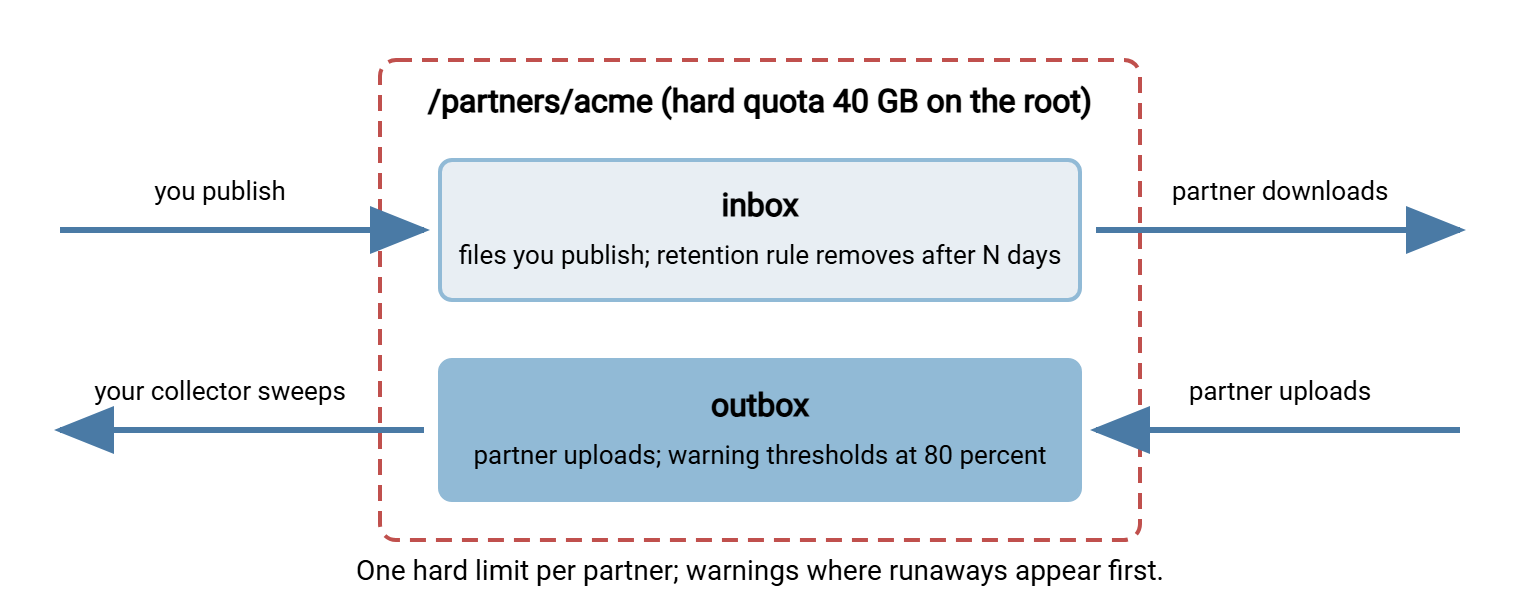
- The outbox fills because of the partner's behavior — how much they send, and whether anything goes wrong on their side. It empties because of your collection job. A looping partner job shows up here. This is where a quota earns its keep.
- The inbox fills because of your behavior — how much you publish — and empties only when the partner fetches. A partner who stops collecting makes the inbox grow. But the fix is retention (remove published files after a defined period) rather than a quota. A quota on the inbox would stop you from publishing.
The practical design that follows: put the enforced hard quota on the partner's root folder, so it caps the partner as a whole. Put warning thresholds on the outbox, because that is where a runaway shows first. Let the inbox be governed by a retention rule with a cleanup job behind it. The diagram below shows the arrangement.
A partner may have several accounts — a production login and a test login, say. In that case, give each its own subfolder under the partner root and keep the quota on the root. Per-account permissions then decide who can write where, the subject of least privilege in practice.
Grace Mechanisms: A Ramp, Not a Wall
A quota that goes from "everything is fine" to "upload refused" with nothing in between is a wall, and partners walk into walls. A grace mechanism is anything that puts a ramp in front of the wall. It is a period or a stage in which the partner is over the line but not yet blocked, and someone knows about it.
There are three common forms, and a good policy uses more than one:
- A grace period on the soft limit. Linux disk quotas do this natively: exceed the soft limit and a timer starts, typically seven days, after which the soft limit is enforced. The partner has a week to clear space or ask for more.
- Warning thresholds with notifications. Windows FSRM works this way: at 80 percent an email goes to you. At 90 percent it goes to you and the partner contact. At 100 percent the write is refused. No timer, but plenty of warning.
- A temporary raise with an expiry. When a partner asks for more, grant it for a fixed period — thirty days is typical — and record the expiry. Grace by process rather than by software.
The grace period should match your response time, not the partner's. If alerts are read within a business day, three to seven days gives everyone room. If nobody reads alerts over a weekend, a two-day grace period expires while the alert sits unread, and the partner hits the wall anyway. A grace mechanism you cannot respond to inside is decoration.
Remember: the soft limit's job is to be crossed occasionally. If no partner ever reaches a soft limit, the limits are too generous to protect anything. If partners cross it every week, they are too tight. Once a quarter, look at how often each threshold fired and adjust.
Communicating Limits Before Enforcing Them
The most effective thing you can do to make a quota policy accepted is to tell people about it before it applies to them. A limit that arrives as a rejected upload is an incident. The same limit announced two weeks earlier, with the number, the reason, and a contact, is a routine change most partners will not even reply to.
For new partners, the quota belongs in the onboarding paperwork alongside the host name and the credentials. That way, the number is agreed before the first file moves. Our partner onboarding runbook and partner SLAs and expectations articles cover where those terms live. The quota is one line in the same document. For existing partners, a notice like the one below does the job. Copy it, fill in the placeholders, and send it from an address someone actually reads.
Subject: Storage limit on your file exchange account, effective in 14 days

Hello <partner contact>,

From <effective date>, your account "acme" on xfer.example.com will have a
storage limit of 40 GB across all folders under /acme. Your current usage is
about 15 GB, so no action is needed today.

What the limit means:
  - At 32 GB (80 percent) we will send a warning to this address.
  - At 40 GB, uploads will be refused until space is freed.
  - Files you upload to /acme/outbox are collected within an hour and removed
    seven days after collection.
  - Files we publish to /acme/inbox are removed 30 days after publication.

Expecting a larger volume, such as a migration or a backfill? Reply to this
message before the date above and we will raise the limit temporarily.

Questions: transfer-support@example.com
Two details in that notice do most of the work. It states current usage next to the limit, so the partner can see they are not about to be blocked. And it explains the cleanup rules that keep usage down. That way, the partner understands that "40 GB" is a ceiling on files in flight, not on how much they may send per month.
A staged rollout makes the announcement safer still. In the first two weeks after the notice, run the quota in warn-only mode — thresholds and alerts on, the hard limit off. Watch who trips a warning. That is when you find the partner whose real peak was higher than three weeks of measurement showed. Adjust, then turn enforcement on. Nobody gets blocked by a number that was wrong.
Bluewater Bank's first quota warning fired eleven days into their two-week warn-only period, on the partner nobody expected. It was a small insurer whose measured peak had been under two gigabytes. The 80 percent alert arrived at six in the morning. By the time someone read it, usage had passed the would-be hard limit and was still climbing. The partner's nightly export had been re-sending the same file every five minutes since midnight, each time under a new name. A change on their side had broken its success check. One phone call stopped the re-sending, the duplicates were cleared, and the partner's limit stayed at the number the measurement had produced. The number had been right all along; the alert was the point.
The Upload-Rejected Experience, From the Partner's Side
Design the rejection, not just the limit. When the hard limit finally bites, what the partner sees determines whether you get a calm email or an escalation.
Over FTP, the partner's client shows a numbered reply: 552 Exceeded storage allocation or 452 Insufficient storage space. That is clear enough. Over SFTP, the client typically shows a generic failure — "Failure," "write error," or a permission-denied style message. The widely deployed protocol version has no dedicated quota status. The partner cannot tell your quota from a broken server. Make sure their first support contact gets the right answer fast. Your help desk's template for any upload failure should start with "check the account's usage against its quota."
The other thing that happens on the partner's side is retries. Most automated senders treat a failed upload as a temporary problem and try again — every five minutes, all night. That fills your logs with failures. If the partial file is left behind each time, it can hold the folder at its limit. Explain in the notice that a quota rejection will not clear itself, so their job should stop and alert rather than loop. The difference between a failure that retrying will fix and one it will not is explained in transient versus permanent failures. A quota hit is permanent until a human acts.
Where your server lets you customize the rejection message, put the quota number and the support address in it. A partner who reads "storage limit of 40 GB reached; contact transfer-support@example.com" in a client log needs no further explanation.
The Exceptions Lane
Every quota policy needs a way to say yes. Migrations, backfills after an outage, and year-end runs are real. A policy with no exceptions lane gets worked around — someone raises a limit "temporarily" and never lowers it. An exceptions lane is the defined path for granting more space, with a start, an end, and a record. "Temporary" is the longest-lived setting on most servers.
The rules that keep the lane from becoming a loophole:
- Every exception has an expiry date. Thirty days is a good default. When it passes, the limit returns to the policy value unless someone renews it deliberately.
- Every exception has a named requester and a named approver. The requester is usually the partner contact; the approver is whoever owns the volume's capacity.
- Every exception is recorded in one place — a short register, not a ticket search. The register is what the quarterly review reads.
- An exception raises the limit; it never removes it. "Unlimited for the migration" is how a migration fills a volume. Raise to a number.
- Two renewals means the policy is wrong. A partner who needs the exception three times in a row needs a bigger permanent quota, and the policy should be updated to say so.
A register can be as simple as a table with six columns, kept next to the quota policy itself:
partner    normal   raised   reason                     approved_by   expires
acme       40 GB    120 GB   ERP migration backfill     j.morgan      <date>
northwind  20 GB    40 GB    quarter-end reconciliation d.okafor      <date>
The quarterly review walks this register, closes anything expired, and promotes anything renewed twice into the policy. The broader process for handling exceptions to any transfer rule, including who may approve what, is in the exceptions process.
One operational detail: an exception may expire while usage is still above the normal limit. In that case, do not drop the hard limit straight back onto a folder that is already over it. Every new write would fail at once. Warn the partner and give them a short window to clear space. If they do not, the least disruptive enforcement is often to make the outbox read-only for that account until usage is back under the line. A server with per-account folder permissions, such as Sysax Multi Server, lets you do that without touching anyone else's access.
The Policy Document
All of the above fits on one page, and one page is what you want — a policy nobody reads is a policy nobody follows. Here is a skeleton to adapt:
TRANSFER SERVER QUOTA POLICY  -  xfer.example.com

Scope       One hard quota per partner, applied to the partner root folder.
Sizing      Hard limit = 2-3 x observed peak, rounded up. Floor 5 GB. Ceiling 25% of volume.
Soft limit  80% of hard limit. Alert to transfer-support and the partner contact.
Grace       Warning at 80%, second warning at 90%, refusal at 100%.
Inbox       No quota of its own; published files removed 30 days after publication.
Outbox      Warning thresholds; collected files removed 7 days after collection.
Exceptions  Raised to a stated number, 30-day expiry, recorded in the register.
Rollout     14 days notice, then 14 days warn-only, then enforced.
Review      Quarterly: threshold history, exceptions register, overcommit ratio.
Owner       Transfer operations. Capacity approver: infrastructure lead.
Every line answers a question a partner or colleague will eventually ask, and none requires knowing which product enforces the limit. That separation is deliberate: the policy should survive a change of server, platform, and administrator. In my experience the three tend to arrive together.
Wrapping Up
A quota policy partners accept is built from measurements, not guesses. It sets limits at two to three times the observed peak, with a soft limit at 80 percent. It includes a floor so tiny quotas do not generate tickets, and a ceiling so no partner owns the volume. The enforced limit sits on the partner root; warnings sit on the outbox; the inbox is governed by retention. Grace comes from thresholds, timers, and a temporary-raise process with an expiry. And the whole thing is announced before it is enforced, rolled out in warn-only mode first, and reviewed every quarter.
The next article, enforcing quotas: filesystem, server, and script, turns these numbers into actual FSRM, NTFS, and Linux quota commands. Monitoring quotas and cleanup jobs covers the alerts that make the soft limit useful. For the retention rules that decide how long inbox and outbox files live, see retention policy for transfer servers. Done in this order, the midnight message never gets written.
Frequently Asked Questions
How much headroom should a quota have above normal usage?
Should the quota go on the inbox, the outbox, or the whole partner folder?
What is a grace period for?
What does a partner see when their upload is rejected by a quota?
How do I handle a partner who genuinely needs more space for a month?
From the Sysax team: we build secure file transfer software for Windows. Sysax Multi Server is an FTP, FTPS, SFTP, and HTTPS server. Sysax FTP Automation handles scheduled, scripted transfers. Free trials are on the download page.