
Quotas as an Operational Control: Why a Ceiling Beats a Full Disk
"Is the server down?" Twelve partners asked the same question within an hour on a Monday morning. The answer was no: the server was up, and the disk was full. A transfer server that runs out of disk does not fail politely. Every upload from every partner fails at once, and the server's own log cannot grow. The person on call spends the first twenty minutes working out which account filled the volume. Usually it was one account — a looping job, a partner who never deletes anything, a forgotten test — and everyone else paid for it. The disk, having no opinion about which account was at fault, took a position on all of them.
A quota is the control that changes that story. It is a ceiling on how much storage a single account, partner, or folder may use, enforced by the system rather than by good intentions. With quotas in place, the runaway account hits its own ceiling, its uploads are rejected, an alert fires, and the other partners never notice. A disk-full outage for everyone becomes one rejected upload and one email.
This article explains what quotas protect against, the difference between soft and hard limits, and what a grace period is for. It covers the scopes a quota can apply to, and where a quota's job ends and a retention policy's job begins. It is the foundation for the rest of our Quotas and Automated Cleanup series. The series goes on to cover designing the numbers, enforcing them, and cleaning up automatically. Read this one first; the others assume you did.
What a Quota Actually Is
Start with three words the rest of this series uses constantly. Usage is how much space something currently occupies. A limit is the most usage that is allowed. A quota is the rule that ties a limit to a scope: "this account may use at most 20 GB," or "this folder may hold at most 50 GB." The enforcing system measures usage continuously and refuses new writes once the limit is reached.
The useful analogy is the electrical panel in a building. The main breaker protects the whole building, but it trips only when the total load is dangerous. When it trips, every room goes dark. Per-room breakers trip earlier and locally: one overloaded room loses power, the rest of the building carries on. A volume's free space is the main breaker. Quotas are the per-room breakers. Without them, the only limit is the disk itself, and the disk protects nobody in particular.
Most quota systems count bytes actually stored, rounded up to the filesystem's block size. So a folder full of tiny files can use more quota than the file sizes suggest. Some can also cap the number of files. For a transfer server, bytes are almost always the limit that matters first, and this series uses bytes unless it says otherwise.
What Quotas Protect Against
The threats a quota defends against are mundane, which is why they happen so often. Four patterns account for nearly every full-disk incident on a transfer server:
- The looping job. A partner's export script fails to record that it already sent a file, so it sends the same file every five minutes, all weekend. Two hundred copies of a 300 MB extract is 60 GB by Monday. Our war story on the looping job is this pattern in detail.
- The partner who never collects. Files are published to a partner's folder and the partner's fetch job silently died months ago. The folder grows by every day's output, forever.
- The forgotten test. Someone points a load test or a backup job at the transfer server "just for now." Now becomes permanent.
- The genuine surge. A partner legitimately sends ten times its normal volume because of a migration or a quarter-end reconciliation. Nobody did anything wrong, but the disk did not know that.
Put numbers on it. Imagine a 500 GB data volume serving twelve partners who each use 10 to 20 GB in a normal week. The volume looks comfortably sized. One partner's job starts looping and writes 4 GB an hour. In about 75 hours — a long weekend — the volume is full, and on Monday morning eleven innocent partners cannot upload. With a 40 GB quota on every partner, the same loop stops at 40 GB, roughly ten hours in. The looping partner's uploads are refused, an alert names the account, and the other eleven never know.
That is the whole argument for quotas: they convert a shared failure into an isolated one. The account that caused the problem is the only account that experiences it. The same idea applied to connection counts rather than bytes is covered in our server capacity and concurrency series. See connection limits and per-user caps. The two controls belong together. For once, the loop is the only thing that stops.
Soft Limits, Hard Limits, and Grace Periods
Quota systems almost universally offer two kinds of limit, and the distinction is the single most important design concept in this series.
A hard limit is an absolute ceiling. When usage reaches it, the next write that would exceed it is refused. There is no negotiation and no delay. A partner uploading a 2 GB file into a folder with 1 GB of quota left will see the upload fail partway through. The partial file is usually left behind (more on that in our article on cleaning up temp files, partials, and orphans).
A soft limit is a warning line below the hard limit. Crossing it refuses nothing. Instead it triggers something milder: a log entry, an email to the administrator, a notice to the partner, or the start of a countdown. Usage can continue above the soft limit — for a while.
That "for a while" is the grace period: the time an account may stay above its soft limit before the soft limit starts behaving like a hard one. On Linux disk quotas the grace period is a configurable number of days, seven by default. Once it expires, writes are refused even though the hard limit was never reached. On Windows, File Server Resource Manager (FSRM) has no grace timer in that sense. But its notification thresholds at, say, 85 and 95 percent play the same role. They give a human time to act before the hard limit does the acting.
The diagram below shows the sequence as usage climbs. Crossing the soft limit starts the grace clock and sends a warning. Then either the grace period expires or the hard limit is reached — whichever comes first — and new writes stop.
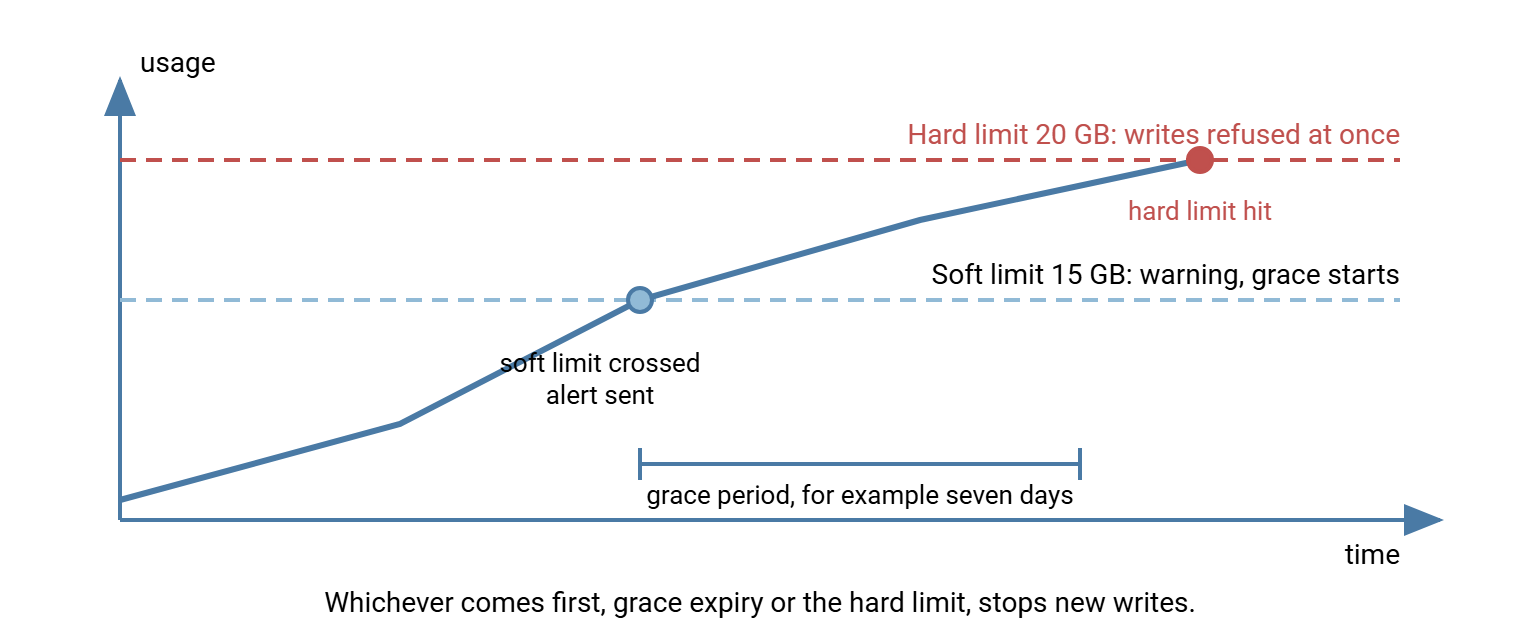
Why have two limits at all? Because a hard limit alone gives no warning, and a soft limit alone gives no protection. The soft limit buys a human time; the hard limit guarantees the outcome even when no human is available. A sensible pairing is a soft limit at roughly 75 to 80 percent of the hard limit. Match the grace period to how quickly your team can realistically respond. The numbers themselves are the subject of designing quota policies partners accept.
Remember: a soft limit is a promise to warn; a hard limit is a promise to stop. Set both. A quota system with only a hard limit produces surprised partners, and one with only a soft limit produces full disks.
Scopes: Who or What the Quota Applies To
A limit has to be attached to something. That something is the quota's scope, and choosing the right scope matters as much as choosing the number. Four scopes cover nearly every transfer server.
| Scope | What is measured | Typical mechanism | Best for |
|---|---|---|---|
| Per user | Everything owned by one operating-system account on a volume | Linux user quotas, NTFS disk quotas | Servers where each login writes files as its own OS user |
| Per folder | Everything under one directory, whoever wrote it | FSRM folder quotas, XFS project quotas | Servers where a service account writes on behalf of many logins |
| Per partner | All folders and accounts belonging to one trading partner | A folder quota on the partner's root, or a group quota | Partners with several accounts or several exchange folders |
| Per volume | The whole disk or partition | Free-space alerts, separate volumes for data and logs | The backstop behind all the other scopes |
The per-user and per-folder distinction trips up almost everyone the first time. A per-user quota counts files by owner: the operating-system account that created them. That works well when every SFTP login maps to its own OS account and writes files as that account. That is how a typical OpenSSH server is set up. It works badly when the transfer server runs as one service account and writes every partner's files as that account. Then the per-user quota sees a single owner for the whole tree and cannot tell partners apart. Mine read zero for a month before I thought to ask why.
A per-folder quota counts files by location instead. Everything under D:\xfer\partners\acme counts against Acme's quota no matter which account wrote it. On a Windows transfer server where the server process does the writing, this is the scope that actually works. FSRM is the built-in tool that provides it. Which mechanism suits which server is the subject of enforcing quotas at the filesystem, the server, and by script.
Per-partner scope is usually a per-folder quota placed one level up. If a partner has an inbox, an outbox, and an archive folder under one root, a quota on the root caps the partner as a whole. A well-designed directory tree makes this trivial, which is one more reason to follow the layout advice in designing directory trees.
The per-volume scope is not really a quota at all — it is the disk — but it is the last line of defense. Keeping transfer data, logs, and the operating system on separate volumes means a full data volume cannot take the operating system down with it. Our storage growth series covers that layout, in separating volumes and layout, and how to watch the volume's trend. A full disk is also a quota, applied to everyone at once and announced by nobody.
Where Quotas End and Retention Begins
New administrators often reach for quotas to solve a problem quotas cannot solve: "the archive folder keeps growing, so I'll put a quota on it." A quota on a folder that legitimately grows only guarantees an outage on the day the folder reaches the ceiling. Quotas answer how much. They do not answer how long.
Retention is the rule about how long a file must be kept and when it may be removed. It is a governance decision — sometimes a legal or regulatory one — made by people who own the data, not by the person who runs the server. Retention says "shipping documents are kept for ninety days, then deleted" or "anything under legal hold is never deleted." Our retention series explains the basics in retention basics for admins and how to turn them into a policy in retention policy for transfer servers.
Cleanup is the third piece: the scheduled jobs that implement the retention rule by removing files that have aged past it. They also remove leftovers — temporary files, abandoned uploads — that never counted as data. Cleanup is an operations job, and it is the second half of this series. The three fit together like this:
- Retention decides what may be removed and when. If nothing may ever be removed, a quota only postpones the outage.
- Cleanup removes what retention says may go, on a schedule, with safety rails. It keeps a folder's usage from growing without bound.
- Quotas cap the space that remains, so a failure in cleanup, a surge, or a runaway job is contained to one account while someone investigates.
Here is a useful test when you are unsure which tool applies. If the space is used by files that should exist, the answer is retention plus cleanup, or more disk. If it is used by files that should not exist — duplicates from a loop, an abandoned test — the answer is a quota. A quota stops that class of problem before it spreads. Most full disks hold both kinds, which is why you need all three controls.
What a Quota Hit Looks Like
Knowing what the partner sees when a quota bites, and what your own logs record, saves confused support tickets. The experience differs by protocol.
Over FTP, the server has a dedicated reply for the situation: 552 Requested file action aborted. Exceeded storage allocation. Some servers use the related 452 Requested action not taken. Insufficient storage space in system instead. Either way, the partner's client shows a numbered error, and the meaning of every reply code is in FTP commands and reply codes.
Over SFTP, the widely deployed version of the protocol has no dedicated "quota exceeded" status. The write fails with a generic failure code, and the client reports something like "Failure" or "write failed." The partner cannot tell a quota hit from a permission problem or a full disk without asking you. That is one reason the next article spends time on telling partners their limit before they hit it. "Failure" is accurate, and that is all it is.
On your side, the evidence is in two places. The transfer server's own log records the failed write. A server such as Sysax Multi Server keeps an activity log per session, so a burst of failed uploads from one account stands out immediately. The operating system records the quota event separately — FSRM, for example, can write an event to the Application log when a threshold is crossed. The server side of a quota hit on a Linux SFTP server looks like this:
Mar 14 02:10:41 xfer01 sftp-server[18342]: session opened for local user acme from [203.0.113.40]
Mar 14 02:10:52 xfer01 sftp-server[18342]: open "/inbox/extract_YYYYMMDD.csv" flags WRITE,CREATE,TRUNCATE mode 0644
Mar 14 02:11:07 xfer01 sftp-server[18342]: sent status Failure
Mar 14 02:11:07 xfer01 sftp-server[18342]: close "/inbox/extract_YYYYMMDD.csv" bytes read 0 written 734003200
Read it from the bottom up: the file was opened for writing, roughly 700 MB were written, then the server sent Failure and the file was closed. Nothing in the SFTP log says "quota". Correlating the failure with the quota subsystem's own messages is a monitoring problem, covered in monitoring quotas and cleanup jobs. The 700 MB partial file left behind is exactly the kind of leftover the cleanup articles deal with. Seven hundred megabytes of nothing in particular, until a sweep asks.
The Operational Minimum
You do not need a perfect quota design to get most of the benefit. You need every account to have some ceiling, so that no single account can consume the whole volume. Here is the minimum a transfer server should meet before anyone fine-tunes:
QUOTA OPERATIONAL MINIMUM  -  check each line before going further

[ ] Every partner or account has a hard limit. No account is unlimited, including internal ones.
[ ] The sum of all hard limits is known and compared with the volume size (see "overcommit" below).
[ ] Every hard limit has a soft limit or warning threshold at roughly 75-80 percent.
[ ] Crossing a soft limit produces an alert that a named person receives.
[ ] Hitting a hard limit is visible in the server log and the OS event log.
[ ] Each partner has been told its limit in writing, and where to ask for more.
[ ] Transfer data, logs, and the operating system live on separate volumes.
[ ] Free space on the data volume is monitored independently of any quota.
[ ] The quota list is reviewed on a fixed schedule (quarterly is typical).
One of those lines needs a definition. Overcommit means that the sum of everyone's hard limits exceeds the volume's actual capacity. Overcommitting is normal because partners rarely all peak at once. Twelve partners with 40 GB limits on a 300 GB volume is a ratio of 480 to 300, or 1.6 to 1. The point is to know the ratio. Overcommit of 1.5 to 2 is comfortable. A ratio of 5 to 1 means the quotas will not save you if a few partners surge together. In that case, free-space monitoring has to carry the load instead.
Notice that the runaway-job protection is in place as soon as every account has a hard limit, even if the numbers are imperfect. A 20 GB limit that should have been 25 GB is a minor inconvenience for one partner. No limit at all is an outage for everyone.
Northgate Retail's transfer server had run for six years without a single quota, and the first walk through the checklist above stopped at line one. The measurement that followed found that the largest account on the volume was not a partner at all but an internal load-test login. It had been created "just for now" three years earlier and never emptied. They gave every account a hard limit that week, internal ones included, and set the test account's limit to the floor. Two months later the server's first ever quota rejection went to that same account, when someone re-ran the old test. The partners on the volume never knew. The quota nobody had set turned out to be the one that fired first.
Gotcha: a quota applied to a folder that is already over the new limit does not delete anything — but it does refuse every new write immediately. Always compare the proposed limit with current usage before turning enforcement on. Clean up or raise the number first if the folder is already above it.
Wrapping Up
Quotas are the simplest high-value control on a transfer server: a per-account ceiling that turns a shared disk-full outage into one contained rejection. A soft limit warns and starts a grace clock; a hard limit stops. The scope has to match how your server actually writes files, and the numbers have to leave headroom above real usage. Quotas cap space; they do not decide how long files live. That is retention's job, implemented by cleanup jobs, and the three controls only work as a set.
From here, one natural next step is designing quota policies partners accept, which turns measurements into numbers and tells partners about them. Another is enforcing quotas, which shows the actual commands on Windows and Linux. For why one account's behavior should never be allowed to affect another's, the blast radius of one account makes the same argument from the permissions side. The Monday from the first paragraph becomes one rejected upload and one email.
Frequently Asked Questions
What is the difference between a soft limit and a hard limit?
What is a grace period?
Should I use a per-user quota or a per-folder quota?
Will a quota delete old files for me?
Is it a problem if my quotas add up to more than the disk?
From the Sysax team: we build secure file transfer software for Windows. Sysax Multi Server is an FTP, FTPS, SFTP, and HTTPS server. Sysax FTP Automation handles scheduled, scripted transfers. Free trials are on the download page.