
Enforcing Quotas: Filesystem, Server, and Script
The quota policy was approved in the spring: a hard limit per partner, a soft limit below it, a quarterly review. It was a good policy. It lived in a document, and the document was not attached to anything, which is why the volume filled before the year was out. A quota policy is a document until something refuses a write. That something can live in three places. One is the operating system's filesystem, where the limit is checked on every write. Another is the transfer server itself, where a per-account limit is enforced at the protocol level. Or it can live in a scheduled script that measures folders and acts after the fact. Each sees the world differently, and each has a blind spot that will surprise you if you do not know it is there.
This article walks through all three with the actual commands. It covers File Server Resource Manager (FSRM) folder quotas and NTFS per-user quotas on Windows, and user and project quotas on Linux. It covers server-level limits where a product offers them, and a script fallback for everything else. It ends with an honest comparison of the blind spots and a test that proves the limit works before a partner discovers whether it does.
It assumes you have the numbers — see designing quota policies partners accept — and the vocabulary from quotas as an operational control. It is part of our Quotas and Automated Cleanup series. If you arrived with a number and no policy behind it, the design article is short and will save you a second visit here.
Three Places a Quota Can Live
Think of an upload as passing down through layers on its way to the disk. The transfer server accepts the bytes over the network and asks the operating system to write them; the filesystem puts them on the volume. A quota can be checked at either step, or by a third party that looks at the result afterwards. The diagram shows the three layers and what each can see. Each layer is confident it has the whole picture.
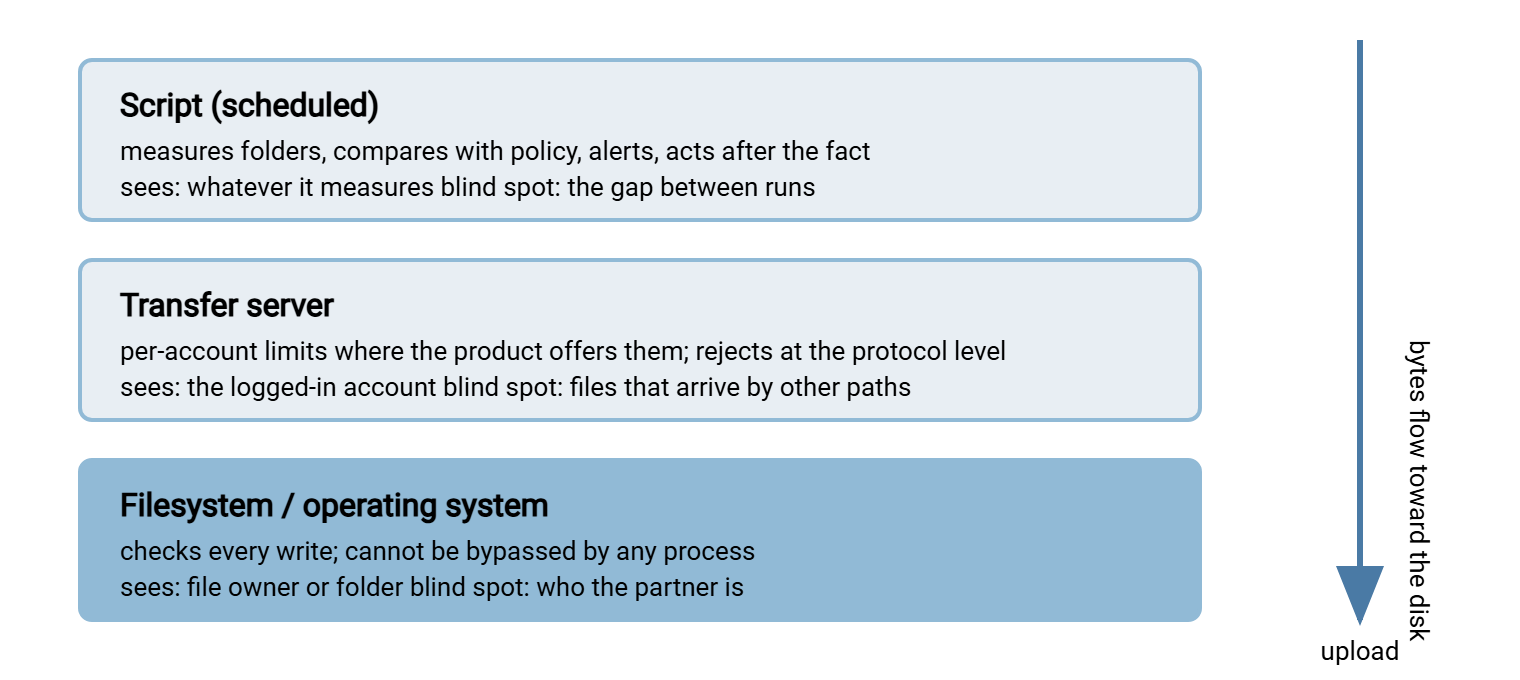
The rule that falls out of the diagram: the filesystem layer guarantees the ceiling, because nothing can write around it. The server layer gives the friendliest rejection. The script layer is the only one that can enforce a policy the other two cannot express — and the only one that can quietly stop running.
Filesystem Quotas in Plain Words
A filesystem quota is a limit the operating system checks at the moment a program tries to write. When the limit would be exceeded, the write call itself fails. The program — your transfer server, a backup agent, an administrator with a copy command — gets an error. There is no path to the disk that skips it. The disk, for once, is on your side.
The question that decides which filesystem quota to use is who owns the files. A per-user quota counts the bytes owned by each account. A per-folder quota counts the bytes under a directory, regardless of owner. On a Linux server running OpenSSH, each SFTP login writes as its own Linux user, so per-user quotas map cleanly onto partners. On most Windows transfer servers, the server process writes every file as one service account. So per-user quotas would lump every partner together; per-folder quotas are the ones that work. Check which case you are in first: look at the owner of a few recently uploaded files.
Windows: FSRM folder quotas
File Server Resource Manager is a built-in Windows Server role service providing per-folder quotas with notification thresholds. Install it once:
Install-WindowsFeature FS-Resource-Manager -IncludeManagementTools
FSRM is built around templates: a named limit plus its thresholds, applied to as many folders as you like. The block below builds a "Partner 40 GB" template with email warnings at 80 and 95 percent. It applies the template to one partner root. Then it tells FSRM to apply the template automatically to every subfolder of the partners directory, including ones created later.
# Email action; FSRM fills in the bracketed variables at send time.
$warn = New-FsrmAction -Type Email -MailTo "[Admin Email];transfer-support@example.com" `
    -Subject "Quota warning: [Quota Path] at [Quota Threshold]%" `
    -Body "[Source Io Owner] pushed [Quota Path] to [Quota Used] of [Quota Limit]."

# Thresholds carry the actions; the hard limit itself is at 100%.
$t80 = New-FsrmQuotaThreshold -Percentage 80 -Action $warn
$t95 = New-FsrmQuotaThreshold -Percentage 95 -Action $warn

# The template. Omit -SoftLimit for a hard quota that refuses writes.
New-FsrmQuotaTemplate -Name "Partner 40 GB" -Size 40GB -Threshold $t80,$t95

# Apply to one folder ...
New-FsrmQuota -Path "D:\xfer\partners\acme" -Template "Partner 40 GB"

# ... or to every subfolder of the partners root, now and in future.
New-FsrmAutoQuota -Path "D:\xfer\partners" -Template "Partner 40 GB"
-Size 40GB is the hard limit: FSRM refuses the write that would cross it, and the uploading client sees a disk-full style error. Adding -SoftLimit to the template makes it a monitoring-only quota that logs and emails but never refuses. That is exactly the warn-only mode the design article recommends for the first two weeks. New-FsrmAutoQuota is the command that scales. One auto-apply rule on the partners root means a new partner folder gets its quota the moment it is created, with no ticket and no forgetting.
To check a quota, ask for it and read the numbers, which FSRM reports in bytes:
PS> Get-FsrmQuota -Path "D:\xfer\partners\acme" | Format-List Path,Size,Usage,SoftLimit,Template

Path      : D:\xfer\partners\acme
Size      : 42949672960
Usage     : 15698105466
SoftLimit : False
Template  : Partner 40 GB
Size is the limit, Usage the current bytes, and SoftLimit : False confirms this quota refuses writes. Dividing 15698105466 by 1073741824 (the bytes in one gigabyte as Windows counts it) gives about 14.6 GB. When an exception is approved, raise a single folder without touching the template: Set-FsrmQuota -Path "D:\xfer\partners\acme" -Size 120GB. When it expires, set it back.
FSRM can also write an event instead of, or as well as, email — New-FsrmAction -Type Event -EventType Warning -Body "...". The event lands in the Application log under the source SRMSVC. That is the hook a monitoring system reads; see monitoring quotas and cleanup jobs.
Windows: NTFS per-user disk quotas
NTFS has an older, simpler quota system built into the volume: one limit per user account, per volume, counted by file ownership, managed with fsutil. Enable enforcement, set a threshold (the soft warning) and a limit (the hard stop) for an account in bytes, and query the result:
C:\> fsutil quota enforce D:
C:\> fsutil quota modify D: 34359738368 42949672960 EXAMPLE\acme-sftp
C:\> fsutil quota query D:
...
SID Name        = EXAMPLE\acme-sftp (User)
Quota Used      = 15698105466
Quota Threshold = 34359738368
Quota Limit     = 42949672960
The three numbers are 14.6 GB used, a 32 GB threshold, and a 40 GB limit, in bytes. fsutil quota track D: instead of enforce gives warn-only mode; fsutil quota violations searches the event log for accounts that crossed a threshold or limit.
The catch is the one already mentioned: NTFS counts by owner. If your transfer server writes files as its own service account, every file is owned by that one account. In that case, a per-user quota on EXAMPLE\acme-sftp will read zero forever. It will also never fire, which I have seen mistaken for success. NTFS quotas fit only when each login genuinely writes as its own Windows account — an SFTP server that impersonates the logged-in user, or an SMB share. When in doubt, use FSRM.
Linux: user and group quotas
On Linux, user quotas are a filesystem feature turned on per mount. Enable the quota mount options, build the initial usage database, switch quotas on, then set limits per user. On the common ext-family filesystems it looks like this:
# /etc/fstab: add the quota options to the data volume's line
/dev/sdb1   /srv/xfer   ext4   defaults,usrquota,grpquota   0 2

# mount -o remount /srv/xfer
# quotacheck -cug /srv/xfer        # -c create the files, -u users, -g groups
# quotaon -v /srv/xfer
/dev/sdb1 [/srv/xfer]: group quotas turned on
/dev/sdb1 [/srv/xfer]: user quotas turned on

# Limits are in 1 KB blocks: 32 GB soft, 40 GB hard, no limit on file count.
# setquota -u acme 33554432 41943040 0 0 /srv/xfer

# Grace period in seconds: seven days for blocks and for inodes.
# setquota -t 604800 604800 /srv/xfer
setquota takes the numbers on the command line; edquota -u acme opens the same values in an editor, fine interactively and useless in a script. Either way, soft is the warning line and hard is the ceiling. Grace is how long a user may stay above soft before it is enforced like hard. To see where everyone stands, repquota reports on the whole filesystem; -s scales the numbers to readable units:
# repquota -s /srv/xfer
*** Report for user quotas on device /dev/sdb1
Block grace time: 7days; Inode grace time: 7days
                        Space limits                File limits
User            used    soft    hard  grace    used  soft  hard  grace
----------------------------------------------------------------------
root      --    212M      0K      0K              7     0     0
acme      --  14622M  32768M  40960M           1240     0     0
northwind +-  17210M  16384M  20480M  6days     311     0     0
kestrel   --   2355M   8192M  10240M            188     0     0
Read the two-character flag column carefully; it is the most useful thing on the page. The first character is the space status and the second the file-count status. A dash means under the soft limit; a plus means over it. So northwind +- is over its space soft limit and under its file limit. The 6days in the grace column says six days remain before writes start failing. A zero limit means "no limit," which is why root shows 0K. A single user's view is quota -s -u northwind, which marks an exceeded value with an asterisk.
User quotas count by owner, so this works when each partner logs in as its own Linux user. That is the normal arrangement with OpenSSH's built-in SFTP. The session runs as the logged-in user and every file it creates is owned by that user. That account-per-partner layout, including chroot jails, is covered in SFTP server configuration and account and jail hardening.
When a Linux server writes as one service account, the per-folder answer is an XFS project quota. This is a limit attached to a directory tree rather than an owner, set with xfs_quota on a volume mounted with the prjquota option. Soft, hard, and grace mean the same as for user quotas; only the scope changes. It is the closest Linux equivalent to an FSRM folder quota.
Gotcha: filesystem quotas count what is on the volume now, including files that arrived by paths the transfer server never saw. That includes an administrator's copy, a restore, a job writing straight to the share. That is a feature. It also means a quota set below current usage blocks every write immediately, so compare the limit with current usage first.
Server-Level Quotas Where They Exist
Some transfer server products can enforce a storage limit per account inside the server itself, checked before the write reaches the filesystem. Where that exists, it has two advantages. The rejection can be protocol-aware — an FTP client gets a proper 552 Exceeded storage allocation reply instead of a generic write error. And the limit is tied to the account the partner logs in with, regardless of which OS account owns the files on disk.
The blind spot is symmetrical. A server-level quota counts what the server knows about. Files placed in the partner's folder by anything else — a local job, a restore, another server sharing the same storage — may or may not be counted. That depends on whether the product measures the folder on disk or keeps its own tally. Read the documentation for the exact rule. Treat a server-level quota as a friendlier front door in front of a filesystem quota, not a replacement for one. Partners thank you for the front door. The wall does the work.
Whether or not a server offers quotas, its per-account permissions are part of enforcement. Making an account's outbox read-only is the least disruptive way to stop a partner that has blown through an exception. It refuses new uploads without touching existing files or other partners. Sysax Multi Server, for example, applies folder permissions per account and logs each session's activity. So the read-only flip and the evidence behind it live in the same place. The general model is explained in permission models explained.
Script-Based Enforcement: The Fallback
Sometimes neither of the first two layers fits. The storage may not support quotas, or the server may have no per-account limits. Or the policy may need something no built-in quota can express, such as "count only files older than a day." The fallback is a scheduled script that measures, compares, alerts, and optionally acts. It is the weakest layer because it works after the fact — a runaway upload between two runs is not stopped. But it is far better than nothing, and it doubles as the reporting engine for the other two. It is also, in most estates I have seen, the only layer that exists.
Two properties make such a script safe to run unattended. It must support a dry run — a mode that reports what it would do without doing it — so the first weeks are spent watching, not acting. And it must be idempotent: running it twice produces the same end state as running it once. That way, a retry or an overlapping run cannot double-apply an action. The PowerShell script below reads a policy file, measures each partner root, logs the result, and emails on a soft or hard crossing. Only when started with -Enforce does it add a deny-write rule on the partner's outbox.
# quota-check.ps1  -  dry run by default; -Enforce applies the deny-write action
param([switch]$Enforce)
$policy = Import-Csv "D:\xfer\admin\quota-policy.csv"   # columns: partner,soft_gb,hard_gb
$log    = "D:\xfer\admin\logs\quota-check.log"
$stamp  = { Get-Date -Format "MMM dd HH:mm:ss" }

foreach ($row in $policy) {
    $root = Join-Path "D:\xfer\partners" $row.partner
    if (-not (Test-Path $root)) { Add-Content $log "$(& $stamp) MISSING $root"; continue }

    $bytes = (Get-ChildItem $root -Recurse -File -ErrorAction SilentlyContinue |
              Measure-Object Length -Sum).Sum
    $gb = [math]::Round($bytes / 1GB, 2)
    $state = "OK"
    if     ($gb -ge [double]$row.hard_gb) { $state = "HARD" }
    elseif ($gb -ge [double]$row.soft_gb) { $state = "SOFT" }
    $line = "$(& $stamp) $state $($row.partner) used=${gb}GB soft=$($row.soft_gb) hard=$($row.hard_gb)"
    Add-Content $log $line

    if ($state -ne "OK") {
        Send-MailMessage -To "transfer-support@example.com" -From "xfer01@example.com" `
            -SmtpServer "smtp.example.com" -Subject "Quota $state: $($row.partner) at $gb GB" -Body $line
    }
    if ($state -eq "HARD" -and $Enforce) {
        $outbox = Join-Path $root "outbox"
        $acl = Get-Acl $outbox
        $already = $acl.Access | Where-Object {
            $_.IdentityReference -eq "EXAMPLE\$($row.partner)" -and $_.AccessControlType -eq "Deny" }
        if (-not $already) {
            $deny = New-Object System.Security.AccessControl.FileSystemAccessRule(
                "EXAMPLE\$($row.partner)", "CreateFiles", "ContainerInherit,ObjectInherit", "None", "Deny")
            $acl.AddAccessRule($deny); Set-Acl $outbox $acl
            Add-Content $log "$(& $stamp) ENFORCED deny-write on $outbox"
        }
    }
}
A dry run leaves lines like these in the log, which is also what the email contains:
Mar 14 02:00:07 OK acme used=14.62GB soft=32 hard=40
Mar 14 02:00:09 SOFT northwind used=17.21GB soft=16 hard=20
Mar 14 02:00:09 OK kestrel used=2.35GB soft=8 hard=10
Mar 14 02:00:10 MISSING D:\xfer\partners\globex
Three design points matter. The $already check makes the enforcement idempotent: a second run finds the deny rule present and does nothing. The MISSING line is a safety rail — a partner in the policy with no folder is a configuration error worth surfacing, not something to skip silently. And the deny-write action only works if the transfer server writes as the partner's own Windows account. If it writes as a service account, replace that block with whatever flips the account to read-only in the server's own configuration. Scheduling the script hourly is a Task Scheduler job like any other, covered in Task Scheduler for transfers. The logging follows PowerShell error handling and logging.
Honest Limits and Blind Spots
| Layer | Enforces | Counts by | Blind spot |
|---|---|---|---|
| NTFS or Linux user quota | At every write | File owner | Useless when one service account owns everything; generic error to the client |
| FSRM or XFS project quota | At every write | Folder tree | Needs one folder per partner; generic error to the client |
| Server-level quota | At the protocol | Login account | May not see files that arrive by other paths; product-specific |
| Scheduled script | After the fact | Whatever it measures | The gap between runs; measurement cost on huge trees; can stop running unnoticed |
The combination that covers the most ground starts with a filesystem quota for the guarantee. It adds a server-level limit for the friendly rejection where the product has one, and the script for reporting. Two of the three is fine. Zero is how the volume fills.
Proving It Works Before a Partner Does
Never let a partner be the first to test a quota. Push past a small limit on purpose. Use a staging server if you have one — see our testing and staging series — or production with a dedicated test folder:
- Create
D:\xfer\partners\qtest(or the Linux equivalent) and give a test account write access. - Apply a deliberately small hard quota — 100 MB — with the same template or command you use for real partners.
- Upload a 60 MB file; it should succeed. Upload a second 60 MB file; it should fail partway.
- Record what the client displayed, word for word. That text goes into the partner notice and the help desk template.
- Check the server log and the OS event log for the failure, and confirm your monitoring saw it.
- Find the partial file the failed upload left behind. That is what the leftover sweep later in this series has to recognize.
- Raise the quota, confirm uploads resume, then remove the test folder and quota.
Fifteen minutes of this replaces weeks of guessing, and it catches the classic mistake of applying a quota to the wrong folder. That might be one level too high, capping every partner at once, or one level too low, capping only the inbox. Both have been done by careful people.
Kestrel Payroll's transfer team applied their first FSRM quota on a staging copy of the partners tree and ran the seven steps above. Step three failed early: the first 60 MB upload was refused, not the second. The template had been attached one level too high, to the partners root itself. So the whole tree shared one 100 MB test limit and the staging copy was already over it. They moved the quota down one level, reran the test, and got the expected result on the second file. The fix took four minutes; on production, with forty partners, it would have refused every upload at once.
Wrapping Up
Quotas are enforced in one of three layers. The filesystem — FSRM or NTFS on Windows, user or XFS project quotas on Linux — is the guarantee, checked at every write. The choice between per-user and per-folder comes down to who owns the files. The transfer server, where it offers per-account limits, gives the clearest rejection, and its per-account permissions provide the gentlest enforcement action. A scheduled script is the fallback and the reporting engine, safe only with a dry-run mode and idempotent actions. Test the limit yourself before any partner meets it.
Next in the series is age-based cleanup jobs that do not bite, which keeps usage under the limits you have just set. Another next step is monitoring quotas and cleanup jobs, which turns thresholds into alerts someone reads. The document from the first paragraph is now attached to something.
Frequently Asked Questions
Should I use FSRM or NTFS quotas on a Windows transfer server?
What do the plus and minus signs in repquota mean?
Do I still need a filesystem quota if my transfer server has its own per-account limits?
What does "idempotent" mean for an enforcement script?
From the Sysax team: we build secure file transfer software for Windows. Sysax Multi Server is an FTP, FTPS, SFTP, and HTTPS server. Sysax FTP Automation handles scheduled, scripted transfers. Free trials are on the download page.