
Separating Volumes: Data, Logs, Temp, and the Operating System
The console session starts at ten past six. Remote desktop refused the login, and the transfer service will not start. The first useful thing anyone can do is delete temporary files by hand until there is room to run the next command. There are two kinds of full disk on a transfer server, and this is the second kind. In the first, the data volume fills, uploads fail, and you spend an unpleasant hour finding and moving files. In the second, the operating system volume fills, and the server stops being a server. The difference between the two is not luck. It is whether the server was laid out so that data can never fill the volume the operating system lives on.
This article is about that layout. It explains why a full OS volume is a different kind of outage and the four-volume pattern that prevents it. It covers where partial uploads and temporary files land, and how per-partner folder trees grow. It explains how mount points and junctions let you add a volume without changing a single path. It covers how to move an existing data root safely, and how a per-volume limit acts as a backstop. It is part of our Storage Growth series. Separation also happens to be a security control, and the OS-level hardening article covers that side. Here the concern is purely that the disk does not fill. That is the humbler goal and the one that gets you paged.
Why a Full OS Volume Is a Different Kind of Outage
The operating system needs free space to function, not just to grow. It writes to its volume constantly. There is the page file, event logs and system journals, temporary files for every process, and update downloads. On Windows, there are also the registry hives that hold configuration for every service. When the OS volume is full, those writes fail, and not gracefully. Services that cannot write their startup state refuse to start. Remote desktop and SSH sessions fail at login because a profile or session record cannot be created. Updates fail half-applied. The transfer service itself may lose its configuration if it tries to save while the volume is full. That is the one failure that turns a storage problem into a rebuild.
Recovery is disproportionately painful because every tool you would use to fix it also needs disk. You end up at a console deleting temp files by hand to free enough space for the next command to run. Contrast that with a full data volume: the OS is healthy, every management tool works, and the job is merely to find and move files. The two problems differ by an order of magnitude in effort, and the only thing separating them is where the data was allowed to live. If nothing else in this article sticks, this should: the transfer data root must never be on the same volume as the operating system.
The Four-Volume Layout
A volume is one formatted chunk of disk space that the operating system presents as a unit. It appears either as a drive letter or as a mount point. A mount point is the folder where the volume is attached to the directory tree. The layout that works for transfer servers uses four of them, each with one job:
- OS volume: the operating system, the transfer server's program files, and its configuration. Nothing that grows lives here. Its usage should be almost flat from one month to the next.
- Data volume: every partner folder, inbox, outbox, and archive. This is the volume that grows, and it is the one all the planning in this series is about.
- Log volume: the transfer server's activity logs, job logs, and any debug output. Logs grow at their own rate, which is unrelated to the data rate, and a debug setting left on can fill a volume in days.
- Temp volume: staging areas, in-progress uploads where the server supports a separate location for them, extracted and decrypted working copies, and scratch space for processing steps. Its contents are disposable by definition.
The diagram below shows the four volumes side by side, what writes to each, and what happens when each one fills. The point of the picture is the last row. A full data, log, or temp volume degrades the service, but only a full OS volume takes the whole server down.
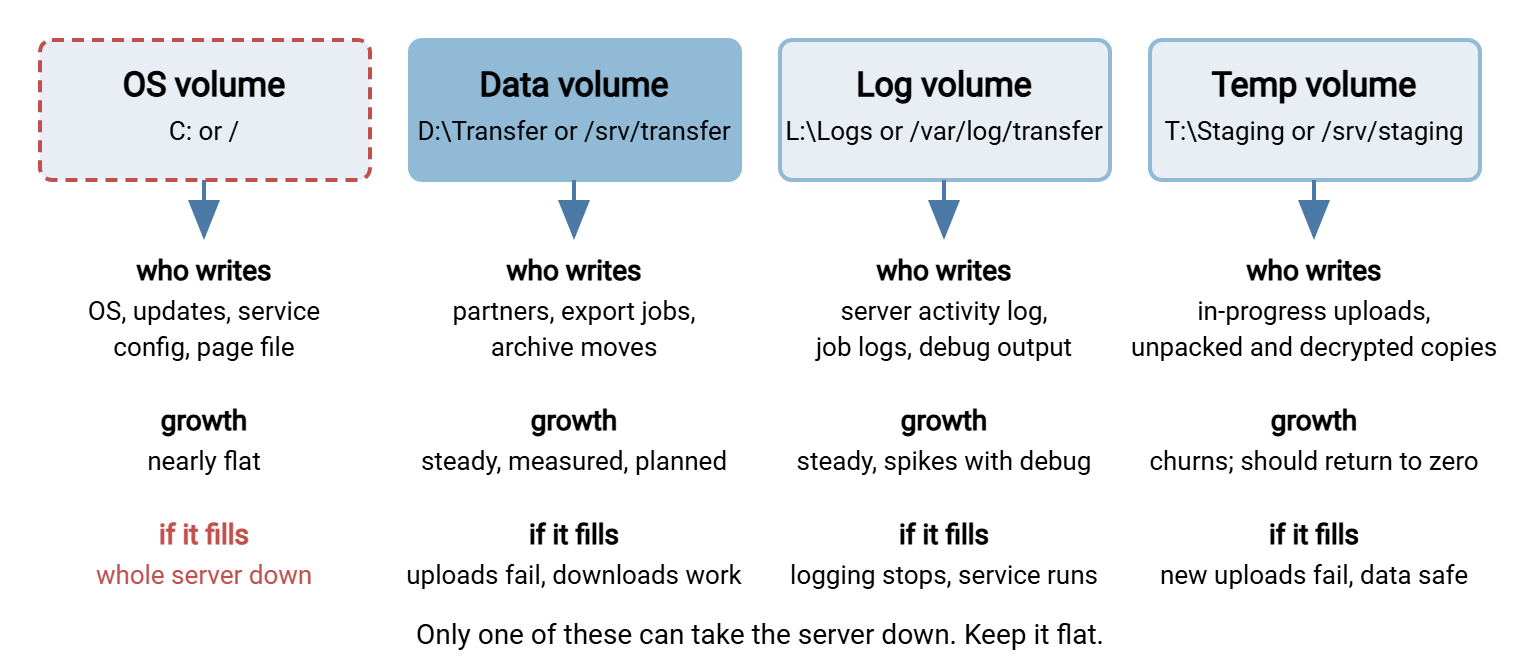
On a virtual machine, four volumes cost nothing but a few minutes of setup. On physical hardware, they can be partitions on the same disks if separate disks are not available. Separation is about what can fill what, not about performance. Two volumes (OS and everything else) is the minimum acceptable layout; three (OS, data, and logs-plus-temp) is a reasonable compromise on a small server. A separate log volume also helps planning. Logs and data on one volume give one blended growth rate that hides the fact that they grow for different reasons at different speeds. Logs and data on one volume do not share it; they fight for it.
Northgate Retail ran its store-feed server with data and logs on one volume for years. The blended growth rate looked steady at about 30 GB a month. The volume was enlarged twice on that basis before anyone asked what, exactly, was growing. When the logs finally got a volume of their own, the answer was immediate. The store feeds were growing at 10 GB a month and the job logs at 20. Every store's nightly job logged every file it considered and rejected. The data volume has not needed enlarging since, and the log volume got a rollover-and-delete rule and has been flat ever since. Nothing had been wrong with the server, only with what it was possible to see.
Finding where your server writes its logs is the first thing to check. Some products default to a folder under the program directory, which is on the OS volume. Some default to a folder under the data root. A server such as Sysax Multi Server keeps activity logs with rollover, so the folder holds a series of files rather than one growing file. Whatever server you run, locate that folder and make sure it is on the log volume, not on the OS volume.
Where Partial Uploads Land
An upload in progress has to be written somewhere, and where it lands determines which volume absorbs the debris when the upload fails. A partial file is the incomplete file left behind by an interrupted transfer. There are three common behaviors, and you should know which one your server and your automation use:
- Written in place. The file is created at its final path and grows as bytes arrive. A failed upload leaves a partial at the final name, on the data volume, and any downstream job that watches the folder may pick it up. This is the worst case for both safety and cleanliness.
- Written under a temporary name in the same folder. The server or client writes
report.csv.partbeside the final location and renames it when the transfer completes. Failures leave a clearly named partial, still on the data volume, which cleanup jobs can recognize by its suffix. - Written to a separate staging location, then moved. Uploads land on the temp volume and are moved to the data volume only when complete. Failures leave debris on the temp volume, where it can be cleaned aggressively, and the data volume never sees an incomplete file.
The third pattern is the reason the temp volume exists. When your server supports a separate upload staging location, use it. When it does not, the same effect can be built in automation. Use a watch-folder job that receives files into staging and moves complete ones into the partner tree. Note that a move across volumes is a copy followed by a delete, slower than a rename within one volume. For very large files, staging on the destination volume under a temporary name is sometimes the better trade. The temp names and atomic renames article covers the safety side of these choices in detail. Either way, decrypted copies, extracted archives, and other working files that processing steps create should go to the temp volume. That way, a failed pipeline step leaves its mess somewhere disposable. A temp-and-partials cleanup job can remove it without a second thought. Every pipeline makes a mess eventually; choose the floor it lands on.
Remember: the temp volume should return to nearly empty every day. If it holds a steady and growing amount of data, something is leaving files behind. That is a cleanup job waiting to be written, not a reason to enlarge the volume.
Per-Partner Folder Trees and Their Growth
Inside the data volume, the folder tree decides how easy growth is to see. The layout that keeps it visible is one folder per partner with the same children under each:
/srv/transfer/
  partners/
    acme/
      inbox/      files they send us; emptied by our processing
      outbox/     files we send them; emptied when they collect
      archive/    processed copies; expires per retention rule
    northwind/
      inbox/  outbox/  archive/
  staging/        (mount point for the temp volume, or a folder on it)
  archive-cold/   (mount point for an archive volume, if any)
Three things follow from a tree like this. First, growth is measurable per partner. The command du -xh --max-depth=1 /srv/transfer/partners | sort -h gives a league table of who is consuming space. The same command against one partner shows whether it is their inbox, outbox, or archive that is growing. Second, cleanup rules can be written once and applied to every partner, because every outbox means the same thing. Third, a per-partner quota, where supported, maps directly onto one folder. Trees that mix partners, purposes, and one-off projects at one level make all three harder. The designing directory trees article covers the permission side of the same structure.
Expect each partner's growth to have its own shape. An inbox should hover near zero if processing keeps up. An outbox should hover near one collection cycle's worth. An archive grows at the partner's inbound rate until its retention rule kicks in. When one of those departs from its shape, the partner folder tells you which pattern from why transfer servers fill up is at work. Folders do not change shape without a reason, though they rarely volunteer it.
Mount Points and Junctions: Adding a Volume Without Changing a Path
Many servers end up with data on the OS volume because moving it seems to mean changing every path. That would affect every job, partner profile, and server setting. But moving the data does not require that. Both Linux and Windows let you attach a new volume at an existing folder path. So the path stays the same while the storage behind it changes. The jobs never find out.
On Linux, that is what a mount point is. To move the archive off the data volume, create the new volume, and mount it at the archive folder. Make the mount permanent in /etc/fstab:
$ sudo mkfs.ext4 /dev/sdd1
$ sudo mkdir -p /srv/transfer/archive-cold
$ sudo mount /dev/sdd1 /srv/transfer/archive-cold
$ sudo blkid /dev/sdd1          # note the UUID for fstab
$ echo 'UUID=<uuid-from-blkid>  /srv/transfer/archive-cold  ext4  defaults,nofail  0  2' | sudo tee -a /etc/fstab
$ df -h /srv/transfer/archive-cold
The nofail option matters: without it, a missing or failed archive disk can stop the server from booting. That turns a storage problem into an outage. Note also that mounting over a folder hides whatever was in it; mount onto an empty folder, or move the contents first.
Windows offers two mechanisms. The first is a true mount point. In Disk Management, choose the new volume, and select "Change Drive Letter and Paths". Mount it in an empty NTFS folder such as D:\Transfer\archive-cold. The volume then appears at that path without a drive letter. The second is a junction, a folder that transparently redirects to another folder, possibly on another volume:
C:\> mklink /J D:\Transfer\archive-cold E:\Archive
Junction created for D:\Transfer\archive-cold <<===>> E:\Archive
Junctions are quick and reversible, but two cautions apply. Some transfer servers deliberately refuse to follow junctions and symbolic links out of a user's home folder. Following them is a classic way to escape a jail. The same is true of Linux SFTP chroots. They will not follow a symbolic link that points outside the chroot. In those cases use a real mount point, or on Linux a bind mount (mount --bind /mnt/archive /srv/transfer/archive-cold). This attaches a folder at a second path in a way the chroot cannot distinguish from a normal folder. And remember that tools which walk the tree may cross into the junction. The command robocopy has /XJ to exclude junctions. The command du -x stays on one volume, precisely so a size hunt does not double-count.
Moving an Existing Data Root Safely
Sooner or later you inherit a server with the data on C: and need to move it to a data volume. I have inherited more of those than I have built. The move is a small migration, and the seed-and-delta method used for large migrations keeps the downtime to minutes:
- Seed. With the server running, copy the whole tree to the new volume. Files that change during the copy do not matter yet. On Windows:
robocopy C:\Transfer D:\Transfer /MIR /COPY:DATS /DCOPY:T /R:2 /W:5 /XJ /LOG:C:\ops\seed.log. On Linux:rsync -aHAX --numeric-ids /srv/transfer/ /mnt/newdata/(the trailing slash on the source copies its contents, not the folder itself). - Announce a short window. Tell partners uploads will be refused for a few minutes; a nightly gap between scheduled jobs is ideal.
- Stop the service. Stop the transfer server so nothing writes to the old root. Check for in-flight uploads first; the migrating folders and in-flight files article explains how.
- Delta. Run the same copy command again. Only files that changed since the seed are copied, which takes seconds to minutes rather than hours.
- Verify. Compare file counts and total sizes on both sides, and spot-check a few hashes. The verifying nothing left behind article gives the exact checks.
- Swap the path. Either repoint the server's root and user home folders at the new location, or leave the configuration alone. If you would rather touch no configuration, rename the old folder aside and mount the new volume at the old path. The mount approach means every job and profile keeps working unchanged.
- Start and watch. Start the service, run a test upload and download, and watch the first scheduled job complete. Keep the old tree, renamed, until a full cycle of jobs has run clean; then remove it and enjoy the free OS volume.
The rollback is the reverse of step six: stop the service, put the old folder back at the old path, start. Because the old tree was renamed rather than deleted, rollback takes a minute. The robocopy for migrations article covers the flags in more depth. That includes the ones that preserve permissions. Those matter because partner accounts must still reach their folders after the move.
Per-Volume Limits as a Backstop
Separation stops one volume from taking down another. It does not stop the data volume from filling itself. The layout is only complete when each volume has a limit that trips before the volume is actually full. Two mechanisms are worth knowing, and both are covered in operational depth in our quotas and automated cleanup series.
The first is filesystem reserve. Linux filesystems in the ext family reserve a percentage of each volume that only the root user can use. On a data volume it can be lowered to reclaim space (tune2fs -m 1 /dev/sdb1 sets it to 1%). But on the OS volume it is worth keeping. It is exactly the buffer that lets an administrator log in and delete things when the volume is otherwise full. The second is quotas. Windows NTFS supports per-user quotas per volume, and Linux filesystems support user, group, and in some cases per-directory quotas. A quota on the partner accounts' folders that adds up to less than the data volume's usable ceiling prevents any single partner or runaway job from filling the volume. Uploads for that account fail with a quota error while everyone else keeps working. Set it, then alert on it, so a tripped quota is a ticket rather than a surprise.
The Layout Checklist
Run through this for every transfer server you are responsible for. Every "no" is a task.
- Is the transfer data root on a volume other than the OS volume?
- Are the server's activity logs and the job logs on a volume other than the OS volume, and ideally other than the data volume?
- Do in-progress uploads, extracted archives, and decrypted copies land on a temp or staging location that is cleaned automatically?
- Is the OS volume's usage nearly flat month to month? If not, what is growing on it?
- Does every partner have the same folder structure, so growth and cleanup rules apply uniformly?
- Are additional volumes attached by mount point or junction, and does the server follow them correctly from inside a jailed account?
- Do mounts have
nofail(Linux) or is the server tested to start cleanly with an archive volume missing? - Does each volume have a quota or reserve that trips before the volume is 100% full?
- Is there an alert on free space for every volume, including the OS volume?
Layout Is the Cheapest Fix in This Series
Everything else in this series involves measurement, rules, and ongoing attention. Volume layout is a one-time decision that removes the worst outcome permanently. With data, logs, and temp on their own volumes, the OS volume stays flat. A full disk becomes an inconvenience rather than a rebuild. Mount points and junctions make the change possible without touching a job or a profile, and the seed-and-delta move keeps downtime to minutes. Do it once per server, and put the checklist in the build document so the next server starts out right. The console session at ten past six can stay in the introduction.
From here, archive tiers shows what to do with the archive volume once you have one. The article on monitoring storage growth adds the per-volume alerts that make the layout self-reporting. If the server was already full when you found it, finding what ate the disk comes first.
Frequently Asked Questions
Do I really need four volumes on a small server?
What is the difference between a mount point and a junction?
Will moving the data root break my partner accounts?
Where should in-progress uploads go?
Does separating volumes affect performance?
From the Sysax team: we build secure file transfer software for Windows. Sysax Multi Server is an FTP, FTPS, SFTP, and HTTPS server. Sysax FTP Automation handles scheduled, scripted transfers. Free trials are on the download page.