
Why Transfer Servers Fill Up
The first ticket of the morning says a partner's upload is failing with "no space". The second says the nightly export did not run. The third asks whether anyone copied something large onto the transfer server last night, and nobody did. A transfer server has one job: accepting files from one place and handing them to another. A full disk stops that job completely. Nothing sudden happened, either. The disk filled at the same steady rate it had been filling all year. Last night the arithmetic ran out.
This article explains where the bytes come from. Behind almost every full transfer server are five accumulation patterns. Each has a tell-tale signature you can spot in a folder listing. A growth curve explains why a disk that was "fine" for months seems to fill in a week. By the end you will be able to walk a server's top-level folders and say which one will fill the disk and roughly when. That is a quieter skill than firefighting and a more useful one. This article is part of our Storage Growth series, and the rest of the series builds on the patterns named here.
The Arithmetic Nobody Does
A volume is one formatted chunk of disk space that the operating system presents as a unit. It may appear as a drive letter such as D: on Windows or as a mount point on Linux. A mount point is the folder where the volume is attached to the directory tree, such as /srv/transfer. When people say "the disk is full", they almost always mean one particular volume is full.
The only equation that matters for a volume is this: bytes written minus bytes deleted equals growth. On a transfer server the two halves of that equation are wildly unequal. Bytes arrive automatically: scheduled jobs, partner uploads, and watch folders write files around the clock. Bytes leave by decision: someone has to delete a file, or has to have set up a rule that deletes it. Arrival is automated and relentless; deletion is manual and optional. That asymmetry is the whole story.
Two more terms will carry you through the series. The growth rate is the net change in used space over a period, usually expressed in gigabytes per month. The runway is how long you have before the volume is full: free space divided by growth rate. Here is the arithmetic on a typical server. A 2 TB data volume has 400 GB free and has been gaining 60 GB every month. Runway is 400 divided by 60, which is about 6.7 months, or roughly two hundred days. That is not an emergency, but it is a date on the calendar, and closer than "80% used" suggests. The capacity planning article takes this calculation further; for now, notice that most teams have never done it. I had not either, until a disk did the division for me.
Pattern One: The Outbox Nobody Collects
An outbox is a folder your side writes to and someone else is supposed to read from. Your export job drops a report there; the partner's job connects and downloads it. One question decides whether an outbox grows: who deletes the file after it has been collected? In a surprising number of setups, the answer is nobody. The partner is told to download, not to delete (and you probably would not grant delete rights anyway). And your export job's responsibility ends when the file lands. So the file stays, and every day another one joins it. It is the only folder on the server with perfect retention.
While the partner keeps collecting, that is merely untidy. The trouble starts when their collection stops. It stops for mundane reasons: a password rotated on your side, a certificate expired, or their server was replaced and the new one never got the job. Or the person who ran it left. Nothing on your side fails, so nothing alerts, and the partner may not notice either if the report was only ever glanced at. Files accumulate in silence.
Meridian Parts found one of these by accident. Their nightly price-list export had landed in a supplier's outbox every evening for years. The supplier's job had collected it every morning, until the supplier replaced its server and the new one never got the download job. Nothing failed on either side, so nothing alerted, and the price list was the kind of report people glance at rather than miss. An unrelated disk hunt fourteen months later found the folder holding four hundred files and a fifth of the volume. The fix was a delete-after-collection rule and a monthly check that each outbox's newest download was newer than its oldest file. The supplier got its job back the same week.
The numbers add up faster than intuition suggests. A nightly export of 900 MB is small enough that nobody thinks about it. Uncollected for a month it is 27 GB. For a year it is well over 300 GB. Multiply that by the number of outboxes. A related variant is the partner offboarded from the business but never from the server. The article on partner offboarding covers the account side. The storage side is that those folders never shrink on their own. Nobody has yet met a folder that offboarded itself.
The signature is easy to read. The file count grows steadily, and the oldest file is months old. The activity log shows uploads into the folder but no downloads out of it. The fix is to make deletion part of the workflow. Either remove a file once its download is confirmed or use an age-based cleanup rule for anything older than the agreed collection window. Those rules are the subject of our quotas and automated cleanup series.
Pattern Two: The Archive That Only Grows
Almost every transfer workflow has a folder called archive, processed, or done. It exists for a good reason. Once a downstream system has consumed a file, you move it aside rather than deleting it. That way, a bad import can be re-run from the original. Keeping the last thirty days is sensible insurance. The problem is that somebody wrote the rule "move to archive after processing" and nobody ever wrote the rule for day thirty-one.
An archive with no expiry grows at exactly the inbound rate, forever. If a partner sends 40 GB a month and every file is archived, the archive is 480 GB after one year. After two, it is just under 1 TB. It is the most common answer to "what ate the disk". It is the one folder everyone agreed should hold things. And nobody feels safe deleting from it. It is less an archive than a landfill with a nicer name.
Part of that hesitation is legitimate. There are two different reasons to keep a transferred file. One is as short-term operational insurance (so you can re-run a failed import). The other is as a business record (because a regulation or a contract says so). The first is your decision as an operator and usually measures in weeks. The second is a governance question, answered by a retention policy rather than by a sysadmin with a delete key. The retention policy for transfer servers article explains how to get that policy written down. Until it is, the archive keeps growing because deleting feels like a risk and keeping feels free. It is not free; it is billed later, all at once, on the morning the disk fills.
Watch for the archive's cousins too: a "backup" of the archive on the same volume, or a zipped copy kept alongside the original. Two copies on one volume double the growth rate without adding any protection. That is not a backup; that is a second helping.
Pattern Three: Logs, and Logs of Logs
A transfer server produces several kinds of log. There is the activity log that records every login, upload, and download. There are debug logs, and there are the logs of the automation jobs that feed the server. On a server that handles many small files, the log lines can occupy more space than the files themselves. Each transfer generates the same few hundred bytes of log regardless of file size.
The word to know here is rollover (also called rotation). The server or logging tool closes the current log file when it reaches a size or time limit and starts a new one. The new file usually has a number or a date in the name. Rollover keeps individual files manageable; it does not, by itself, reduce growth. Fifty rolled files of 100 MB each are still 5 GB. If nothing deletes the oldest ones the pile grows exactly like an archive. A server such as Sysax Multi Server writes activity logs with rollover, which keeps any single log from becoming unwieldy. The retention of the rolled-over files is still a rule you set and check.
The sharper version of this pattern is debug logging left switched on. A typical entry in the story reads like this. There is an incident on Mar 14 02:10. Someone turns on verbose logging to see every command and reply. The problem is found, and the verbose setting is forgotten. I have been that someone, more than once. Verbose logs can run ten to a hundred times larger than normal ones, and weeks later the volume where they live is full. Log growth is also a health signal in its own right. That is why it gets a treatment of its own in our server health monitoring series. If you have several servers, centralizing logs moves the growth somewhere designed for it.
Pattern Four: Temporary Files and Failed Partials
A partial file is what an interrupted transfer leaves behind: the first part of a file, with the rest missing. Many clients and servers write an upload under a temporary name, such as report.csv.part or report.csv.filepart. They rename it to the final name only when the transfer completes. That is good design for the downstream reader, who never sees a half-written file. But every interrupted upload leaves a temporary file that nothing will ever rename or remove. When the sender retries, it usually starts a fresh upload rather than resuming, so the folder gains a second partial while the first stays put. The why partial files happen article explains the mechanics; here we care about the leftovers.
Here is a quiet number. A nightly 5 GB upload comes in over a link that drops one night in four. Each failure leaves about half a file behind before the retry succeeds. That is 2.5 GB of debris per failed night, seven or eight failed nights a month. It leaves roughly 18 to 20 GB a month of partials that no report will ever mention. After all, every night eventually succeeded. The job's status page shows a month of green.
Processing pipelines add their own temporary files. A step that decrypts a file leaves the plaintext next to the encrypted copy. A step that unpacks an archive leaves the extracted tree next to the zip. When the next step fails, both copies stay. Crash dumps, the Windows recycle bin on the data volume, and volume shadow copies (the snapshots Windows keeps for "previous versions") belong to the same family. That is space consumed by things nobody meant to keep. Recognize them as a growth source, not a rounding error, and give them a cleanup rule of their own.
Pattern Five: The Step Change
The first four patterns are steady. The fifth is a jump. A new partner is onboarded and starts sending 25 GB a month. A feed that used to arrive compressed now arrives raw, tripling its size. A one-off project drops a few hundred gigabytes into a folder "temporarily" and nobody reclaims the space when it ends. Somebody points a backup job at the transfer server because it had free space. None of these are mistakes, but each changes the growth rate, and the runway you calculated last quarter is wrong the day after. Nobody plans for the partner who starts sending video.
Step changes are why measuring once is not enough. A growth rate is only valid until the next onboarding, and the only way to catch a new source early is to keep measuring. That is the job of growth monitoring and alerts, later in this series.
The Growth Curve: Why It Feels Sudden
Put the patterns together and you get a line that climbs steadily, with an occasional step upward when something new is added. It is not exponential; what makes it feel sudden is how rarely anyone looks. The diagram below shows a typical curve. Used space rises over time, with a step when a new feed is added. Three horizontal lines mark a warning level, an action level, and the ceiling.
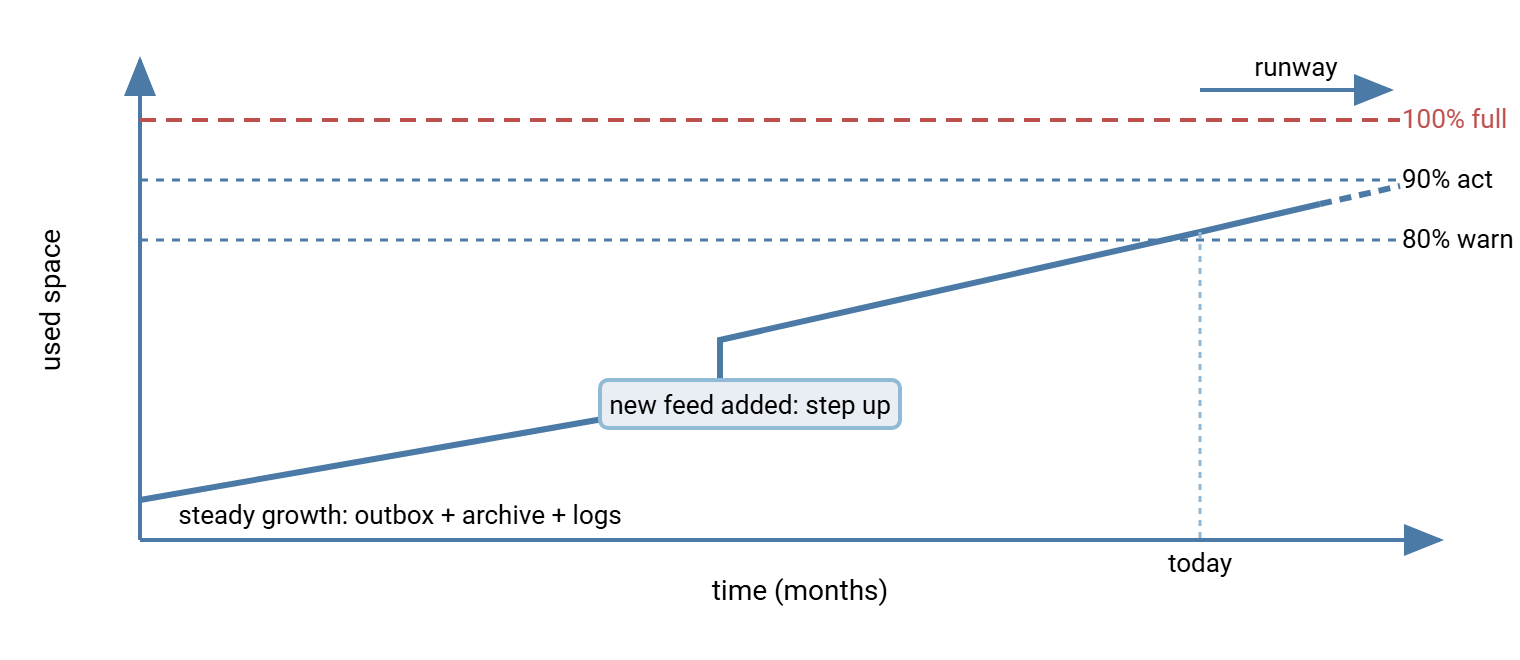
Consider the 2 TB volume from earlier, growing 60 GB a month. The last 10% of that volume is 200 GB, a little over three months of growth. If you look at the server twice a year, you can see "89% used" one time and "disk full" the next. That can make you conclude something dramatic happened in between. Nothing did; a single division would have named the date. Percentages also mislead: 60% to 70% and 85% to 95% are the same number of gigabytes, but only one ends in an outage. The disk does not grade on a curve.
Remember: a transfer server fills at a rate, not on a date. "80% used" tells you nothing on its own. But "80% used and gaining 60 GB a month on a 2 TB volume" tells you the disk is full in roughly six and a half months. Always pair the percentage with the rate.
What Actually Breaks When the Volume Fills
Know what "full" looks like, because the symptoms usually arrive without the cause attached. When a data volume runs out of space:
- Uploads fail mid-transfer. An FTP server answers with a
452reply ("insufficient storage space in system"). SFTP clients typically report a generic failure or "no space left on device". Each failed upload leaves a partial file, which makes the next upload fail sooner. - Automation retries make it worse. A job that retries a failed upload without cleaning up is now manufacturing partials in a loop. The looping job story shows how much damage that pattern can do in one night.
- Logs stop. The server cannot write its activity log, so the evidence disappears exactly when you need it.
- Downloads may still work. Reading needs no free space, so partners who only collect files notice nothing, and the problem can go unreported for hours.
- If the operating system shares the volume, everything breaks. Services fail to start, remote logins fail, and configuration may fail to save. This is the strongest argument for separating volumes.
A Ten-Minute Folder Inventory
You can classify every top-level folder on a transfer server into one of the five patterns in about ten minutes, with two commands and a table. First, size each top-level folder. On Linux:
$ du -xh --max-depth=1 /srv/transfer | sort -h
1.1G    /srv/transfer/tmp
14G     /srv/transfer/logs
96G     /srv/transfer/partners/acme
310G    /srv/transfer/partners/northwind
1.1T    /srv/transfer/archive
1.5T    /srv/transfer
The -x flag keeps du on one volume so mounted subvolumes do not confuse the totals. The -h flag prints human-readable sizes. The --max-depth=1 flag stops it from listing every subfolder. The sort -h puts the biggest last. On Windows, PowerShell does the same job; the next article gives the command and how to descend from there. Second, for each big folder, ask how many files are older than a year:
$ find /srv/transfer/archive -type f -mtime +365 | wc -l
48211
Forty-eight thousand files older than a year, in a folder meant for "re-run last month's import if needed", is a diagnosis. Now fill in the table. For each folder, record who writes to it, who reads from it, who deletes from it, and how long a file is supposed to live there. The pattern usually names itself:
| Pattern | Tell-tale signal | What fixes it |
|---|---|---|
| Uncollected outbox | Uploads in the log, no downloads; oldest file months old | Delete after confirmed collection, or age-based cleanup; fix the partner's pull |
| Archive without expiry | Largest folder; grows at the inbound rate; nobody deletes from it | Written retention window, then a cleanup job or an archive tier |
| Logs | Hundreds of rolled files; sudden growth after an incident | Rollover plus deletion of old files; turn debug logging off; centralize |
| Temp and partials | Files ending in .part, .tmp, .filepart; duplicate plaintext or extracted copies | Cleanup of abandoned temp files after a safe age; fix the failing step |
| Step change | Growth rate jumps after an onboarding or a format change | Re-measure, re-plan, and add the new feed to the cleanup rules |
Two things usually fall out of this exercise. One or two folders account for most of the used space. That is where a cleanup rule pays off. And at least one folder has no owner, no lifetime, and no rule. That is the one that will fill the disk next. It is usually called something reassuring, like processed.
The Fix Is a Rule, Not a Bigger Disk
Every pattern above has the same root cause: files arrive by schedule and leave by decision, and nobody made the decision. Adding disk buys time at the same growth rate, which is sometimes the right move. But it does not change the curve. It only moves the morning the arithmetic runs out. What changes the curve is a rule for each folder: how long a file lives there, and what removes it when the time is up. Automated cleanup jobs and quotas are the operational tools for that, and they have a series of their own at quotas and automated cleanup. What you are allowed to delete, as opposed to how, is a governance question answered by your retention policy.
Within this series, the next step is finding the directory that quietly ate the disk. That turns the inventory above into a twenty-minute hunt with real tools. Then read capacity planning for transfer storage. It turns the runway calculation into a worksheet. To never be surprised again, monitoring storage growth shows how to alert on days-until-full instead of percent-used.
Frequently Asked Questions
Why did the disk fill up so suddenly when it was fine last month?
What is the most common folder to blame?
Is adding more disk the wrong answer?
Can log files really fill a transfer server?
How do I know what I am allowed to delete?
From the Sysax team: we build secure file transfer software for Windows. Sysax Multi Server is an FTP, FTPS, SFTP, and HTTPS server. Sysax FTP Automation handles scheduled, scripted transfers. Free trials are on the download page.