
Archive Tiers: Moving Cold Files Off the Hot Server
"Can we delete it?" "No." "Has anyone opened it?" "Not since it arrived." That is most of the data on a mature transfer server. There is the nightly export from eighteen months ago. There are the archived invoices from a partner who now sends a different format. There are the processed copies kept "just in case" through three quarters of just-in-case that never came. None of it can be deleted, because a retention rule or a nervous business owner says otherwise. All of it is sitting on the fastest, most expensive, most carefully monitored disk in the estate. It is competing for space with tonight's uploads, and winning.
An archive tier fixes that mismatch. It moves files that are old enough to be cold onto storage that is cheaper and larger, while keeping them findable and restorable. So the hot server stays lean without anyone having to win an argument about deletion. This article explains what "cold" means for transfer data. It explains how to move files without losing or duplicating them. It covers how to leave a trail so people can still find what moved. It also covers what a restore looks like, and how to automate the whole thing. It is part of our Storage Growth series and pairs naturally with separating volumes, which gives the archive tier somewhere to live.
Hot, Warm, and Cold: What Temperature Means Here
Storage people talk about data temperature. Hot data is read or written often and needs to be on fast disk close to the service. Cold data is almost never read but must be kept, so it can live on slower, cheaper storage with a longer path to retrieval. Warm is the middle: occasionally needed, and worth keeping reachable without a special request. A tier is a class of storage matched to one temperature, and tiering is the practice of moving data between tiers as its temperature changes.
For transfer data, temperature is mostly a function of age, and it changes fast. A file in a partner's outbox is hot until they collect it, which usually takes a day. An inbound file is hot until processing consumes it, typically the same day. A processed copy in the archive folder is warm for as long as someone might re-run the import, which is a few weeks. It is cold after that until its retention period ends. Most transfer files go from hot to cold within a month, and then sit cold for a year or more. That shape is exactly why the hot server fills: it holds a year of cold data to serve a month of hot data. The hot server is, in effect, a very expensive attic.
Two definitions to keep separate. Tiering decides where a file lives; retention decides how long it exists at all. Moving a file to a cold tier is not deletion, and it does not change the retention clock. The retention policy sets the end date; the tiers just decide which disk the file waits on. If you have no written retention policy, the retention policy for transfer servers article is the place to start. Without that policy, archived files become a cold pile that grows forever instead of a hot one. Colder, but no smaller.
The Tier Model
The diagram below shows the three tiers as a transfer file moves through them. It shows the ages at which the file typically changes tier, where the index lives, and the restore path back.
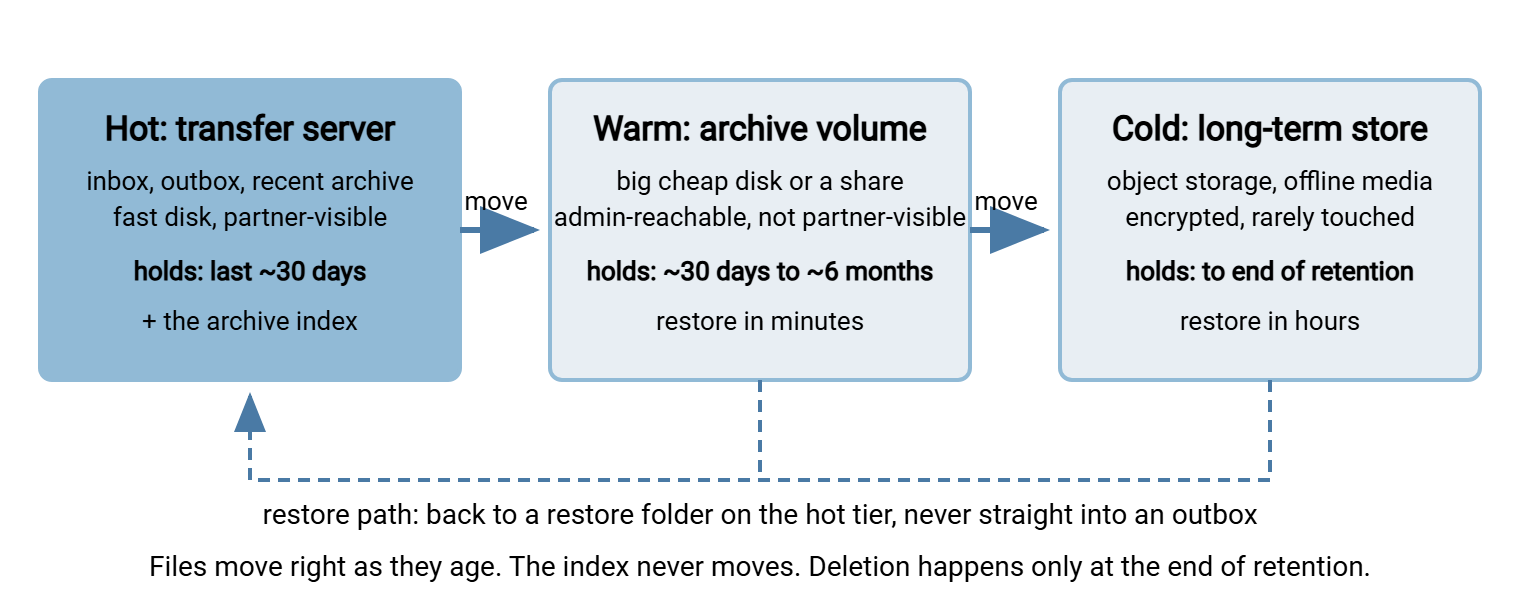
Two tiers are enough for many servers: hot plus one warm archive volume. Add a cold tier when the warm volume itself starts to fill, or when retention periods run to years. The cold tier can be a separate archive server, offline media, or object storage. The object storage in file flows article explains what changes when the tier is a bucket rather than a folder. The article on egress and cost awareness covers the part where getting data back out is the expensive direction.
Deciding What Is Cold
The decision is a rule per folder class, written down once and applied by automation. The ages below are typical starting points, not standards; adjust them to your workflows and your retention policy.
| Folder class | Goes warm when | Goes cold when | Notes |
|---|---|---|---|
| Inbox | Never | Never | Processing moves files to archive or deletes them; an old inbox file is a stuck job, not an archive candidate |
| Outbox | Collected, or older than the agreed pickup window | Per the archive rule | Keep a copy only if you need proof of what was sent; otherwise delete after collection |
| Archive (processed copies) | Older than ~30 days | Older than ~6 months | Warm covers re-runs; cold covers retention until the end date |
| Logs | Rolled files older than ~90 days, compressed | Per audit retention | Compress before moving; logs shrink dramatically |
Age is measured from the file's modification time, which on a transfer server is normally the time it arrived or was last written. Two exceptions need a rule of their own. Files under a legal hold must not move if the hold requires them to stay where they are. The legal holds and exceptions article explains how to mark them. And files that a downstream system still references by path must have that reference updated or must stay put. A report that links to the archive folder is one example. When in doubt, tier the folder class, exclude the exceptions by name or subfolder, and log what was excluded.
Move, Don't Copy, and Verify Before You Delete
Tiering is a move. A copy that leaves the original in place has not freed a byte, and it has created a second copy that will drift from the first. But a move that deletes the source before the copy is known good is how archives acquire silent holes. The safe shape is always three steps: copy to the destination tier, verify the copy, then delete the source. Some tools do all three for you with real verification; others only appear to. A verified move is boring, which is the goal.
On Linux, rsync is the right tool because it verifies. After it transfers a file, it checks a whole-file checksum before it reports success, and --remove-source-files deletes only files that transferred successfully. Combined with find to select by age, the archive move is four lines:
$ cd /srv/transfer/partners/acme/archive
$ find . -type f -mtime +30 -printf '%P\n' > /var/tmp/acme-warm.lst
$ rsync -a --remove-source-files --files-from=/var/tmp/acme-warm.lst ./ /mnt/archive/acme/
$ find . -mindepth 1 -type d -empty -delete
The -printf '%P\n' writes each path relative to the starting folder, which is what --files-from expects. The relative paths mean the folder structure is recreated under the destination. The last line removes subfolders left empty by the move, but -mindepth 1 keeps the archive folder itself. Add --dry-run (or -n) to the rsync line the first time and read what it would do. The rsync dry runs and verification article shows how to read that output.
On Windows, robocopy can select by age and move in one command, and it is the natural choice for a scheduled tier move:
C:\> robocopy D:\Transfer\partners\acme\archive E:\Archive\acme /E /MOV /MINAGE:30 /XJ /R:2 /W:5 /NP /LOG+:L:\Logs\tier-acme.log
/MINAGE:30 excludes files newer than thirty days. The /E flag includes subfolders. The /MOV flag deletes each file from the source after copying it (/MOVE would also remove the now-empty folders). The /XJ flag refuses to wander into junctions. The /LOG+ flag appends to a log you will want later. Add /L to list what would move without moving it. The honest caveat: robocopy confirms a copy by size and timestamp, not by hashing the contents. That is adequate for a warm tier on the same machine. For a move across a network, or into a cold tier you will not look at again for years, use separate copy and delete steps. Put a hash check between those steps. A PowerShell verify-then-delete loop looks like this:
$src = 'D:\Transfer\partners\acme\archive'
$dst = 'E:\Archive\acme'
Get-ChildItem $src -Recurse -File | Where-Object { $_.LastWriteTime -lt (Get-Date).AddDays(-30) } | ForEach-Object {
    $copy = Join-Path $dst $_.FullName.Substring($src.Length)
    if ((Test-Path $copy) -and
        ((Get-FileHash $_.FullName -Algorithm SHA256).Hash -eq (Get-FileHash $copy -Algorithm SHA256).Hash)) {
        Remove-Item $_.FullName
    } else {
        "VERIFY FAILED: $($_.FullName)" | Add-Content L:\Logs\tier-acme-errors.log
    }
}
Run the plain copy first (robocopy without /MOV), then this loop. A file whose copy is missing or whose hash differs is left in place and logged, never deleted. The hashing explained article covers why a hash is the only comparison that actually proves two files are identical.
Remember: the source is deleted last, and only for files whose copy has been verified. Any archive job that deletes first, or that deletes on a size match alone across a network, will eventually produce a file that exists in the index and nowhere else.
Leaving a Trail: Stubs and the Index
A file that moved to a tier nobody can see is, from the business's point of view, gone. The difference between an archive and a black hole is an index. Kept on the hot tier, this record lists every file that moved, where it went, and how to prove it is the same file. A plain text file per partner does the job, appended by the archive job on each run:
original_path,bytes,sha256,archived_on,tier,location
partners/acme/archive/invoices_YYYYMMDD.zip,48211334,9f3c1a...,YYYYMMDD,warm,E:\Archive\acme\invoices_YYYYMMDD.zip
partners/acme/archive/statements_YYYYMMDD.csv,1872011,c07be4...,YYYYMMDD,warm,E:\Archive\acme\statements_YYYYMMDD.csv
Six columns are enough: the original path, the size, a hash, the date it moved, the tier, and the current location. When a file later moves from warm to cold, the job appends a new row rather than editing the old one. So the index is also a history. Keep the index under the partner's folder on the hot tier (or in a central folder the help desk can reach). Back it up with the server configuration, because an index is small and priceless. Finding a file is then a search: grep invoices_ partners/acme/archive-index.csv on Linux, or Select-String invoices_ D:\Transfer\partners\acme\archive-index.csv in PowerShell.
Some teams also leave a stub: a tiny placeholder in the original location, such as invoices_YYYYMMDD.zip.archived.txt containing the index row. Stubs let someone browsing the folder see that the file existed and where it went. That is helpful for humans and unhelpful for automation, which may try to process the stub. Use stubs in folders only humans browse, never in inboxes or outboxes, and give them a suffix your jobs ignore. We learned that the slow way, from an import job that tried very hard to parse a stub. The file-naming conventions in datestamp formats that sort make both stubs and index searches far easier. An archived file with a sortable date in its name can be located by eye. The article archives that stay navigable covers the folder side of the same problem.
Restore Paths
A tier is only as good as the way back. Decide the restore path before the first file moves, and write it into the runbook:
- Who can ask. Usually the flow owner or the help desk on their behalf, with the partner name, the filename or date range, and the reason.
- Where it comes back to. A dedicated
restorefolder on the hot tier, never straight into an inbox or outbox. Restoring into an outbox re-sends the file to the partner; restoring into an inbox re-processes it, which is a duplicate-payment story waiting to happen. - How it is verified. Hash the restored file and compare with the index row. If they differ, the tier has a problem larger than this one restore.
- How long it takes. Minutes from a warm volume; hours from a cold tier that must be retrieved or mounted first. Say so, so expectations are set before the request rather than after.
- What happens afterwards. The restored copy is itself a temporary file; give the restore folder a short cleanup age so restores do not become a fourth tier.
Test a restore from each tier at least quarterly, choosing a file at random from the index, the way a restore drill picks its target. A tier you have never restored from is a hope, not a backup of anything. The cold tier in particular can fail quietly. For example, the media will not mount, a bucket's credentials expired, or nobody can find an encryption key. I have watched that last one happen, and it was not the media that failed. If cold-tier files are encrypted at rest, and they should be, the server-side at-rest protection article covers the key management that makes a restore possible years later.
Bluewater Bank's first real restore request came from an auditor, not from a drill. The auditor wanted a statements file from fourteen months earlier, by name, and wanted it by the end of the day. The file had gone warm at thirty days and cold at six months, so the hot server had not held it for over a year. A grep of the index gave its location, its hash, and both move dates in under a minute. The cold tier took two hours to retrieve. The restored file's hash matched the index row. The file went into the restore folder rather than anywhere a job would notice it. The auditor got the file and, more usefully, the index row that proved it was the same file. The quarterly drill had been grumbled about; it was not grumbled about again.
Keeping Partner-Visible Folders Lean
Partners should see the hot tier and nothing else. Their account's home folder, or jail, contains the inbox, outbox, and possibly a short-lived archive. The warm and cold tiers live outside it, on volumes and shares their account cannot reach. There are three reasons. A lean folder lists faster, and directory listings over FTP and SFTP get slow and sometimes time out when a folder holds tens of thousands of entries. A lean outbox cannot be re-downloaded by accident. A partner's job that syncs "everything in the outbox" after a reset will pull a year of old files if they are still there. And a lean tree is easier to reason about when something goes wrong at two in the morning. A partner's sync job has no sense of proportion.
If a partner genuinely needs access to older files, share the index rather than the archive, and restore on request. If they need self-service, give them a separate read-only account onto a warm archive share with its own quota, kept apart from the operational folders. The hot folder pattern article explains why a small, fast-emptying folder is the right shape for anything automation watches.
Automating the Move
The archive job is a scheduled task that runs the move for each partner, appends to the index, and logs what it did. On Linux it is the rsync sequence above in a script under cron. On Windows it is the robocopy command, or the verify-then-delete loop, under Task Scheduler. Wherever it runs, the job needs four properties. It selects by age with an explicit threshold. It never deletes an unverified file. It writes an index row for every file it moves. It produces a summary (files moved, bytes moved, errors) that a person actually sees. The Task Scheduler for transfers article covers running it reliably as a service account.
Expect the numbers to change shape once the job runs. Take the 2 TB example used throughout this series. Tiering everything in the archive folders older than thirty days moved just over 1 TB off the hot volume on the first night. After that, the hot volume's growth rate fell to whatever accumulates inside the thirty-day window. At steady state, that rate is close to zero. The growth moved to the warm tier, where disk is cheaper and where the same runway arithmetic from capacity planning applies. The warm tier still needs a plan, but it needs one at a fraction of the cost and with no partner-facing outage on the line. The warm tier fills too; it just fills politely.
A dedicated scheduler can replace most of the script. Sysax FTP Automation, for example, runs scheduled tasks that include file and folder operations and mirror or backup style tasks. That makes a nightly age-based move to an archive location a configured task rather than a script to maintain. The index and verification steps still deserve explicit attention whichever tool runs the move. Whatever you use, run it with the dry-run option for the first week and read the output. Then let it run for real and watch the hot volume's growth rate fall. That falling rate is the number this whole series is about, and the monitoring article shows how to keep watching it.
The Short Version
Transfer files go cold within weeks and stay cold for years, and the hot server should hold only the weeks. Tier by age per folder class, with the retention policy setting the end date and the tiers only deciding where the file waits. Copy, verify by hash, then delete the source, in that order and never another. Keep an index on the hot tier so every archived file is findable and provable. Restore into a dedicated folder rather than an operational one. Test a restore from each tier every quarter. Then hand the job to a scheduler and watch the growth rate drop. The attic empties, and this time it stays empty.
Within this series, capacity planning shows how tiering changes the runway arithmetic. The article why transfer servers fill up names the archive-without-expiry pattern that tiering exists to cure. The rules for what may eventually be deleted, and how, are in the automated purge policies article.
Frequently Asked Questions
Is archiving the same as deleting?
Why not just copy old files to the archive and leave the originals?
Does robocopy verify the files it moves?
How will people find a file after it has been archived?
Where should a restored file go?
From the Sysax team: we build secure file transfer software for Windows. Sysax Multi Server is an FTP, FTPS, SFTP, and HTTPS server. Sysax FTP Automation handles scheduled, scripted transfers. Free trials are on the download page.