
Deploying Standard Client Configurations
Picture the new hire's first morning. She opens the transfer client and the partner servers are already in the site list. She connects, and nobody asks her whether she trusts a fingerprint she has no way of evaluating. She looks for plain FTP, out of curiosity, and it is simply not there. None of that happened because the client was installed. It happened because the client was installed with its configuration. Configuration is the part most deployments skip, because the installer is easy and the configuration is where the work is.
This article is the work. It separates a client's configuration into four layers. It explains where each one lives and how that decides the way you distribute it. Then it walks through six deployment steps in order. Those are silent install, preconfigured profiles, pre-seeded trust, plain FTP disabled, credential handling, and an update cadence that holds. It ends with a checklist and a fresh-machine test. It is part of our Client Standardization series and assumes the standard has already been chosen.
What "Configured" Means: The Four Layers
A deployed transfer client is four things stacked on top of each other. Deployments go wrong because each layer lives somewhere different and has to be distributed a different way.
| Layer | What it contains | Where it typically lives | How it is distributed |
|---|---|---|---|
| The binary | The client program at a pinned version | Program Files (per machine) | Silent install through your software deployment system |
| Policy settings | Protocols allowed, credential-saving rules, logging on, update behavior | A machine-wide config file, registry policy keys, or the OS policy mechanism | Pushed once per machine; overrides user choices |
| Connection profiles | Saved sites: host, port, protocol, username, key path, folders | Per user, in the profile folder or per-user registry hive | A machine-wide template copied or merged at first launch |
| Trust material | Known SSH host keys; private CA root certificates | System known-hosts file, the client's host-key cache, the OS certificate store | Pushed per machine, refreshed when a server's key or CA changes |
The distinction that matters most is per-machine versus per-user. Anything per-machine can be pushed by your endpoint management tool and is done. Anything per-user only exists once a user has logged in and launched the client. So it has to be generated from a template at that moment or delivered by a mechanism that runs in the user's context. Clients that keep everything per-user in an opaque database are the ones that fail this test. That is why the features article weights file-based configuration so heavily.
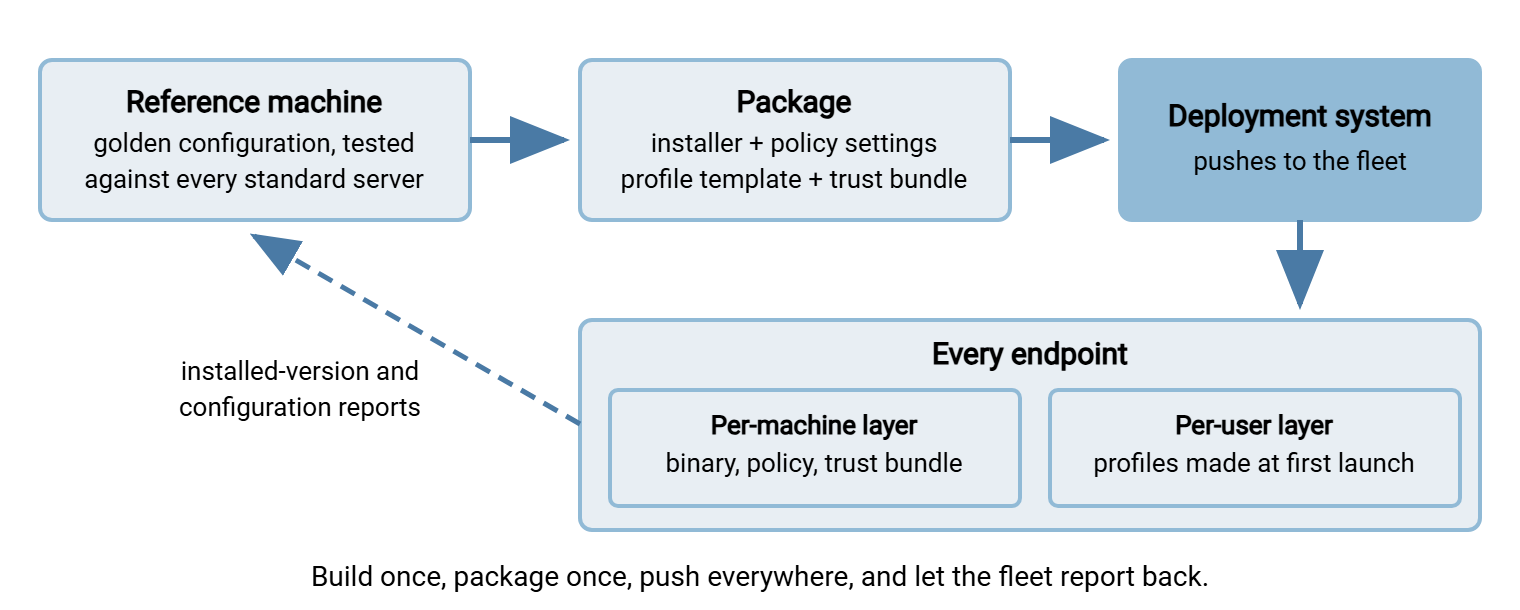
The diagram below shows the flow from a reference machine to the fleet, and the report that comes back.
Step One: The Silent, Per-Machine Install
Start with a reference machine: a clean workstation where you install the client by hand. Configure it exactly as you want every user to have it. Test it against every standard server, and then work out which files and keys changed. Everything that follows is a way of reproducing that machine's state on the fleet. Clean matters. Your own laptop is not a reference machine; it is a reference machine plus six years of personal settings you have forgotten you made.
Meridian Parts found out which six years. Their administrator built the package from his own workstation, where the client had worked perfectly for years. It had worked because of a personal SSH config with a User line and a known-hosts file he had accepted by hand. It also relied on a key with no passphrase in a folder the template did not point at. The package captured the client and none of that. The first hundred users got "Permission denied" before lunch, and every ticket said "it works on his laptop". It did. That was the problem.
The install itself should be silent, per-machine, and pinned. Silent means no dialogs, so it can run from a deployment system with nobody logged in. Per-machine means it lands in Program Files for all users rather than in one user's profile. Pinned means a specific version you tested, not "latest", so the fleet is uniform and the update step below is deliberate. If the client ships as a Windows Installer package, the command is the standard one:
msiexec /i standard-client.msi /qn ALLUSERS=1 /l*v C:\Logs\client-install.log
Clients with their own installer formats have an equivalent silent switch; the publisher's deployment notes will name it. Two settings deserve attention now. If the client offers to check for updates on its own, decide whether that stays on. Keeping it on is fine for a small, lightly managed fleet. The other choice is to disable it because you will push updates centrally. That is the usual choice once a deployment system is involved. And if the client has a portable mode or a per-user install option, disable it by policy. A portable copy in a user folder is a client that has escaped the standard and rejoined the sprawl.
Step Two: Preconfigured Connection Profiles
A connection profile is a saved site: host, port, protocol, username, authentication method, and the local and remote folders to open. The single most effective thing you can do for users is to ship the standard servers as profiles. That way, the first launch shows a list of names rather than an empty dialog. It removes a whole class of tickets. When the profile was created for them with SFTP, nobody mistypes a hostname, picks the wrong port, or selects plain FTP from a dropdown. It also takes four steps off the secure path, the argument of making the secure path the easy path.
Because profiles are per-user, the mechanism is a machine-wide template. The client (or a small first-run script) copies or merges it into the user's own configuration the first time they launch it. Most file-configured clients support this directly, either by reading a system-wide configuration file before the user's, or by importing a site list from a known path. Three rules for the template.
- Use placeholders for identity. The username field should resolve to the user's own login, an environment variable such as
%USERNAME%where the client supports it, never a shared account. - Never ship a password. A template containing a saved password is a credential on every machine. Profiles carry the connection details; the user supplies the secret, or a key does.
- Point key-based profiles at the user's own key path. Use something like the user's
.sshfolder, with a note in the guide on how the key gets there. See generating and storing keys.
For the command-line standard, the profile template is the OpenSSH configuration file. A system-wide file, %ProgramData%\ssh\ssh_config on Windows and /etc/ssh/ssh_config elsewhere, is read for every user. So a stanza like the one below turns sftp partner-bluewater into a complete, correct connection with no options to remember:
# System-wide ssh_config: one stanza per standard server
Host partner-bluewater
    HostName sftp.bluewater.example
    Port 22
    IdentityFile ~/.ssh/id_ed25519
    StrictHostKeyChecking yes
Two details are deliberate. There is no User line. With none given, the client uses the local login name. That is the right default when partner usernames match your own. A user whose remote name differs adds a one-line User entry in their personal configuration file. That file is read first. (Meridian's administrator had such an entry. That is where it lived.) And StrictHostKeyChecking yes tells the client to refuse any server whose key is not already known. This only works because the next step puts the keys there first. The wider possibilities of this file are in SSH config for transfers.
Step Three: Pre-Seeding Trust
This is the step that changes what users experience. When a client connects to an SFTP server for the first time, it has never seen that server's host key. So it asks the user to confirm a fingerprint. Users cannot evaluate a fingerprint; they click yes. Pre-seeding trust means the deployed configuration already contains the keys of every standard server. So the prompt never appears for them. When it does appear, something is wrong. Host keys and known hosts explains the mechanism. MITM and trust failures explains why a prompt users are trained to click through is the attacker's best friend.
Collecting the keys has one rule: verify them out of band. Ask each server's administrator for their host-key fingerprints through a channel other than the connection itself. That could be a phone call, a signed document, the partner's connection guide. Then fetch the keys and compare:
# Fetch the server's public host keys in known_hosts format
ssh-keyscan -t ed25519,rsa sftp.bluewater.example >> ssh_known_hosts

# Show fingerprints of what was fetched; compare with what the admin told you
ssh-keygen -l -f ssh_known_hosts
ssh-keyscan records whatever key the server presents, so on its own it proves nothing; the fingerprint comparison is the verification. I once skipped the comparison for a partner in a hurry. Nothing bad happened, which is the worst possible lesson. Once the file holds every standard server, distribute it as the system-wide known-hosts file (%ProgramData%\ssh\ssh_known_hosts on Windows, /etc/ssh/ssh_known_hosts elsewhere). Graphical clients keep their own host-key cache, in a file or a registry key depending on the client. The publisher's documentation names the location and format. The deployment package populates that cache the same way. Keep a single master file and generate both from it, so the two standards never disagree about a server.
For FTPS and HTTPS servers, trust is a certificate matter. Servers with certificates from a public certificate authority need nothing: the operating system already trusts the issuer. Servers using a private CA, your own or a partner's, need that CA's root certificate in the machine's trusted root store. Your deployment system can push the root certificate directly, or a one-line command installs it:
certutil -addstore -f Root corp-root-ca.cer
This is why the features article prefers clients that validate certificates through the OS store. One root pushed once covers the graphical client, the command-line tools, and the browser. Clients that keep their own certificate store need the root added to that store as well. The rest of the private-CA story is in self-signed certificates and private CAs.
Remember: pre-seeded trust is what makes a strict policy livable. Once every standard server's key is on every machine, you can tell the client to refuse unknown hosts outright. With those keys in place, you can also tell users that a fingerprint prompt means "stop and call us" rather than "click yes". Both depend on the seeding being complete and kept current when a server's key changes.
Step Four: Disabling Plain FTP at the Client
Retiring plain FTP on your servers, as why retire FTP argues, does nothing about clients that still speak it to someone else's server. The deployment closes that gap in three places.
In the graphical standard, use the policy layer to remove plain FTP from the protocol choices. If the client cannot do that, remove it from the profile template. Make the guide explicit that FTP profiles are not to be created in that case. In the command-line standard, the OpenSSH client cannot speak FTP at all, which is one of its quiet virtues. The problem is the console ftp client that also ships with Windows and cannot be uninstalled in the ordinary way. Application control rules in your endpoint management tool can block it from running for ordinary users. This is also the moment the batch-file decision from choosing the organization's standard clients gets executed. If you chose to swap the executable in old scripts for a drop-in, the deployment package carries the new executable. That could be sysaxftp.exe from Sysax FTP Automation. When you make that swap, the scripts are also updated to call it over SFTP or FTPS.
At the network edge, an egress rule blocking outbound port 21 is the backstop, with one caution. Explicit FTPS also begins on port 21 and upgrades to TLS, so a blanket block breaks legitimate FTPS partners, usually at month end. Allow port 21 only to the hosts where explicit FTPS is expected. Confirm with the techniques in cleartext discovery that what crosses those connections is encrypted.
Step Five: Credentials and Keys in the Deployed Configuration
Deployment multiplies credential mistakes by the size of the fleet, so the rules are short and absolute. No passwords in templates. Not one, not "just for the pilot". Saved passwords, where users are allowed to save them, go into the operating system's credential store or the client's encrypted store. The storage is set by policy, not left to the client's default. For key authentication, each user has their own key pair, generated on their machine with a passphrase. The deployment provides the folder and the guide, not the key.
Unattended jobs are different and deserve their own treatment. A scheduled transfer runs under a service account with its own key or stored credential, never a person's. The storage question is the subject of job credentials storage. The deployed configuration for a job server therefore differs from a workstation's. It has profiles for the service account, keys in a protected location, and no interactive prompts of any kind.
Step Six: The Update Cadence
Clients go stale because nobody owns updating them. The deployment fixes that by making updates a routine rather than an event. A workable cadence looks like this. A test ring of a dozen power users and the help desk receives each new version first and runs it for a week or two. If nothing breaks, the deployment system pushes it to the fleet during the next regular maintenance window, typically monthly. A published security advisory for the client shortens the whole cycle to days. The deployment system's inventory reports installed versions back, the dashed arrow in the diagram. So you can see stragglers and machines that missed a push.
Two traps. If you left the client's self-update on, it will race your deployment system and the fleet will fragment; choose one mechanism. And if a version changes the configuration format or the location of the host-key cache, re-test your template and trust bundle. Do this on the reference machine before the push. That is precisely what the test ring is for. Every version note that says "minor improvements" has, at some point, moved the host-key cache.
The Deployment Checklist and the Fresh-Machine Test
Everything above, in the order to do it. Keep this with the package so the next administrator can rebuild it.
- Reference machine built, configured, and tested against every standard server and every partner in the register.
- Installer pinned to a tested version, silent, per-machine; portable and per-user modes disabled; self-update decided.
- Policy layer set: plain FTP removed, credential storage rules, logging on by default, "accept any certificate" locked off.
- Profile template with every standard server, placeholders for identity, no passwords, key paths pointing at the user's own folder.
- Trust bundle: put host keys for every standard server, verified out of band, in the system known-hosts file and the graphical client's cache. Put private CA roots in the OS store.
- Batch-file tail updated to the chosen command-line answer; console FTP client blocked for ordinary users; port 21 egress restricted with the explicit-FTPS caveat.
- Job servers configured separately with service accounts and protected key storage.
- Update cadence written down: test ring, monthly window, advisory fast path, version reporting.
- Retirement of non-standard clients scheduled in phases, with exceptions recorded first.
- Verification on a fresh machine, below, before the announcement goes out.
Verifying on a fresh machine
Before announcing anything, take a machine that has never had the client. Let the deployment system deliver the package, log in as a new test user, and check five things. The client launches and the profile list shows every standard server. Connecting to each one produces no fingerprint prompt and no certificate warning. The protocol dropdown does not offer plain FTP. A saved password, if saving is allowed, lands in the protected store and not in a text file. The session log exists at the documented path. Then run the command-line standard against the same servers, no prompt, clean connection. Open the log to confirm it recorded the session. A new test user, not your own account; your account is where the six years live.
One layer needs no deployment at all. If the occasional uploader's path is a browser and the server's certificate comes from a public authority, there is nothing to push. In that case, the trust is already in the operating system and the "client" is already installed. A server that offers web-based transfers over HTTPS alongside SFTP and FTPS, such as Sysax Multi Server, lets you serve that persona with a bookmark. The personas that need a real client get the deployed one. That is the deployment version of the persona split in GUI clients vs command-line clients. The fewer people who need the package, the fewer machines it can go wrong on.
What Deployment Buys You
A deployed configuration turns the standard from a recommendation into a fact on every desk. The right servers are listed, trust is established, plain FTP is gone, and credentials are in the right place. The version stays current because a routine keeps it so. The deployed configuration also sets up the last article in this series, supporting the standard client without becoming the help desk. Most of the tickets that article decodes are ones this deployment prevents. The ones that remain, especially an unexpected fingerprint prompt, now carry real meaning.
Frequently Asked Questions
What does "pre-seeding trust" actually mean?
Is it safe to use ssh-keyscan to collect host keys?
Why can't we just block outbound port 21 to stop plain FTP?
Should the client update itself, or should we push updates?
Can we include saved passwords in the profile template to make life easier?
From the Sysax team: we build secure file transfer software for Windows. Sysax Multi Server is an FTP, FTPS, SFTP, and HTTPS server. Sysax FTP Automation handles scheduled, scripted transfers. Free trials are on the download page.