
Migrating SSH Keys and TLS Certificates Between Platforms
"REMOTE HOST IDENTIFICATION HAS CHANGED" is the one message in file transfer written entirely in capitals. On the morning after a cutover it is either in every partner's inbox or in none of them. Neither is good news by itself. Every SFTP client that has ever connected to your server remembers its host key. Every FTPS and HTTPS client checks its certificate. Decide what happens to those two things before you move. Otherwise, cutover produces either a flood of warnings or a flood of nothing at all: unattended jobs failing closed, silently, exactly as designed.
The identity layer is the set of keys that prove who your server is to partners and who your partners are to your server. This article covers its mechanics: the host-key fork (carry the old key or issue a new one) and what each branch does to partners. It also covers the commands for moving a host key safely, authorized keys, and TLS certificates with their private keys and chains. Then comes re-verifying that chain before a partner does it for you. It is part of our Platform Migration Mechanics series and follows the layer map in what actually moves in a platform swap.
Announcing a fingerprint and sequencing partners by risk is coordination work, covered in partner coordination in migrations. This article is about the keys themselves.
Three Kinds of Key, Two Directions of Trust
The identity layer holds three things that are easy to confuse, because all are called keys and all involve fingerprints.
- The SSH host key identifies your server to SFTP clients. The server generated it for itself. The private half never leaves the server. The public half is sent to every client that connects. The client stores a fingerprint — a short hash of the public key — on first connection. On every later one it compares what the server presents against what it stored. A mismatch means "this is not the server I remember", and strict clients refuse to continue. Host keys and known_hosts covers the storage and the warnings.
- The TLS certificate identifies your server to FTPS and HTTPS clients. It is also a key pair, but the public half is wrapped in a certificate signed by a certificate authority. Clients check the signature chain and that the name on the certificate matches the one they connected to. No fingerprint memory is involved unless a partner pinned one deliberately.
- Authorized keys identify your partners to your server. Each is the public half of a key pair the partner generated. Your server keeps a list of them per account. They are public data and carry over freely, as migrating accounts and permissions described.
Two directions of trust, then. Partners trust your server by host key or certificate; your server trusts partners by authorized key. A migration can break the first; the second is a copy job. One more fact for later: most servers hold several host keys, one per algorithm. Any client may have pinned any of them.
The Host-Key Fork
Every SFTP migration reaches the same decision. Either the new server presents the same host key as the old one, so every partner's stored fingerprint still matches. Or it presents a new key and every partner must accept a new fingerprint. There is no third path, and both are legitimate. The diagram shows where each branch lands the partners.
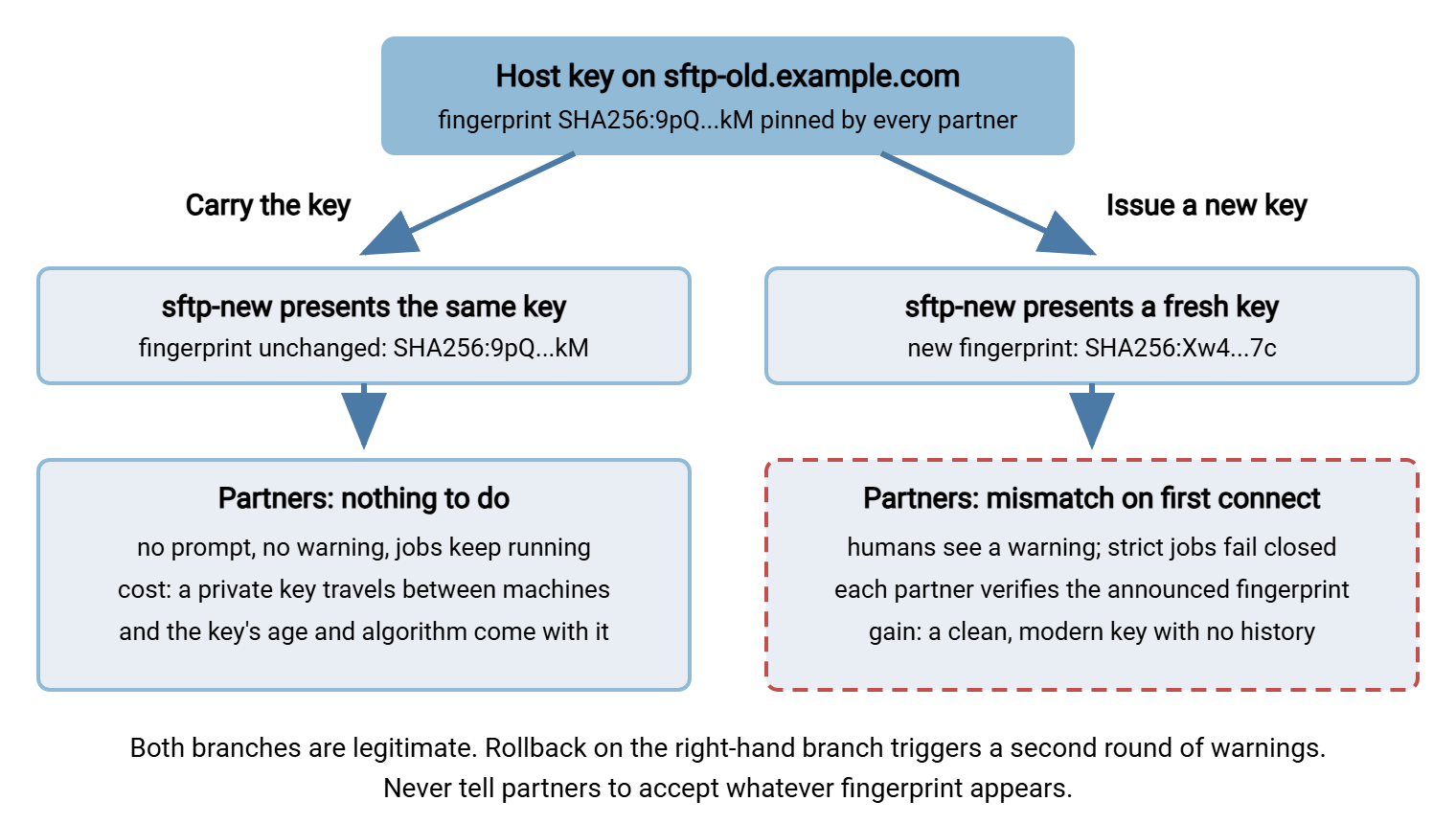
Partner impact decides, and it differs by branch and by client type.
| Partner type | Carry the key | Issue a new key |
|---|---|---|
| Unattended job, strict checking | Connects normally | Fails closed until the partner updates the stored key — correct behavior, but a partner action on a deadline |
| Unattended job, checking disabled | Connects normally | Connects normally — the partner to worry about, since they would connect to an impostor just as readily |
| Human with a graphical client | Nothing visible | A warning dialog; they should compare against your announcement, and many will click through |
| Your own scheduled jobs | Nothing to change | Update the stored fingerprint in each job's connection profile before cutover |
Two situations push the decision. A parallel run, where old and new servers both answer under one name for a period, effectively requires carrying the key. A partner whose connections land on either server at random cannot pin two fingerprints under one name without warnings on every other attempt. A realistic chance of rollback also favors carrying. On the reissue branch a rollback re-presents the old key to partners who just accepted the new one. That brings a second round of warnings with less notice (see change rollout and rollback). Against that, carrying moves a private key between machines and inherits whatever the old key was. A dated algorithm, or an old server whose integrity is in doubt, makes a fresh key the only clean answer. Who to tell and how far ahead is in cutover strategies.
Never do this: tell partners to "just accept the new fingerprint when prompted." A partner who accepts whatever appears would accept an attacker's key just as readily. Warned partners verify; alarmed partners either call you or click through. Only the first is the behavior you want to train.
Carrying the host key: the mechanics
Carrying the key means installing the old server's host key pair on the new server, so it presents the identical public key. The steps are the same on every platform; only the file locations and the import mechanism differ.
- Find every host key the old server offers. A server typically has one key pair per algorithm (RSA, ECDSA, Ed25519). A client may have pinned any of them. Carry every type the old server presented, or the partners who pinned another type get mismatches anyway. On an OpenSSH server they live in
/etc/ssh/asssh_host_*_keyand.pubpairs. Windows-native products keep them in their configuration or key store and export them from the admin interface. - Record the fingerprints before you move anything, so you can prove the new server matches.
- Move the private keys over an encrypted channel only. Use SFTP or SCP to an administrator account on the new host, or an encrypted archive carried by hand. A private key that has been emailed, pasted into chat, or left on a shared drive is reissued instead.
- Install and lock down. Put the keys where the new platform expects them (or import them through its interface). Restrict the private halves to the service account that runs the server, and restart the service.
- Verify from the outside — from a machine that is not the server — that the fingerprints match the ones you recorded.
- Destroy every intermediate copy — the archive, the download folder, the temp directory on your workstation. The old server keeps its copy until decommission, because rollback needs it. The decommission checklist at the end of this series is where it finally dies.
# On sftp-old: record the fingerprints of every host key (all types)
for k in /etc/ssh/ssh_host_*_key.pub; do ssh-keygen -lf "$k"; done
#   256 SHA256:9pQ...kM root@sftp-old (ED25519)     (one line per key type)

# Move the private keys over an encrypted channel (never email or chat)
tar czf - /etc/ssh/ssh_host_*_key* | ssh admin@sftp-new.example.com 'cat > ~/hostkeys.tgz'

# On sftp-new (as root): install, restrict, reload
tar xzf ~admin/hostkeys.tgz -C /
chmod 600 /etc/ssh/ssh_host_*_key
chmod 644 /etc/ssh/ssh_host_*_key.pub
systemctl restart sshd
shred -u ~admin/hostkeys.tgz

# From a third machine: confirm the new server presents the same fingerprints
ssh-keyscan -t ed25519,rsa sftp-new.example.com 2>/dev/null | ssh-keygen -lf -
#   256 SHA256:9pQ...kM sftp-new.example.com (ED25519)   <-- must match the old
The commands show the generic shape on an OpenSSH-style server. On a Windows product the same six steps happen through export and import dialogs. The verification is identical: ssh-keyscan against the new host, compared with the record. That outside-in check is the one that counts, because it tests what partners will see rather than what you installed. The one copy that should exist anywhere else is the sealed recovery copy kept the way protecting keys and certificates for DR describes. A migration is a good moment to check it exists.
Bluewater Bank carried their host key with great care: encrypted channel, permissions set, fingerprint verified from a third machine, intermediate copies shredded. On Monday morning they fielded eleven calls about an identification warning. They had carried the Ed25519 key. Their older partners had pinned the RSA one, which was still sitting on the old server, doing nothing for anybody. Step one of the list exists because of mornings like that.
Issuing a new host key: the mechanics
On the other branch the new server uses the keys it generated at installation, and the work moves to the partners' side. Your part is making the new fingerprints verifiable.
# On sftp-new: capture fingerprints in BOTH digest styles, for every key type
ssh-keygen -lf /etc/ssh/ssh_host_ed25519_key.pub            # SHA256:Xw4...7c
ssh-keygen -lf -E md5 /etc/ssh/ssh_host_ed25519_key.pub     # MD5:3a:1f:...:9e
ssh-keygen -lf /etc/ssh/ssh_host_rsa_key.pub
ssh-keygen -lf -E md5 /etc/ssh/ssh_host_rsa_key.pub

# What a partner does on their side, after verifying against your notice
ssh-keygen -R transfer.example.com          # forget the old key for the name
ssh-keygen -R 203.0.113.10                  # ...and for the old address, if pinned by IP
sftp bayside@transfer.example.com           # first connect: compare, then accept
Publish both digest styles because clients differ. Modern command-line clients show the SHA256 form. Some graphical clients and older libraries still display the colon-separated MD5 form. A partner who cannot match what their client shows will click through. Publish every key type for the same reason. The notice goes through a channel partners already trust. It carries old and new fingerprints side by side, the date, and whom to call about a mismatch. Its structure is the coordination side's job. The fingerprints are yours to get right.
Your own automation needs the same treatment. Every scheduled job that connects to the server pins its fingerprint somewhere (a known_hosts file, a connection profile, a library setting). Each job is updated before cutover, not discovered failing afterward. The discipline is in generating and storing keys.
Authorized Keys Carry Over as Public Data
Partner keys are the easy direction. Each authorized key is one line of public text. The only things to get right are the mapping to the correct account, the format the new platform expects, and the fingerprint check that proves the mapping. Three details I check every time.
- Check key-type support on the new platform before cutover. A partner's very old key of a type the new server has dropped fails with no useful message. The partner needs time to generate a replacement.
- Per-key restrictions may not translate. An old-platform option that limited a key to one source address or one command has to become an account-level restriction on the new one. Or it has to be dropped deliberately.
- Verify by fingerprint, not by eye. Two keys alike in their first forty characters are not the same key. Run
ssh-keygen -lfon both sides and compare.
Routine handling of partner keys, receiving, storing, and rotating, is in distributing authorized keys.
Moving TLS Certificates and Private Keys
FTPS and HTTPS identity travels as a bundle of three parts. First is the server certificate (public; carries the server's name and the authority's signature). Next is the matching private key (secret). Last is the chain, one or more intermediate certificates linking yours up to a root the client already trusts. All three must reach the new platform. The chain is the part most often forgotten, being the only part nobody asked for.
The bundle comes in two common shapes. PEM files are text, blocks beginning -----BEGIN CERTIFICATE-----, usually one file per part. A PKCS#12 file (extension .pfx or .p12) is a single password-protected binary holding certificate, private key, and chain together. It is the natural transport between platforms, especially onto or off Windows, whose certificate store imports and exports it directly. On a Windows target such as Sysax Multi Server, the certificate is assigned in the server's settings once in place. On other platforms it is a path in a configuration file. The install-and-chain mechanics are in installing and chaining certificates.
Four checks before you move it.
- Is the private key exportable? A key imported into a Windows store without the "exportable" flag cannot be extracted later. If so, you cannot carry the key. In that case, request a reissue from the authority with a new key pair. This is routine and usually free within the certificate's term.
- Does the certificate cover the name partners will use? The name, in the subject alternative names, must match the alias partners connect to. If cutover changes the name, the certificate changes too.
- How long does it have left? A migration is the wrong moment to carry a certificate with a month remaining. Renew now, install the renewed one on the new platform, and let the old expire on the old server.
- Is the chain complete? The export must include the intermediates, or you will re-learn the lesson in the next section.
The private key gets the same handling as a host key: encrypted transport and a password-protected bundle with the password sent separately. Every intermediate copy is destroyed after import. Renewal and the authority side are in getting certificates.
Re-verifying the Chain on the New Platform
A certificate that looks installed is not the same as a chain that verifies. The classic failure: the new server sends its own certificate but not the intermediate. Browsers hide this, because most fetch a missing intermediate themselves, so a quick browser check passes. Scripted clients and libraries fetch nothing. Partner automation therefore fails with "unable to get local issuer certificate" on the first real transfer. Test with a tool that behaves like a script.
# Implicit FTPS (TLS from the first byte, port 990)
openssl s_client -connect transfer.example.com:990 -servername transfer.example.com -showcerts < /dev/null

# Explicit FTPS (plain connect on 21, then upgrade with AUTH TLS)
openssl s_client -connect transfer.example.com:21 -starttls ftp -servername transfer.example.com < /dev/null

# HTTPS portal
openssl s_client -connect transfer.example.com:443 -servername transfer.example.com < /dev/null

# In each output, look for:
#   Certificate chain
#    0 s:CN = transfer.example.com        <-- your certificate, correct name
#    1 s:CN = Example Issuing CA           <-- the intermediate MUST appear here
#   Verify return code: 0 (ok)             <-- anything else is a finding
# Expiry: pipe any of the above into   openssl x509 -noout -dates   and confirm notAfter
Read three things off the output. The chain has more than one entry, the verify code is zero, and the name in entry zero is the alias partners use. Run all three, because listeners may be configured separately. A complete chain on the portal beside a bare certificate on FTPS is entirely possible. Then point expiry monitoring at it. The watch in certificate expiry monitoring was aimed at the old server. A migration is exactly how a certificate falls out of it.
Trust in the Other Direction
The new server is also a client whenever it pushes files outward or pulls from partners. The trust it holds in that role does not migrate either. Rebuild three stores.
- The server's own
known_hosts, or the platform's equivalent, for every partner server your outbound jobs reach. Populate it by verifying each partner's fingerprint, not by connecting once and accepting. - The CA trust store used to verify partners' FTPS and HTTPS certificates, including any private-authority roots partners gave you.
- Client certificates, if any partner requires mutual TLS from you: the certificate and private key your server presents. Move them with the same care as the server certificate — see client certificates and mutual TLS.
The Key and Certificate Move Checklist
IDENTITY LAYER -- sftp-old -> sftp-new

[ ] Host-key decision recorded: CARRY / REISSUE, with the reason
[ ] All host key types on old server listed; fingerprints (SHA256 + MD5) recorded
[ ] CARRY: private keys moved over encrypted channel; permissions set; service restarted
[ ] CARRY: ssh-keyscan from a third machine matches recorded fingerprints, every type
[ ] REISSUE: fingerprints captured in both styles; notice sent via trusted channel
[ ] REISSUE: own scheduled jobs updated before cutover
[ ] Authorized keys imported per account; fingerprints compared old vs new
[ ] Partner key types all supported on new platform (checked, not assumed)
[ ] Certificate: exportable? name covers alias? expiry acceptable? chain included?
[ ] Certificate + key + chain installed on every listener (21, 990, 443)
[ ] openssl s_client per listener: chain depth > 1, verify code 0, correct name
[ ] Expiry added to monitoring; outbound trust rebuilt (known_hosts, CA store, client certs)
[ ] All intermediate copies of private keys destroyed (workstation, temp, archive)
[ ] Old server keeps its keys until decommission
Remember: a host key or a certificate private key that has been handled carelessly during a migration is worse than one you never carried. If at any point you are unsure where a copy went, stop carrying it and reissue. Partners can absorb one well-announced fingerprint change; nobody can absorb a compromised identity.
Wrapping Up: Decide the Fork, Then Verify From Outside
The identity layer is one decision and a set of careful copies. Decide the fork deliberately: carry for a quiet cutover, a parallel run, or a likely rollback. Reissue for a clean key or a doubtful old server. Never ask partners to accept blindly. Carry all key types over an encrypted channel and prove the fingerprints from a third machine. Move the certificate as a complete bundle after checking exportability, name, and expiry. Then verify every listener with a scripted-client tool rather than a browser. Rebuild the trust your server holds as a client, destroy the intermediate copies, and leave the old server's keys until decommission. Do all that and the message in capitals stays where it belongs, in the documentation.
With identity settled, the remaining layers are folders and the cutover itself. The article on migrating folder structures and in-flight files handles the live inboxes. Next, the cutover night runbook puts the fingerprint check and the chain check on the clock as the first smoke tests of the night.
Frequently Asked Questions
Is it safe to copy the old server's host key to the new one?
Why do some partners get a warning even though I copied the host key?
Do partners' public keys need any special handling when they move?
The certificate works in a browser but partner scripts fail. Why?
From the Sysax team: we build secure file transfer software for Windows. Sysax Multi Server is an FTP, FTPS, SFTP, and HTTPS server. Sysax FTP Automation handles scheduled, scripted transfers. Free trials are on the download page.