
Windows FTP Server Software: What to Look For and Which Kind You Need
Ask three people in an office which FTP program the company uses and you will get three confident answers. Two of them will name a program for connecting to other people's servers. One will name the server. All three will believe they answered the same question. "FTP software" is one phrase covering two opposite jobs, and most bad purchases in this area start with somebody shopping for the wrong one.
This guide sorts that out for Windows. It starts by working out whether you need a server, a client, or both. It then covers the FTP that is already inside Windows, including File Explorer. After that it lists what a Windows FTP server has to do, describes the kinds of server software on offer and their honest tradeoffs, and looks at the client side. It ends with a one-hour trial you can run on anything you download.
It is part of our Choosing a File Transfer Server series. The series covers a full evaluation, with requirements, scoring, and vendor questions. This article is the map you read first, so that the evaluation is of the right kind of thing.
First, Sort Yourself: Server or Client?
An FTP server is software that holds files and waits for others to connect. It runs all the time, has user accounts, and has an address that other people are given. An FTP client is software that connects to a server to upload or download. It runs when somebody starts it and needs no address of its own. The words "FTP program," "FTP application," "FTP app," and "FTP tool" are used for both, which is how the confusion gets into purchase orders.
| What you are trying to do | What you need |
|---|---|
| Upload files to a site a partner, vendor, or web host gave you | A client. You are a guest on their server. |
| Let partners, customers, or devices send files to you or collect them from you | A server. You are the host. |
| Move files to or from somebody's server every night without a person involved | An automation client: a client that runs scripts on a schedule. |
| Give staff a place to drop files for each other inside the building | Probably a network share, not FTP at all. |
| Exchange files with partners in both directions, on a schedule | Both: a server for what arrives, an automation client for what you send. |
One test settles most cases. Ask who dials. If you connect to them, you need a client. If they connect to you, you need a server. Direction is discussed further in push vs pull file transfers.
The diagram below shows both cases. The shaded box is the software you need.
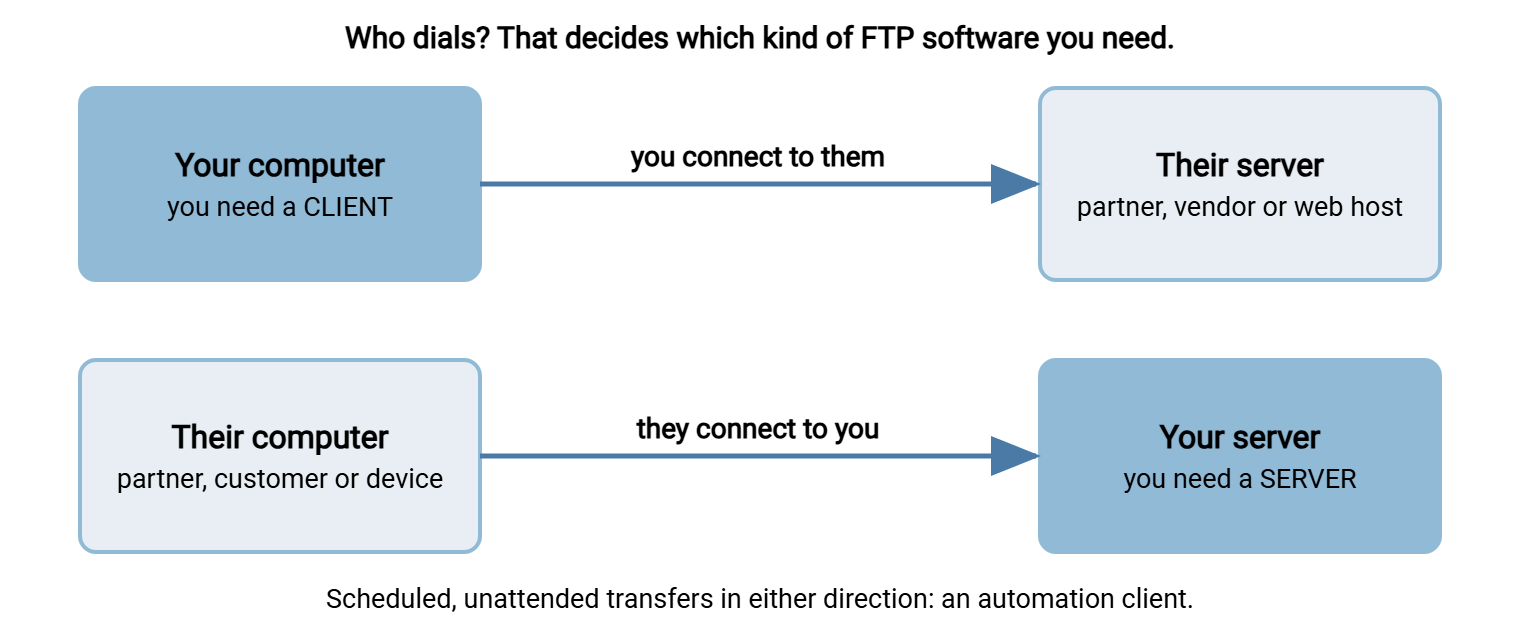
Acme found the distinction the slow way. A new distributor needed to send order files, so the operations manager asked the help desk to "put FTP software on the file server." The help desk installed a well-regarded FTP client, tested it by connecting to a public site, and closed the ticket. The distributor spent two days trying to connect to a machine that was not listening for anything. Everyone involved had done what was asked. The request had used a word with two meanings and picked the wrong one.
The FTP That Is Already in Windows
Before downloading anything, it helps to know what Windows already includes. There are four separate pieces. They were added at different times, by what appear to be different committees, and they do not share settings.
File Explorer as an FTP client
Windows Explorer can open an FTP site directly. Type an address such as ftp://ftp.example.com into the File Explorer address bar, enter a user name and password when asked, and the site appears as a folder. You can make it permanent with "Add a network location," which leaves a Windows FTP folder under This PC that opens like any other.
FTP in Windows Explorer is convenient and limited. It speaks plain FTP only, with no FTPS and no SFTP, so the password crosses the network as readable text. It is acceptable for collecting public files from an anonymous site. It is not acceptable for anything with a real password. The one related item in Windows FTP settings is "Use Passive FTP" in Internet Options, under the Advanced tab, which should be left ticked.
The ftp command
The command prompt has an ftp program. It dates from an earlier era of networking and it shows. It cannot use passive mode or encryption, so it fails against most modern, correctly configured servers. Treat it as a museum piece that still powers on.
The Windows FTP service
Windows also includes an FTP server. It is an optional feature of Internet Information Services, the web server component, and it runs as a Windows service named Microsoft FTP Service. It supports FTP and FTPS, uses Windows accounts for logins, and is managed from IIS Manager. It is available on both the server and desktop editions. Installing it is covered in how to set up an FTP server on Windows.
OpenSSH client and server
Current Windows releases include the OpenSSH tools. The client side provides the sftp and scp commands. The optional server side turns the machine into an SFTP server. It has nothing to do with the FTP service above and is configured in a text file. See how to set up an SFTP server on Windows.
So a bare Windows installation can already act as a plain FTP client, an SFTP client, an FTPS server, and an SFTP server. What it cannot do is act as one coherent thing. The FTPS server and the SFTP server have separate accounts, separate logs, separate configuration, and no knowledge of each other. Using each of the client pieces is covered in how to use FTP on Windows, and the free SFTP server in OpenSSH Server for Windows as an SFTP server.
What a Windows FTP Server Has to Do
Whether you use the built-in pieces or a product, the job is the same. These are the requirements that separate a server you can run for years from one you will replace within twelve months.
| Requirement | Why it matters | How to check it in a trial |
|---|---|---|
| Runs as a Windows service | It must start with the machine and run with nobody logged in | Reboot, do not log in, connect from another machine |
| FTPS and SFTP, not only FTP | Partners will ask for one or the other, and plain FTP is not acceptable for real data | Connect with each protocol using the same account |
| Its own accounts and Windows or Active Directory accounts | Partners should not hold Windows logins; staff should not need a second password | Create one of each and log in with both |
| A home folder and permissions per account | One partner must never see another's files | Log in and try to move above the home folder |
| Passive port range and external address settings | Without them, FTP and FTPS fail through any firewall or NAT | Find both settings without reading the manual |
| Control over TLS versions, ciphers, and certificates | Security reviews will ask, and requirements tighten over time | Disable an old protocol version and confirm it is refused |
| Login failure handling | Every public server is probed with password guesses | Fail a login repeatedly and see what the server does |
| An activity log per user and per file | "Did the file arrive?" is the most common question you will be asked | Upload a file and find that exact event in the log |
The second row deserves emphasis. A search for a "Windows FTPS server" and a search for a "Windows SFTP server" are usually the same administrator on different days, after different partners have made different demands. A server that offers both from one set of accounts saves building everything twice. What the security side of that requires is covered in what makes an FTP server secure.
Remember: decide server or client first, then protocols, then accounts. Price and interface come after. A free server that cannot give a partner the protocol they require is not cheaper than anything.
The Kinds of Windows FTP Server Software
FTP server software for Windows falls into four groups. None of them is the wrong answer for everyone, and each has a cost that does not appear on the price list.
1. The features built into Windows
The FTP service plus the OpenSSH server cover FTPS and SFTP at no license cost. They are maintained by the operating system vendor and patched with Windows. The cost is administration. There are two services to configure, in two different ways, with accounts that must be Windows accounts. This suits a small number of internal or technical users. It becomes heavy when partners multiply.
2. Free and open-source servers
Several free FTP servers exist for Windows, and some are very good at what they cover. Check three things before relying on one. Check which protocols the free edition includes, since SFTP is sometimes reserved for a paid edition. Check whether it is still actively maintained. And check who you would ask for help at two in the morning. The honest comparison is in open source vs commercial transfer tools.
3. Commercial dedicated servers
These are products built to be a file transfer server on Windows: one service offering FTP, FTPS, SFTP, and usually browser-based HTTPS transfer, with an administration console, built-in accounts, Active Directory support, logging, and vendor support. The cost is a license. Sysax Multi Server, which we make, is in this group. It comes in several editions, from a Personal edition for non-commercial use up to a High Availability edition, and the differences are listed on the edition comparison page.
4. Managed file transfer suites
Above the dedicated server sits managed file transfer, or MFT: a server plus workflow automation, central policy, and reporting across many flows. It is the right tool for organizations with hundreds of partner connections and an audit requirement on each. It is a great deal of machinery for someone who needs ten accounts. What the category includes is set out in MFT software and solutions explained. Do you need MFT? helps decide.
Our comparison of SFTP servers for Windows names specific products in each group and says where each one fits, including where ours does not. Two companion pages go further: best FTP software for Windows covers free clients and servers, and the other Windows FTP and SFTP servers, compared covers the names not on the main list.
FTP Programs and Apps for Windows: The Client Side
If the sorting table sent you to the client column, the shopping list is shorter. An FTP application for Windows that is worth installing does four things. It supports FTPS and SFTP as well as FTP. It checks the server's certificate or host key and warns when it changes. It stores saved passwords encrypted, not in a readable file. And it resumes interrupted transfers instead of starting again.
Graphical FTP apps for Windows suit people who transfer files by hand. Command-line clients suit scripts. If a transfer has to happen every night, neither a person with a mouse nor a batch file with a saved password is a good long-term answer. That is the job of an automation client such as Sysax FTP Automation, which runs scripted transfers on a schedule and reports when they fail.
For the home user who wants FTP for a PC to reach a web host or a device on the home network, any maintained client with FTPS and SFTP support will do. For an organization, the more useful decision is to pick one client and standardize on it, which choosing the standard client covers. Supporting five different FTP tools means learning five different ways for the same connection to fail.
Windows 11, Windows 10, Server Editions, and Retired Versions
On supported versions of Windows there is little to choose between them for FTP. An FTP server on Windows 11 or Windows 10 installs and behaves like one on Windows Server, whether it is the built-in service or a product. The difference is the machine's role. A desktop edition sleeps, restarts for updates, and is managed as somebody's computer. A server edition is built to stay up. Use desktop Windows for a lab or a very small office, and a server edition for anything partners depend on.
The retired versions are a different matter. People still look for a Windows 7 FTP server, or a Windows XP FTP server, and for downloads labelled "FTP server Windows 7 32 bit" or "FTP server Windows 7 64 bit." The software exists and usually still runs. The trouble is the operating system underneath, which no longer receives security updates. An internet-facing server on an unpatched operating system is not a file transfer project. It is a countdown.
If an old machine really must exchange files, perhaps because it runs equipment that cannot be upgraded, keep it off the internet. Let it connect outward as a client to a server on a supported system, or place it on an isolated network segment and allow only the one address it needs. Whether the system is 32-bit or 64-bit makes no difference to FTP itself. It only determines which installer you need, and current products may no longer offer a 32-bit one. Check the vendor's supported platform list before promising anything. The containment approach is described in when a device only speaks FTP.
Download One and Test It in an Hour
A Windows FTP server download should come from the vendor's own website and nowhere else. Download portals repackage installers, and some add software you did not ask for. Check that the installer is digitally signed by the vendor before running it. Then install on a test machine, not on the file server everyone depends on.
This trial takes about an hour and tells you more than a feature list. Run it the same way on each candidate.
ONE-HOUR SERVER TRIAL                 Product: ____________  Date: ________

SETUP (20 min)
[ ] Installed from the vendor's site; installer signature verified
[ ] Runs as a service; survives a reboot with nobody logged in
[ ] FTPS and SFTP both enabled
[ ] Two test accounts created, each with its own home folder
[ ] Passive port range and external address settings located and set

CONNECT (20 min, from a second machine)
[ ] Account A logs in over SFTP and uploads a file
[ ] Account A logs in over FTPS and downloads it again
[ ] Account A cannot see account B's folder
[ ] Plain FTP login is refused
[ ] Five wrong passwords in a row: note what the server does

EVIDENCE (20 min)
[ ] The upload appears in the log with account, address, and time
[ ] The failed logins appear in the log
[ ] Time taken to find each log entry: ______
[ ] Time taken to add a third account: ______
[ ] One question sent to vendor support; time to a useful answer: ______
The last three lines measure the things you will do every week for years. A product that passes the first twelve checks and takes ten minutes to add a user has told you something. A fuller method, for when the decision is larger, is in designing a trial that actually tests a file transfer server.
The Version to Tell a Colleague
"FTP software" means a server if others connect to you and a client if you connect to them, so settle that first. Windows already contains a plain FTP client in File Explorer, an FTPS server in its FTP service, and an SFTP client and server in OpenSSH, but they are separate pieces with separate accounts and logs. A Windows FTP server worth running offers FTPS and SFTP, runs as a service, has its own accounts as well as Windows ones, confines each account to a folder, and logs every transfer. Choose between the built-in features, a free server, a commercial server, and an MFT suite by how many partners you have and who will administer it. Then test the candidate for an hour before committing.
To turn this into a formal evaluation, continue with gathering requirements before you shop and evaluation criteria and how to weight them. When you have two or three candidates, scoring and deciding covers the final step.
Frequently Asked Questions
Does Windows have a built-in FTP server?
What is the difference between an FTP server and an FTP client?
Can I use FTP in Windows File Explorer?
What should I look for in FTP server software for Windows?
Can I run an FTP server on Windows 10 or Windows 11?
Is it safe to run an FTP server on Windows 7?
From the Sysax team: we build secure file transfer software for Windows. Sysax Multi Server is an FTP, FTPS, SFTP, and HTTPS server. Sysax FTP Automation handles scheduled, scripted transfers. Free trials are on the download page.