
How to Use FTP on Windows: File Explorer, the Command Line, Mapped Drives, and the Built-In Server
Windows has supported FTP for a very long time, and it shows. There is a way to do it in File Explorer, a way in the command prompt, two newer ways that arrived with tools borrowed from elsewhere, and an entire server hidden in an optional feature. None of them knows about the others. Each was added by a different team in a different era, and each has a different idea of what "secure" means, ranging from "yes" to "what is that?"
This guide covers all of them. It shows how to open an FTP site in File Explorer and what mapping an FTP site as a drive really does. It gives the FTP commands for the command prompt and says why that old client should be retired. It covers the two built-in tools that do encrypt, and the FTP server feature. It ends with a table of which one to use for which job, and a cheat sheet to keep.
It is part of our FTP Protocol Explained series. If you are choosing software to install, see the Windows FTP server software guide. This page is about what is already there.
What Windows Includes
The diagram below is the whole picture. The first four rows are clients, which connect out to somebody else's server. The last two are servers, which accept connections.
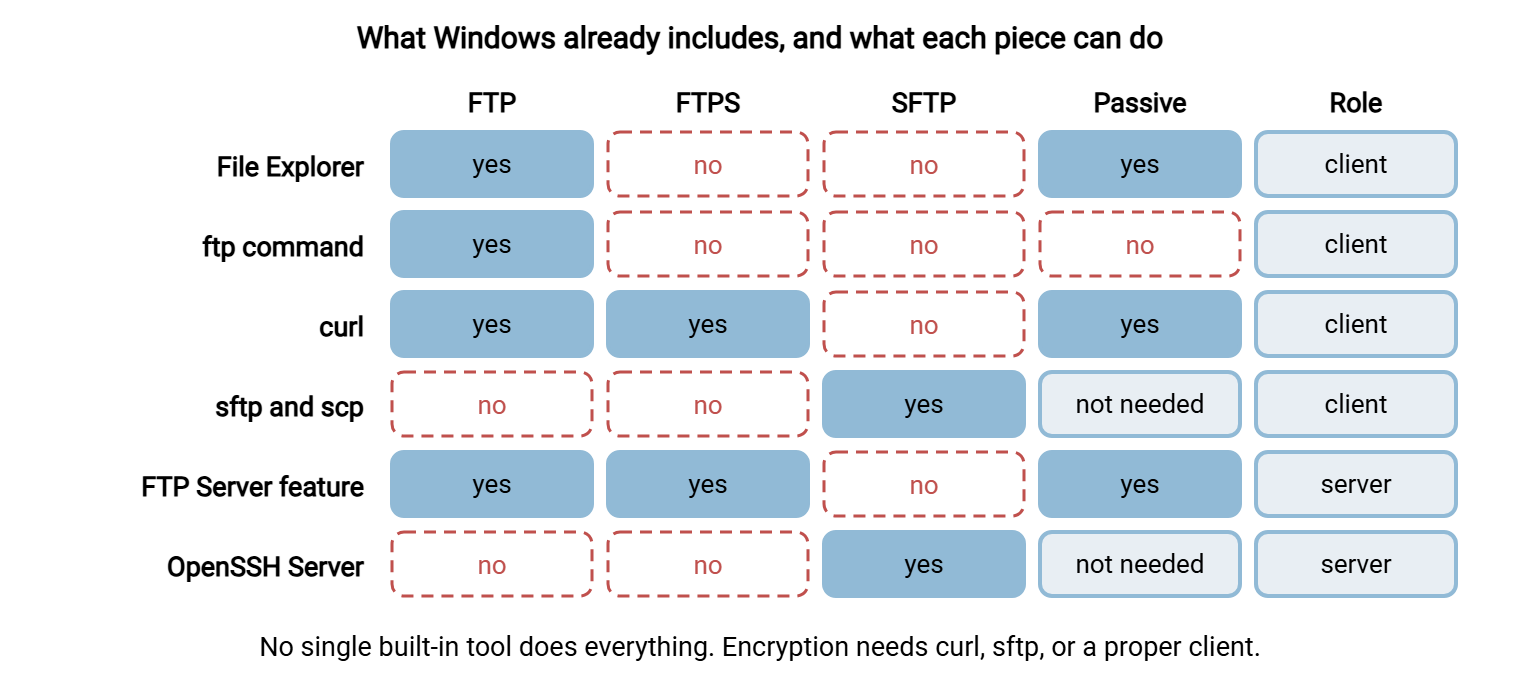
Three terms are used throughout. FTP is the original File Transfer Protocol, which has no encryption. FTPS is FTP with TLS encryption added. SFTP is a different protocol that runs inside SSH. A tool that supports one does not necessarily support the others, and the grid shows that no single built-in tool supports all three. The terms are defined properly in our FTP definitions reference.
FTP in File Explorer
File Explorer can open an FTP site as though it were a folder. This is the quickest way to reach a site by hand.
- Open File Explorer.
- Click in the address bar, type the site's address beginning with
ftp://, for exampleftp://ftp.example.com, and press Enter. - If the site needs a login, a dialog asks for the user name and password. If no dialog appears and the folder is empty or wrong, right-click an empty area and choose Login As.
- The site's folders appear. Drag files out to download and in to upload.
To keep the site for next time, right-click This PC and choose Add a network location. The wizard asks for the same ftp:// address and a name. It leaves a shortcut under This PC that opens the site with one click.
Explorer FTP has two limits worth knowing before you rely on it. It speaks plain FTP only. There is no FTPS and no SFTP, so the password and the files cross the network unencrypted. That is fine for a public download site and wrong for anything with a real password. It is also a poor tool for large or numerous files, since it gives little progress information and does not resume an interrupted transfer.
If listings hang in Explorer, check one setting. Open Internet Options, go to the Advanced tab, and make sure "Use Passive FTP" is ticked. It normally is. Why it matters is explained in active vs passive FTP explained.
Mapping an FTP Site as a Drive
People often want an FTP site to appear as a drive letter, so that programs can save straight to it. Windows goes halfway.
The Map network drive dialog has a link at the bottom: "Connect to a Web site that you can use to store your documents and pictures." Following it starts the same Add a network location wizard described above. The result is a network location, a shortcut in File Explorer. It is not a drive letter. You can browse it and drag files to it. A program's Save dialog can sometimes reach it. Programs that need a real path such as F:\reports cannot use it.
Windows has no built-in way to give an FTP site a true drive letter. That needs additional software that presents a remote site as a disk. Before installing one, consider what you are actually trying to achieve. If it is "save a report and have it arrive on the server," a scheduled transfer does that more reliably than a mapped drive, which fails in confusing ways when the connection drops mid-save. If it is "share files between people in one office," a network share is the right tool and FTP is not. The models are compared in transfer vs sync vs share.
Kestrel Payroll tried the drive-letter route. An accounts clerk saved the weekly bank file directly to a mapped FTP drive from the payroll program. It worked for months. Then one Friday the connection dropped partway through the save. The payroll program reported success, because as far as it knew it had written to a disk. The bank received the first two-thirds of a file. Nobody was underpaid in the end, but it took a tense afternoon to establish that. Kestrel now saves the file locally and lets a scheduled job send it, check it, and report.
The ftp Command in the Command Prompt
The command prompt has an FTP client named ftp. It has been there for decades, and it is what most old instructions and batch files use. An interactive session looks like this:
C:\> ftp ftp.example.com
Connected to ftp.example.com.
220 Welcome
User (ftp.example.com:(none)): acme
331 Password required
Password:
230 Login successful
ftp> binary
ftp> cd reports
ftp> get prices.csv
ftp> bye
These are the FTP commands you will use at its prompt:
| Command | What it does |
|---|---|
open host |
Connect to a server |
user name |
Log in as a different user |
dir or ls |
List the current folder on the server |
cd and lcd |
Change folder on the server, and on your own computer |
binary |
Transfer files exactly as they are. Type it first, every time |
get and put |
Download one file; upload one file |
mget and mput |
Download or upload several files matching a pattern |
prompt |
Turn the "are you sure?" question for each file on or off |
delete, rename, mkdir |
Delete or rename a file, or create a folder, on the server |
bye or quit |
End the session |
The command can also run unattended. Put the commands in a text file and start the client with ftp -s:commands.txt. A great many old batch jobs work this way. If you have inherited one, reading the FTP automation you inherited explains what each line is doing.
Now the limits, which are severe. The Windows ftp command cannot encrypt anything. It cannot use passive mode, so it works only where the server is allowed to connect back to your machine. That is why Windows Firewall asks for permission the first time you run it, and why it fails through most office networks. In a script it carries on after an error and exits as though all went well. It still runs, in the way a rotary telephone still rings. Use it to read old scripts, not to write new ones.
The Built-In Tools That Do Encrypt
Two newer command-line tools ship with current Windows, and between them they cover what the old client cannot.
curl, for FTP and FTPS
curl transfers files over many protocols, including FTP and FTPS. It uses passive mode, returns a proper error code, and can insist on encryption. Each command below asks for the password:
REM list a folder over FTPS
curl --ssl-reqd --user acme ftp://ftp.example.com/reports/

REM download a file
curl --ssl-reqd --user acme -O ftp://ftp.example.com/reports/prices.csv

REM upload a file
curl --ssl-reqd --user acme -T orders.csv ftp://ftp.example.com/inbound/
The --ssl-reqd option makes curl stop unless the server agrees to TLS. Without it, curl will use plain FTP against a server that allows it.
sftp and scp, for SFTP
The OpenSSH client tools provide sftp and scp. They speak SFTP, not FTP, so they work only with servers that offer it. The commands inside an sftp session are close to the FTP ones:
C:\> sftp acme@sftp.example.com
sftp> cd reports
sftp> get prices.csv
sftp> put orders.csv
sftp> bye
What the first connection's fingerprint question means, and how to answer it, is in what is SFTP? Connecting and testing with all of these tools is covered in how to connect to an FTP server and test it.
For a transfer that has to happen every day, none of these should be run by hand. Put the command in a script and schedule it, as automating FTP downloads, sync, and triggers on Windows shows, or use an automation client such as Sysax FTP Automation.
A note on PowerShell
PowerShell has no command of its own for FTP. That surprises people, since it has one for nearly everything else. The practical answer is to call the same two tools from a PowerShell script.
There is one trap. In the older Windows PowerShell, typing curl does not run curl. It runs a PowerShell web command that happens to share the name and understands none of the options above. The fix is to type the full name, curl.exe, which always runs the real program:
curl.exe --ssl-reqd --user acme -T orders.csv ftp://ftp.example.com/inbound/
if ($LASTEXITCODE -ne 0) { Write-Error "Upload failed with code $LASTEXITCODE" }
The second line is the reason to prefer these tools in scripts. Both curl and sftp report failure with an exit code that a script can test. The old ftp command does not, which is how a job can fail every night for a month while the scheduler shows a row of green ticks. Scripted transfers in PowerShell are covered in our PowerShell transfer automation series.
Where passwords end up
Each of these tools will happily accept a password in a way you may regret. File Explorer offers to save it on the PC. A batch file tempts you to type it into the script. The ftp -s: method requires it, in plain text, in the commands file. Anyone who can read that file can read the password, and old scripts are full of them.
For anything unattended, prefer SFTP with an SSH key, which needs no stored password at all. Where a password is unavoidable, keep it in a file that only the account running the job can read, and not in the script itself. Then look through the scripts you inherited. The password in the oldest one is, more often than it should be, still valid.
The FTP Server Built into Windows
Everything so far has been a client. Windows also includes servers, for when other people need to connect to you.
The FTP Server feature is part of Internet Information Services. It is not installed by default. Once added, it provides FTP and FTPS, uses Windows accounts, and is managed from IIS Manager. The steps are in how to set up an FTP server on Windows, and the encrypted version in how to set up an FTPS server on Windows.
OpenSSH Server is a separate optional feature that provides SFTP. It is covered in how to set up an SFTP server on Windows.
The two server features are unrelated. They have separate accounts, separate settings, and separate logs. An organization that needs both FTPS and SFTP for its partners either runs both side by side or uses one dedicated product that offers every protocol from one set of accounts, such as Sysax Multi Server.
Remember: File Explorer and the old ftp command send passwords unencrypted. For anything with a real password, use curl with --ssl-reqd for FTPS, or sftp for SFTP. Both are already installed.
Which One to Use
| The job | Use | Why |
|---|---|---|
| Grab a file from a public FTP site, once | File Explorer | Quickest; no password at risk |
| Upload to a partner or web host that offers FTPS | curl --ssl-reqd, or a graphical client |
Encrypts the login and the file |
| Exchange files with a partner that requires SFTP | sftp, or a graphical client |
The only built-in tool that speaks it |
| Transfer many files by hand, regularly | A graphical client you install | Queues, resume, saved sites, and all three protocols |
| The same transfer every night | A scheduled script or an automation client | People forget; schedulers do not |
| Let others send files to you | A server: the built-in features or a dedicated product | A client cannot receive connections |
| Understand an old batch file | The ftp command, read-only |
That is what it was written for |
When the built-in tools run out, the free graphical clients are very good. They are compared in best FTP software for Windows.
When It Does Not Work
A few faults account for most trouble with FTP in Windows.
- The login works and the folder listing hangs. The data connection is blocked. In Explorer, check "Use Passive FTP." With the old
ftpcommand, this is its missing passive mode; usecurlinstead. - "Windows cannot access this folder." Explorer could not log in or could not list. Check the address and the user name, and try Login As.
- Explorer opens the site but it looks empty. You may be logged in anonymously. Right-click and choose Login As.
- The server refuses the login with a message about TLS or SSL. The server requires encryption, and Explorer and the
ftpcommand cannot provide it. This is the server working correctly. Usecurlor a proper client. - A typed
ftp://address opens a web search. You typed it into a web browser. Browsers no longer open FTP sites. Type it into File Explorer's address bar. The background is in FTP in a web browser. - The downloaded file is corrupted. In the old
ftpcommand, you forgotbinary. The default mode alters line endings, which ruins anything that is not plain text.
The fourth item is worth a second look, because it is the one that generates support calls. A user who has always used Explorer suddenly cannot connect. Nothing is broken. The server's owner has turned off unencrypted logins, as they should, and the built-in tool cannot follow. The longer catalog of faults is in FTP failure modes.
A Cheat Sheet to Keep
FTP ON WINDOWS - WHAT TO TYPE

FILE EXPLORER (plain FTP only)
  Address bar:        ftp://ftp.example.com
  Log in:             right-click, Login As
  Keep it:            This PC, Add a network location

FTPS WITH curl (encrypted)
  List:               curl --ssl-reqd --user NAME ftp://HOST/folder/
  Download:           curl --ssl-reqd --user NAME -O ftp://HOST/folder/file
  Upload:             curl --ssl-reqd --user NAME -T file ftp://HOST/folder/
  Implicit, port 990: curl --user NAME ftps://HOST:990/folder/

SFTP WITH sftp (encrypted)
  Connect:            sftp NAME@HOST
  Other port:         sftp -P 2222 NAME@HOST
  With a key:         sftp -i C:\path\to\key NAME@HOST
  Inside:             ls   cd   lcd   get   put   bye

OLD ftp COMMAND (no encryption, no passive mode: reading old scripts only)
  Connect:            ftp HOST
  Always first:       binary
  Inside:             dir  cd  lcd  get  put  mget  mput  prompt  bye
  Scripted:           ftp -s:commands.txt

SERVERS (others connect to you)
  FTP and FTPS:       FTP Server feature, managed in IIS Manager
  SFTP:               OpenSSH Server feature
The Version to Tell a Colleague
Windows has four built-in FTP clients and two servers, and they are not connected to each other. File Explorer opens an ftp:// address as a folder, with plain FTP only. Mapping an FTP site creates a network location, not a drive letter. The old ftp command has no encryption and no passive mode, and should be used only to read old scripts. For encrypted transfers use curl with --ssl-reqd for FTPS and sftp for SFTP, both included with current Windows. To receive files from others you need a server: the FTP Server feature for FTP and FTPS, or OpenSSH Server for SFTP.
To go further, how to connect to an FTP server and test it covers connection problems in order, and the Windows FTP server software guide covers what to install when the built-in tools are not enough.
Frequently Asked Questions
How do I use FTP on Windows?
Does Windows have a built-in FTP client?
Can I map an FTP site as a drive in Windows?
What are the basic FTP commands in the Windows command prompt?
Is FTP in File Explorer secure?
Why does the Windows ftp command hang when listing files?
From the Sysax team: we build secure file transfer software for Windows. Sysax Multi Server is an FTP, FTPS, SFTP, and HTTPS server. Sysax FTP Automation handles scheduled, scripted transfers. Free trials are on the download page.