
How to Set Up an SFTP Server on Windows: OpenSSH, Dedicated Servers, and Testing
The email from the new partner is one line long: "Please send your SFTP details by Friday." It assumes you have SFTP details. What you have is a Windows server, a folder called Inbound, and four days. This is a perfectly normal way for an SFTP server to come into existence. Most of them were born on a deadline set by somebody else.
This guide gets you from that email to a tested server. It covers what an SFTP server is, the decisions to make before installing, and two ways to build one on Windows: the OpenSSH server that Windows includes, and a dedicated SFTP server product. Then it covers the part most setup guides skip. That part is the host key, the details you send to the partner, how they connect, and how you test the connection before they do.
It is part of our SFTP In Depth series. The rest of the series explains how the protocol works inside. This article is the practical one, and every command in it can be pasted.
What You Are Building
SFTP is the SSH File Transfer Protocol. It is a way of listing, uploading, and downloading files that runs inside an SSH connection, the same encrypted connection administrators use for remote command lines. An SFTP server is therefore an SSH server with its file transfer part switched on. There is no separate "SFTP service" underneath. If someone asks whether you run an SSH server or an SFTP server, the honest answer is usually "yes."
Three properties follow from that design, and they shape the whole setup:
- One port. Everything travels in a single TCP connection to port 22. There is no second data connection and no passive port range. The firewall request is one line.
- Encryption is not optional. There is no unencrypted mode to switch off and no certificate to buy. The server proves its identity with a host key, a key pair it generates for itself.
- Logins can use keys. A user can authenticate with a password, with an SSH key pair, or with both.
SFTP is not FTPS, and it is not FTP with something added. The names are close and the protocols are unrelated, which SFTP vs FTPS untangles. The design itself is explained in how SFTP works.
On Windows there are two realistic ways to build the server. The table shows how they differ before you commit to either.
| Question | OpenSSH server in Windows | Dedicated SFTP server product |
|---|---|---|
| Cost | Included with Windows | Licensed |
| Accounts | Windows accounts only | The server's own accounts, Windows accounts, or both |
| What a login gets by default | A full command shell, until you restrict it | File access to a home folder |
| Configuration | A text file and PowerShell | An administration console |
| Other protocols | SFTP and SCP only | Usually FTPS and HTTPS from the same server and accounts |
| Transfer logging | Windows event log; per-file detail needs extra configuration | Per-user, per-file activity log |
Decide Before You Install
The installation is the short part. These decisions are the long part, and they are easier to make before a partner is waiting. Copy the sheet, fill it in, and keep it as the server's record.
SFTP SERVER SETUP SHEET
Host name partners will use:   sftp.example.com
Public address:                203.0.113.10
Port:                          22
Accounts:                      one per partner, no shared logins
Authentication:                SSH key required; password as second factor or off
Home folder per account:       C:\SFTP\<username>
Confined to home folder:       yes
Command shell for SFTP users:  no
Host key fingerprint:          recorded here after install, sent to every partner
Host key backup location:      (where the private host key is stored safely)
Log location and retention:    C:\SFTP-Logs, 13 months
Owner and contact:             transfer administrator on call
The two "no shell" and "confined" lines are the ones people skip. An SFTP user should be able to reach one folder and run nothing. Whether that is true depends on how you build the server, as the next two sections show.
Option 1: The OpenSSH Server Included with Windows
Current Windows releases include OpenSSH Server as an optional feature. It is the same open-source SSH server found on most Linux machines, built for Windows. One service provides both, so an OpenSSH SCP server and an OpenSSH SFTP server are the same installation. It works well. It was also designed to give administrators a remote command line, and it treats file transfer as a side benefit. Setting it up as an SFTP-only server means taking away what it offers by default. Whether it is enough for your situation is weighed in OpenSSH Server for Windows as an SFTP server.
Install and start the service
From an elevated PowerShell prompt, check whether the feature is present, install it if it is not, and start it:
Get-WindowsCapability -Online | Where-Object Name -like 'OpenSSH.Server*'
Add-WindowsCapability -Online -Name OpenSSH.Server~~~~0.0.1.0

Start-Service sshd
Set-Service -Name sshd -StartupType Automatic
Starting the service for the first time creates the host keys and the configuration file, both in C:\ProgramData\ssh. The installer normally adds a Windows Defender Firewall rule for port 22. Confirm it rather than trusting it:
Get-NetFirewallRule -Name *ssh* | Select-Object Name, Enabled, Direction, Action

New-NetFirewallRule -Name sshd -DisplayName "OpenSSH Server (sshd)" -Direction Inbound -Protocol TCP -LocalPort 22 -Action Allow
Run the second command only if the first shows no enabled inbound rule.
Create an account, a group, and a folder
OpenSSH on Windows authenticates Windows accounts. Create a group for transfer users, one account per partner, and one folder per account:
New-LocalGroup -Name "sftpusers"
$pw = Read-Host -AsSecureString "Password for sftp_acme"
New-LocalUser -Name "sftp_acme" -Password $pw -PasswordNeverExpires -Description "SFTP account - Acme"
Add-LocalGroupMember -Group "sftpusers" -Member "sftp_acme"

New-Item -ItemType Directory -Path "C:\SFTP\sftp_acme"
icacls "C:\SFTP\sftp_acme" /grant "sftp_acme:(OI)(CI)M"
Restrict the group to SFTP in its own folder
At this point sftp_acme can log in and gets a command prompt on your server. That is the default, and it is not what the partner was promised or what you want. Open C:\ProgramData\ssh\sshd_config in an elevated editor and add this block at the very end of the file:
Match Group sftpusers
    ForceCommand internal-sftp
    ChrootDirectory C:\SFTP\%u
    PermitTTY no
    AllowTcpForwarding no
Then restart the service with Restart-Service sshd. ForceCommand internal-sftp means members of the group get the file transfer subsystem and nothing else, whatever their client asks for. ChrootDirectory makes the named folder the top of what they can see; %u stands for the user name. The other two lines close side doors: no interactive terminal and no tunnelling of other connections through the login. Why this matters is covered in account isolation and jails on transfer servers, and the full set of options is in SFTP server configuration.
Remember: an OpenSSH account is a remote command-line account first and an SFTP account second. Until the Match block is in place and the service is restarted, every SFTP user you create can also open a shell on the server.
Add the user's public key
For key login, the partner sends you their public key, one line of text that usually begins ssh-ed25519 or ssh-rsa. They keep the matching private key and never send it. The public key goes into a file named authorized_keys in a .ssh folder inside the account's Windows profile, such as C:\Users\sftp_acme\.ssh\authorized_keys. The profile folder appears after the account's first login. The server ignores the file if other ordinary accounts are allowed to write to it.
There is one exception, and it catches everyone. For any account in the Administrators group, the server ignores the profile file and reads C:\ProgramData\ssh\administrators_authorized_keys instead. A key in the "right" place for an administrator is in the wrong place. I spent an afternoon on this once, and I had read the documentation. Transfer accounts should not be administrators anyway, so the cure and the good practice are the same. Key handling is covered properly in SFTP authentication.
Option 2: A Dedicated SFTP Server
A dedicated server starts from the other end. It is built for file transfer, so an account is a transfer account by default: a login, a home folder, and permissions, with no Windows login behind it. Administrators choose this route when partners should not have Windows accounts, when some partners want FTPS or a browser upload page as well as SFTP, or when the team would rather manage users in a console than in a text file.
The steps below use Sysax Multi Server, because it is the one we make. Other Windows SFTP servers follow the same sequence with different menu names. What every SFTP server consists of, whatever the product, is explained in SFTP server: what it is and how to choose one.
- Run the installer from the download page and accept the typical installation. The server installs as a Windows service, and its SFTP host key is generated during installation.
- Open the administrator program and choose Manage Server Settings.
- Under Connection Protocols, enable SFTP and confirm port 22. Leave the other protocols off unless your sheet lists them.
- Under Authentication Methods, choose the server's own local accounts, or Active Directory or Windows accounts if staff should use their existing credentials.
- In the account manager, add each account with a login, a password, and a home path such as
C:\SFTP\acme. Set whether it may read, write, and delete. - For key login, add the partner's public key in that account's settings.
- Click Start Server.
If Windows' own OpenSSH service is already using port 22 on the same machine, only one of them can have it. Stop the one you are not using, or give one of them a different port and note it on the sheet. Screens for each step are in the product manual.
The SFTP Host Key: Publish the Fingerprint
The host key is how the server proves it is your server and not something in between pretending to be. It is a key pair the server created for itself. Clients do not see the key so much as its fingerprint, a short digest that is easy to compare. The first time a client connects, it shows the fingerprint and asks the user whether to trust it. After that it remembers, and it objects loudly if the key ever changes.
The diagram below shows the whole exchange in order, with the fingerprint check at step 3.
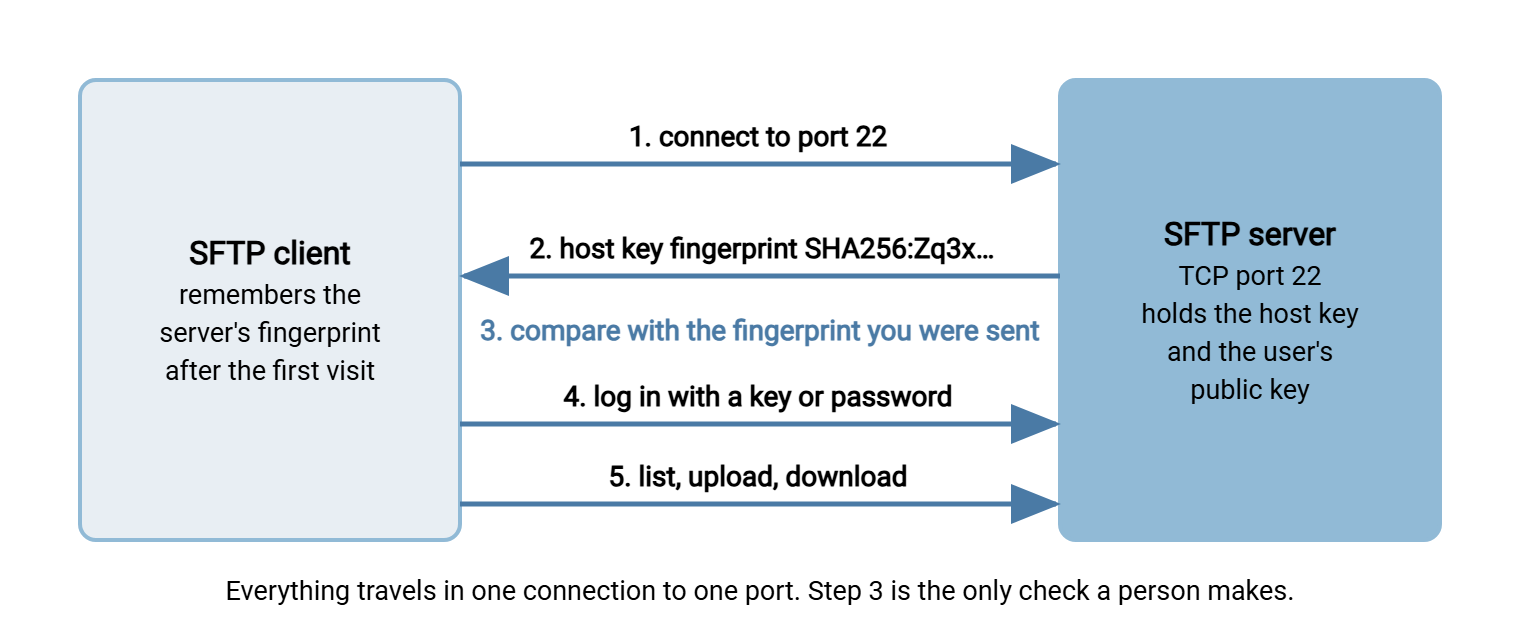
That first prompt is the only moment a human is asked to verify anything, and most humans answer "yes" without looking. You can make the check possible by publishing the fingerprint in advance. For OpenSSH on Windows, print it like this:
ssh-keygen -lf C:\ProgramData\ssh\ssh_host_ed25519_key.pub
256 SHA256:Zq3xkP0mN8vT1yUeW5rA7cJ2dLhB9sGfKoXiRnMt4pE sftp.example.com (ED25519)
Put the SHA256: line on the setup sheet and in the details you send each partner. A dedicated server shows the same fingerprint in its console.
Then protect the key itself. Back up the private host key files somewhere safe, and restore them whenever the server is rebuilt or moved. Bluewater Bank learned why on a Monday. Their SFTP server had been rebuilt over the weekend on new hardware, with every account and folder carefully recreated. The rebuild generated a fresh host key. On Monday morning forty partners' scheduled jobs connected, saw a fingerprint they did not recognize, and stopped, exactly as designed. Each partner's security team wanted an explanation before accepting the new key. The server had been down for two hours on Saturday. The key change took three weeks to finish.
Open Port 22 and Send the Details
The network request for SFTP is short: inbound TCP port 22 to the server's address, forwarded to its internal address if there is NAT in between. There is nothing else to open. The port list for every transfer protocol, for comparison, is in ports for FTP, FTPS and SFTP.
Ask for a DNS name such as sftp.example.com rather than giving out the address. Then send each partner one complete message, with the password, if any, sent separately:
SFTP CONNECTION DETAILS
Host:                  sftp.example.com
Port:                  22
Protocol:              SFTP (SSH File Transfer Protocol), not FTPS
User name:             sftp_acme
Authentication:        SSH key (send us your public key); password sent separately
Host key fingerprint:  SHA256:Zq3xkP0mN8vT1yUeW5rA7cJ2dLhB9sGfKoXiRnMt4pE
Your source addresses: (please list, so we can allow them)
Folders:               /inbound (you upload), /outbound (you download)
Support contact:       transfer-admin@example.com
Two related terms turn up in searches at this stage. SFTP hosting means a provider runs the server and you rent accounts on it. It trades control for convenience. The trade is examined in hosted SFTP vs self-hosted, and hybrid file transfer topologies covers where the server can live. An SFTP proxy server is a relay that sits in the perimeter network, accepts connections from the internet, and passes them to the real server inside. It keeps the server holding the files off the edge of the network. Neither changes the steps above. They change which machine the steps are done on.
How to Connect to SFTP and Use It
Current Windows includes the OpenSSH client tools, so a partner or a colleague can connect from a plain command prompt. The session below logs in, looks around, uploads one file, downloads another, and leaves:
C:\> sftp sftp_acme@sftp.example.com
The authenticity of host 'sftp.example.com (203.0.113.10)' can't be established.
ED25519 key fingerprint is SHA256:Zq3xkP0mN8vT1yUeW5rA7cJ2dLhB9sGfKoXiRnMt4pE.
Are you sure you want to continue connecting (yes/no/[fingerprint])? yes
sftp_acme@sftp.example.com's password:
Connected to sftp.example.com.
sftp> ls
inbound   outbound
sftp> cd inbound
sftp> put orders.csv
sftp> cd ../outbound
sftp> get prices.csv
sftp> bye
The fingerprint in the prompt is the one to compare against the details you were sent. That is the whole of how to use SFTP: ls and cd to move around the server, lcd to change the local folder, put to upload, get to download, and bye to leave. To log in with a key instead of a password, name the private key file:
ssh-keygen -t ed25519 -f C:\Users\alex\.ssh\acme_sftp
sftp -i C:\Users\alex\.ssh\acme_sftp sftp_acme@sftp.example.com
The first command creates the key pair. The file ending in .pub is the public key to send to the server's administrator. A graphical client does the same job with a form: choose SFTP as the protocol, enter the host, port 22, and user name, and point it at the key file. Business systems connect the same way. An ERP, payroll, or reporting system that exports files is another SFTP client. It needs the same host, port, user name, key, and fingerprint, typed into its own configuration screen instead of a command line.
For transfers that must run unattended on a schedule, see non-interactive SFTP. On Windows that job is what Sysax FTP Automation is built for.
How to Test an SFTP Connection
Test in two stages, and run both from a machine outside your network. A test from the server to itself skips every firewall you are trying to test. First check that the port is reachable at all:
PS C:\> Test-NetConnection -ComputerName sftp.example.com -Port 22

ComputerName     : sftp.example.com
RemoteAddress    : 203.0.113.10
RemotePort       : 22
TcpTestSucceeded : True
Then log in as a test account with sftp -v. The -v flag prints each step of the connection, so a failure names the stage it happened at. Upload a small file, download it again, and try to cd above the home folder. The last attempt should fail. If it succeeds, the account is not confined, and the time to find out is now.
| What you see | What it means | Where to look |
|---|---|---|
| Connection timed out | Port 22 is blocked on the way | Edge firewall, NAT forward, Windows firewall rule |
| Connection refused | The packet arrived and nothing is listening | Service stopped, or listening on a different port |
| Permission denied (publickey,password) | The server rejected every credential offered | User name, key file location and permissions, group membership |
| REMOTE HOST IDENTIFICATION HAS CHANGED | The host key differs from the one the client remembers | Was the server rebuilt? Verify the fingerprint before accepting |
| Login succeeds, then "subsystem request failed" | SSH works but the SFTP part is not available | The Subsystem sftp line in the server configuration |
sh: /usr/libexec/sftp-server: not found |
A Linux or embedded server points at an SFTP program that is not installed | Install it or use internal-sftp; with scp, try the -O option |
Resist the urge to test against a public SFTP server found in a search. A stranger's test server proves that your client works. It says nothing about your server, your firewall, or your accounts, and anything you upload to it is public. If you only need something to practice against, a mini SFTP server on a spare machine is ten minutes of work using the steps above. If you came here looking for an SFTP server download to try, a trial installation on a test machine serves the same purpose.
Windows Server and Desktop Editions
The steps in this guide are the same on Windows Server 2022 and Windows Server 2019, and on Windows 11 and Windows 10. The OpenSSH feature is installed the same way on all of them, and newer releases may already have it present and merely stopped. A desktop edition is fine for a lab. For partners, use a server edition on a machine that does not sleep, does not restart at lunchtime, and does not go home in somebody's bag.
The Version to Tell a Colleague
An SFTP server is an SSH server with file transfer enabled, listening on TCP port 22. On Windows you can use the included OpenSSH server or a dedicated product. With OpenSSH, restrict transfer accounts to SFTP and to their own folder, because the default login is a command shell. Give each partner their own account and prefer key login. Record the host key fingerprint, send it to partners, and back up the host key so a rebuild does not change it. Then test from outside: reach the port, log in, transfer a file, and confirm the account cannot leave its folder. The wider checklist is in what makes an FTP server secure.
Next, SFTP authentication covers passwords, keys, and combining them, and SFTP server configuration covers ciphers and the remaining server options. If a partner also needs FTP or FTPS, the companion guide is how to set up an FTP server on Windows.
Frequently Asked Questions
How do I set up an SFTP server on Windows?
Does Windows have a built-in SFTP server?
What port does an SFTP server use?
What is an SFTP host key?
How do I connect to an SFTP server from Windows?
How do I test an SFTP connection?
From the Sysax team: we build secure file transfer software for Windows. Sysax Multi Server is an FTP, FTPS, SFTP, and HTTPS server. Sysax FTP Automation handles scheduled, scripted transfers. Free trials are on the download page.