
How to Set Up an FTP Server on Windows: Install, Configure, Connect, and Test
"Can you set up an FTP server for the new vendor? It should only take a few minutes." The installation does take a few minutes. So does buying a puppy. The minutes are real, and they are followed by decisions about users, folders, ports, firewalls, and who answers the phone when the vendor cannot log in.
This guide covers the whole job in the order you will meet it. First come the decisions to make before installing anything. Then come two ways to install and configure an FTP server on Windows: the FTP service that ships with Windows, and a dedicated server product. After that it covers the firewall, the host name you hand to users, how those users connect and log in, and how to test the result from outside your own network. Every command is one you can paste.
It is part of our FTP Protocol Explained series. The other articles in the series explain why FTP behaves the way it does. This one gets a working server on the network by the end of the afternoon, including the parts nobody mentioned when they said "a few minutes."
Before You Install: The Setup Worksheet
Most failed FTP setups fail on a decision nobody made, not on a step somebody skipped. Fill in this worksheet first. Each line turns into a setting later, and the finished sheet becomes the server's documentation.
FTP SERVER SETUP WORKSHEET
Host name users will type:    ftp.example.com
Public address:               203.0.113.10
Server's internal address:    10.0.5.20
Protocols offered:            FTPS (explicit, port 21)   [plain FTP: lab only]
Passive port range:           50000-50100
Root folder for transfers:    C:\FTP
One folder per user:          yes  (C:\FTP\LocalUser\<username>)
Accounts:                     local accounts, one per partner, no shared logins
Who may read / write:         each user: own folder only
Certificate for TLS:          issued for ftp.example.com
Log location:                 C:\FTP-Logs
Owner and contact:            transfer administrator on call
Two lines deserve a comment. The protocol line matters because plain FTP sends the user name and password across the network as readable text. That is acceptable in a lab and nowhere else. FTPS is the same FTP with TLS encryption added, and it is the minimum for anything a partner will touch. The account line matters because a shared login cannot be turned off for one person without turning it off for everyone. Shared logins are how a server ends up with a password that six companies know and nobody owns.
How an FTP Server Works, in One Minute
An FTP server is a program that runs as a background service, listens on a network port, and gives logged-in users access to a folder. That is the whole idea. The details are in where it listens and how the files travel.
The service listens on TCP port 21. A client connects there and logs in with a user name and password. This first connection is the control connection, and it carries only commands and replies. The server maps the user to a home folder, the directory that user sees as the top of the server. When the user asks for a directory listing or a file, the two sides open a second, short-lived data connection just for that transfer. In passive mode, which nearly every client uses, the server picks a port for the data connection from a range you configure, and the client connects to it.
Those two connections explain almost every setup problem you will meet. Port 21 working proves the login path. It proves nothing about the data path, which uses different ports and needs its own firewall rule. The mechanics are shown with a real capture in FTP control and data connections explained. If the question in your head is really "how does SFTP work," the answer is different enough to have its own page: SFTP uses one connection inside SSH, and how SFTP works covers it.
Option 1: The FTP Service Built into Windows
Windows includes an FTP service as part of Internet Information Services (IIS), its web server component. It is not installed by default. It costs nothing extra, it supports FTP and FTPS, and it uses Windows accounts for logins. It does not support SFTP.
Install the FTP feature
On Windows Server, open Server Manager and choose Add Roles and Features. Select the Web Server (IIS) role. Under its role services, tick FTP Server and the IIS Management Console. The same thing from an elevated PowerShell prompt is one line:
Install-WindowsFeature Web-Ftp-Server -IncludeAllSubFeature -IncludeManagementTools
On a desktop edition of Windows, open "Turn Windows features on or off." Expand Internet Information Services, tick FTP Server, and tick IIS Management Console under Web Management Tools. In PowerShell:
Enable-WindowsOptionalFeature -Online -FeatureName IIS-FTPServer, IIS-FTPSvc, IIS-ManagementConsole -All
That is all it takes to enable FTP on the machine. Nothing is listening yet, because no FTP site exists.
Create a user and a folder
Create one Windows account per person or partner, and one folder per account. These commands create a local account, create its folder, and give the account modify rights on that folder only:
$pw = Read-Host -AsSecureString "Password for ftp_acme"
New-LocalUser -Name "ftp_acme" -Password $pw -PasswordNeverExpires -Description "FTP account - Acme"
New-Item -ItemType Directory -Path "C:\FTP\LocalUser\ftp_acme"
icacls "C:\FTP\LocalUser\ftp_acme" /grant "ftp_acme:(OI)(CI)M"
The folder name is not a matter of taste. When the service is told to isolate users, it looks for local accounts under a folder literally named LocalUser, and for domain accounts under a folder named after the domain. A folder called Users or Partners produces a login that succeeds and a home directory that cannot be found. The service does not explain this. It expects you to have known.
Create the FTP site
- Open IIS Manager, right-click Sites, and choose Add FTP Site.
- Enter a site name and set the physical path to
C:\FTP. - On the binding page, leave the address as All Unassigned and the port as 21. Choose Require SSL and select your certificate. Choose No SSL only on a lab machine.
- On the authentication page, tick Basic and leave Anonymous unticked. Under authorization, allow Specified users, enter the account name, and tick Read and Write.
- Select the new site, open FTP User Isolation, choose "User name directory (disable global virtual directories)," and apply.
Basic authentication means the password is checked against the Windows account. It is safe only because the binding requires TLS first. The certificate and TLS settings are covered step by step in how to set up an FTPS server on Windows. To add another user later, create the account and folder as above, then add an authorization rule for it on the site.
Set the passive range and the public address
In IIS Manager, select the server at the top of the tree, not the site. Open FTP Firewall Support. Set Data Channel Port Range to 50000-50100. If the server sits behind a NAT device, enter the public address in External IP Address of Firewall. Then restart the service so the range takes effect:
Restart-Service ftpsvc
Skip this step and the server hands out data ports from the whole ephemeral range. The firewall will not have those open, and every directory listing will hang. This is the most common fault in FTP server configuration, and it has been the most common fault for as long as I have been doing this.
Option 2: A Dedicated FTP Server Product
The built-in service is a reasonable start. Administrators move to a dedicated server for a short list of reasons. They want SFTP and FTPS from the same server, since many partners will ask for SFTP. They want accounts that are not Windows logins, so a partner's FTP user cannot be used for anything else on the machine. They want home folders, permissions, and logging managed in one place rather than across IIS Manager, Local Users, and folder properties.
The steps are the same five in every product: install, choose protocols and ports, add accounts with home folders, start the service, and open the firewall. The walk-through below uses Sysax Multi Server, because it is the one we make. Other Windows servers follow the same sequence under different menu names, and the Windows FTP server software guide compares the kinds on offer.
- Run the installer from the download page and accept the typical installation. The server installs as a Windows service that starts with the machine.
- Open the administrator program from the Start menu and choose Manage Server Settings.
- Under Connection Protocols, enable the protocols on your worksheet and confirm their ports: FTP on 21, FTPS on 990, SFTP on 22, HTTPS on 443. Leave plain FTP off unless a device requires it.
- Under Authentication Methods, choose the server's own local user accounts, or choose Active Directory or Windows accounts if users should log in with their existing credentials.
- For local accounts, open the account manager and add each user with a login, a password, and a home path. Set whether the account may read, write, and delete files.
- Set the passive port range and, behind NAT, the external address in the server configuration.
- Click Start Server.
FTPS and HTTPS need a TLS certificate. A self-signed one can be generated from the security settings for testing, and a certificate from a certificate authority should replace it before partners connect. The SFTP host key is created during installation. Step-by-step screens are in the product manual.
Open the Firewall and Fix the Address
The server is now listening. Nothing outside the machine can reach it until the firewall says so. There are usually two firewalls: the one on the server itself and the one at the edge of the network. Both need the same ports.
On the server, create the Windows Defender Firewall rules from an elevated PowerShell prompt:
New-NetFirewallRule -DisplayName "FTP control" -Direction Inbound -Protocol TCP -LocalPort 21 -Action Allow
New-NetFirewallRule -DisplayName "FTP passive range" -Direction Inbound -Protocol TCP -LocalPort 50000-50100 -Action Allow
At the network edge, ask for the same two rules: inbound TCP 21 and inbound TCP 50000 to 50100, both to the server's address. If the edge device performs NAT, both must also be forwarded to the server's internal address. The request should quote the numbers from your worksheet. "Please open FTP" gets you port 21 and a hung directory listing.
The diagram below shows the four places where those two port numbers have to agree.
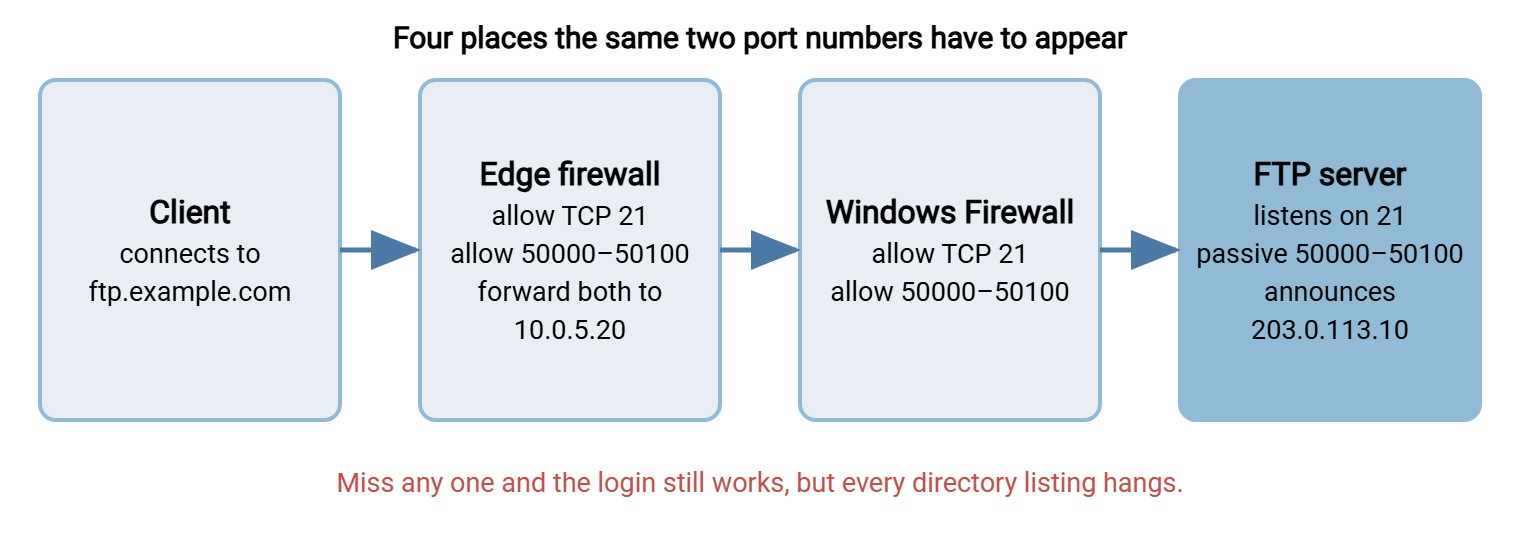
The address matters as much as the ports. In passive mode the server tells the client which address to connect to for data. A server behind NAT knows only its internal address, such as 10.0.5.20, and will announce that unless told otherwise. The client then tries to reach a private address across the internet and fails. Setting the external address, as in the steps above, makes the server announce the public one. The complete port list for each protocol is in ports for FTP, FTPS and SFTP, and sizing the range is covered in configuring FTP passive port ranges.
The FTP Host Name You Hand to Users
Users do not want an IP address. They want a name. The FTP host, also called the FTP site host or the FTP server hostname, is the DNS name that points at the server's public address: ftp.example.com in this guide. Ask whoever manages DNS for an address record with that name. The TLS certificate must be issued for the same name, or every client will warn about it.
A name also lets you move the server later without telling anyone. An address written into forty partner configurations is a commitment. A name is a forwarding address. If you run more than one, keep a single list of FTP servers: hostname, port, protocol, and owner.
Every user needs five facts to connect, and they should arrive together:
| What the client asks for | Example | Notes |
|---|---|---|
| Host (FTP host name) | ftp.example.com |
The DNS name, not the internal address |
| Port | 21 | 990 if you chose implicit FTPS |
| Protocol and encryption | FTP with explicit TLS required | Clients default to plain FTP unless told |
| User name | ftp_acme |
One per partner |
| Password | Sent separately | Never in the same message as the user name |
One note on vocabulary, because the searches overlap. FTP hosting usually means somebody else runs the server and rents you an account on it. FTP website hosting is the common case: a web host gives you an FTP login so you can upload the files of a site. If you arrived here wondering how to upload files to WordPress using FTP, you are a client of your web host's FTP server, and the next section is the part you need. You do not have to build a server to use one. Renting a server instead of running one is weighed up in hosted SFTP vs self-hosted.
How to Connect, Log In, Upload, and Download
Using an FTP server takes a client program and the five facts above. A graphical client has a box for each one. Enter the host, port, user name, and password, select "require explicit FTP over TLS" or the nearest equivalent, and connect. The client shows your computer on one side and the server's folder on the other. To upload a file, drag it across. To download one, drag it the other way.
From the command line, curl ships with current Windows and speaks FTPS properly. It will ask for the password:
REM list the home folder
curl --ssl-reqd --user ftp_acme ftp://ftp.example.com/

REM upload a file
curl --ssl-reqd --user ftp_acme -T orders.csv ftp://ftp.example.com/

REM download a file
curl --ssl-reqd --user ftp_acme -O ftp://ftp.example.com/prices.csv
The --ssl-reqd option refuses to continue unless the server agrees to TLS. Leave it out and curl will cheerfully send the password in the clear to any server that lets it. Files that have to move on a schedule belong in a scripted job rather than in somebody's hands. That is what tools such as Sysax FTP Automation are for.
A few things FTP does not do, which new users reasonably expect. You cannot open or edit a file in place. FTP moves whole files, so "editing" means download, change, and upload again, and some clients automate that loop for you. You cannot search inside files on the server. You can list folders and filter by name, and that is all. And the old ftp.exe in the Windows command prompt is not a good test tool. It cannot use passive mode or TLS, so it fails against a correctly configured server for reasons that are entirely its own. Every built-in option is compared in how to use FTP on Windows.
Test from Outside Before You Announce It
A test from the server's own desktop proves the service is running. It proves nothing about firewalls or NAT, because the connection never passes through them. Test from a machine outside your network. A laptop on a phone hotspot is enough.
Run the listing command from the previous section. A listing that comes back means all four things work: name resolution, the control port, TLS, and the passive data path. If it does not come back, the way it fails tells you where to look:
| What you see | What it means | Where to look |
|---|---|---|
| Could not resolve host | The name does not exist in DNS yet | The DNS record for the host name |
| Connection refused, immediately | The packet arrived and nothing is listening | Service stopped, wrong port, or forward to the wrong machine |
| Timeout before any greeting | Port 21 is blocked on the way | Edge firewall rule, then the Windows firewall rule |
530 Login incorrect |
The server rejected the user name or password | Account name, password, authorization rule |
| Login works, listing hangs | The data connection is blocked or misaddressed | Passive range on both firewalls, external address setting |
550 on upload or listing |
Logged in, but not allowed to do that there | Folder permissions, home folder path |
Then check the server's log for your own test session. If you cannot find your own login in the log on the first day, you will not find a partner's failed one on the worst day. The client-side walk-through is in how to connect to an FTP server and test it. The longer catalog of failures is in FTP failure modes, and reading the numeric replies is covered in FTP commands and reply codes.
Remember: a login that works followed by a listing that hangs is not an account problem and not a server fault. It is the passive data connection: the range is not open on a firewall, or the server is announcing its internal address.
Windows 11, Windows 10, and Windows Server: What Differs
Very little differs in the steps. The FTP feature, the site wizard, the firewall commands, and the dedicated-server installation are the same on Windows Server 2022 and Windows Server 2019, and the same on Windows 11 and Windows 10. Only the first screen changes: Server Manager on the server editions, "Turn Windows features on or off" on the desktop ones. The PowerShell lines in this guide were written with both in mind.
What differs is the machine's job. A desktop edition of Windows is fine for a lab, a test, or learning the protocol; our FTP lab setup article builds one. As a production server it has habits. It sleeps when nobody is using it. It restarts for updates at times chosen for a person, not a schedule. And it usually belongs to someone, who will one day take it home.
Kestrel Payroll's first FTP server was a desktop PC under the office manager's desk. It worked for three weeks. Then a client's evening upload began failing every night a little after seven. The service was fine, the firewall was fine, and the account was fine. The PC's power plan put it to sleep after two hours without a keystroke, and the office manager went home at five. Kestrel moved the service to a server in the rack that week. The desktop went back to spreadsheets, where it was happier.
The Version to Tell a Colleague
Setting up an FTP server on Windows is five jobs. Decide the host name, protocol, folders, accounts, and passive range before installing. Install either the FTP service built into Windows or a dedicated server. Create one account and one folder per partner. Open port 21 and the passive range on both firewalls, and make the server announce its public address. Then test from outside the network and read your own session in the log. Use FTPS rather than plain FTP for anything that leaves the lab. Before partners connect, run the checklist in what makes an FTP server secure.
From here, FTP account models goes deeper on users and home folders, and FTPS certificates covers the TLS side. If a partner asks for SFTP instead, start with SFTP server configuration. For an end-to-end product walk-through with screens, our file transfer server tutorial series follows the same order as this guide.
Frequently Asked Questions
How do I set up an FTP server on Windows?
Does Windows have a built-in FTP server?
How do I connect to an FTP server?
Why can I log in to my FTP server but not list files?
What is an FTP host name?
Can I run an FTP server on Windows 11 or Windows 10?
From the Sysax team: we build secure file transfer software for Windows. Sysax Multi Server is an FTP, FTPS, SFTP, and HTTPS server. Sysax FTP Automation handles scheduled, scripted transfers. Free trials are on the download page.