
How to Set Up an FTPS Server on Windows: Certificate, TLS Settings, Firewall, and Testing
The partner's requirements document is specific, which is unusual and welcome. "File exchange must use FTPS (FTP over TLS). Plain FTP and SFTP are not accepted." Somebody over there has an FTPS client built into a system that cannot be changed, and they have learned to say so up front. Your part is to produce a Windows FTPS server that their client will trust. That is an FTP server plus three things that FTP never needed: a certificate, a decision, and a firewall that has to work without being able to read anything.
This guide builds that server. It covers what FTPS adds to FTP, the decision between explicit and implicit modes, and how to get a certificate. It then walks through enabling TLS on the FTP service built into Windows and on a dedicated server. It covers the firewall, which is the hardest part, and shows how to connect and test. It ends with the faults that are specific to FTPS and the one maintenance job you must not forget.
It is part of our FTPS In Depth series. If you have not yet built the underlying FTP server, do that first with how to set up an FTP server on Windows. This page starts where that one ends.
What You Are Adding to FTP
FTPS is FTP wrapped in TLS, the same encryption that protects secure websites. The commands are the same and the two connections are the same. What changes is that both are encrypted, and the server proves its identity with a certificate: a file, issued by a trusted authority, that says "this server really is ftp.example.com."
An FTPS server therefore needs everything an FTP server needs, plus:
- a certificate issued for the host name clients will connect to,
- a setting that requires TLS instead of merely permitting it,
- a choice between two styles, explicit and implicit,
- a firewall configuration that does not depend on reading FTP commands, because it no longer can.
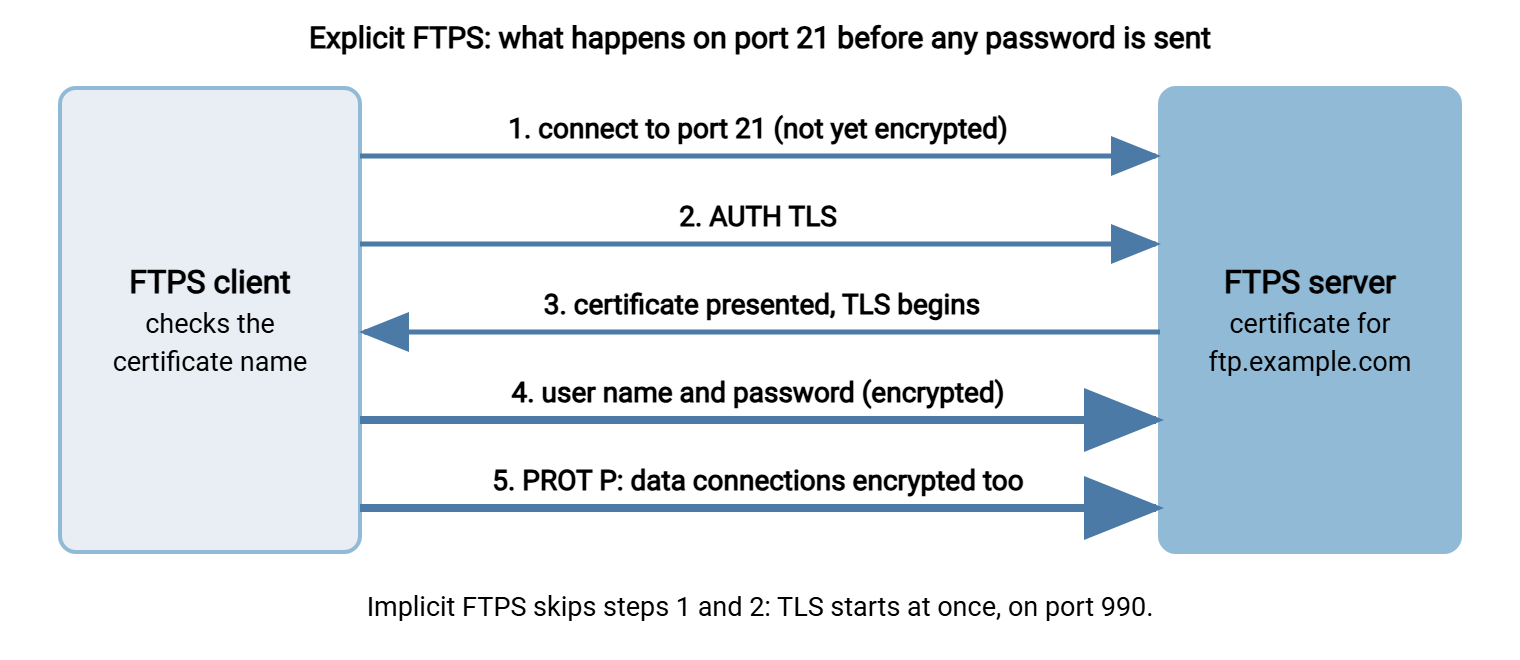
The diagram below shows the explicit style, which is the one most partners mean.
FTPS is not SFTP. They sound alike and share nothing. If the partner's document had said SFTP, you would be reading how to set up an SFTP server on Windows instead, and the difference is explained in SFTP vs FTPS.
Three Decisions Before You Start
Explicit or implicit
Explicit FTPS uses port 21. The client connects, sends AUTH TLS, and the connection becomes encrypted before any login. Implicit FTPS uses port 990, and TLS starts the instant the connection opens. Explicit is the standardized form and the default in most clients. Implicit is older and survives because some systems only speak it. Ask the partner which their client uses. If they do not know, it is explicit. If they insist on port 990, it is implicit. The two are compared in explicit vs implicit FTPS.
Which certificate
For anything a partner connects to, use a certificate issued by a public certificate authority for the exact host name, such as ftp.example.com. A self-signed certificate, one the server makes for itself, encrypts just as well. But clients cannot verify it, so every partner sees a warning and has to be talked into ignoring it. Teaching partners to ignore certificate warnings is a poor way to begin a secure connection.
The passive range and public address
These are the same two settings every FTP server needs, and with FTPS they become mandatory. Pick a passive port range, such as 50000 to 50100, and know the server's public address. Write all of it down.
FTPS SERVER SETUP SHEET
Host name clients use:      ftp.example.com
Public address:             203.0.113.10
Mode:                       explicit (port 21)   /   implicit (port 990)
Plain FTP:                  refused
Data connections:           must be encrypted (PROT P)
Passive port range:         50000-50100
Announced address:          203.0.113.10
Certificate issued to:      ftp.example.com
Certificate issued by:      ____________________
Certificate expires:        ____________   (reminder set for 30 days before)
Minimum TLS version:        1.2
Accounts:                   one per partner, confined to its own folder
Step 1: Get the Certificate onto the Server
The certificate has to be in the Windows certificate store of the server, together with its private key. There are three common routes.
Request it from the server. In IIS Manager, select the server, open Server Certificates, and choose Create Certificate Request. Enter the host name as the common name. Send the resulting request file to your certificate authority. When the signed certificate comes back, choose Complete Certificate Request on the same screen.
Import one you already have. If the certificate was issued elsewhere and exported with its private key as a PFX file, import it from an elevated PowerShell prompt:
$pw = Read-Host -AsSecureString "PFX password"
Import-PfxCertificate -FilePath C:\certs\ftp-example-com.pfx -CertStoreLocation Cert:\LocalMachine\My -Password $pw
Make a self-signed one for a lab. This is for testing only:
New-SelfSignedCertificate -DnsName "ftp.example.com" -CertStoreLocation Cert:\LocalMachine\My
One detail trips up many first installations. A certificate authority usually issues your certificate from an intermediate certificate, not directly from its root. The server has to present both. If only your own certificate is installed, some clients accept it and others report it as untrusted, depending on what each one happens to have seen before. Install the intermediate certificate the authority supplies, and test with a client that has never connected to the server.
Whichever route you take, note the expiry date on the setup sheet now. Certificates, how they are issued, and how they fail are covered in FTPS certificates.
Step 2: Require TLS on the Server
On the FTP service built into Windows
- In IIS Manager, select the FTP site and open FTP SSL Settings.
- Choose your certificate from the SSL Certificate list.
- Under SSL Policy, choose Require SSL connections. The other choice, Allow SSL connections, leaves plain FTP working alongside.
- Click Apply.
- For implicit FTPS, edit the site's bindings and set the port to 990. The service treats a site bound to port 990 as implicit.
- Select the server node, open FTP Firewall Support, and set the Data Channel Port Range and the External IP Address of Firewall.
- Restart the service with
Restart-Service ftpsvc.
The policy in step 3 is the setting that makes this an FTPS server and not an FTP server that knows about TLS. With "allow," a client that never asks for encryption is never given it. The server looks secure from the configuration screen and sends passwords in the clear to anyone who does not insist. It is the most common FTPS misconfiguration there is.
On a dedicated server
A dedicated file transfer server keeps these settings together. In Sysax Multi Server, for example, the sequence is short. Under the server's security settings, create a certificate request or import the certificate. Under Connection Protocols, enable FTPS and confirm its port, and leave plain FTP switched off. Set the passive port range and the external address in the server configuration, then start the server. The same accounts and home folders then work over FTPS, and over SFTP if a later partner asks for that instead.
On either kind of server, also disable old protocol versions. TLS 1.2 is the minimum to offer today. The reasoning and the cipher choices are in hardening FTPS.
Step 3: The Firewall, Which Can No Longer Help
With plain FTP, some firewalls read the control connection, notice which data port the server announced, and open it automatically. With FTPS the control connection is encrypted. The firewall sees noise. Any feature that depended on reading FTP commands now does nothing, or worse, interferes. Everything must be opened by rule.
On the server, create the Windows Defender Firewall rules. Use the first line for explicit FTPS, the second for implicit, and the third in both cases:
New-NetFirewallRule -DisplayName "FTPS explicit" -Direction Inbound -Protocol TCP -LocalPort 21 -Action Allow
New-NetFirewallRule -DisplayName "FTPS implicit" -Direction Inbound -Protocol TCP -LocalPort 990 -Action Allow
New-NetFirewallRule -DisplayName "FTPS passive range" -Direction Inbound -Protocol TCP -LocalPort 50000-50100 -Action Allow
Windows Firewall also has an FTP inspection feature of its own, which is on by default and does not cope with encrypted sessions. Turn it off on an FTPS server:
netsh advfirewall set global StatefulFTP disable
At the network edge, ask for the same ports to be allowed and forwarded to the server. Ask also for any FTP helper, inspection, or application gateway feature to be disabled for this server's address. Network teams sometimes resist switching off a feature whose name contains the word "helper." It helps plain FTP. With FTPS it resets connections it cannot understand. The full explanation is in FTPS through firewalls and NAT, and the port list in ports for FTP, FTPS and SFTP.
Remember: an FTPS server needs TLS set to required, a certificate for the right host name, the passive range opened by explicit rules, the public address announced, and every FTP inspection feature turned off. A firewall cannot open ports it cannot read.
Step 4: How to Connect to an FTPS Server and Test It
Test from a machine outside your network. curl, included in current Windows, speaks both styles and shows what the server presents.
REM explicit FTPS on port 21
curl -v --ssl-reqd --user acme ftp://ftp.example.com/

REM implicit FTPS on port 990
curl -v --user acme ftps://ftp.example.com:990/

REM this one must FAIL: plain FTP with no encryption
curl -v --user acme ftp://ftp.example.com/
In the output of the first command, look for four things. The server accepts AUTH TLS. The TLS version is 1.2 or higher. The certificate's subject matches the host name you typed, with no verification error. And a directory listing arrives, which proves the encrypted data connection works through the firewall. The third command is the proof that TLS is required: the server should refuse the login before any password is sent.
A partner connecting with a graphical client needs the same facts in different boxes: the host name, port 21 or 990, their user name and password, and the encryption setting. That setting is usually labeled "require explicit FTP over TLS" for port 21 or "implicit FTP over TLS" for port 990. Send them the certificate's issuer and expiry date too, so that they know what a correct certificate prompt looks like. The client side is covered more fully in how to connect to an FTP server and test it.
What to Send the Partner
An FTPS connection has more settings on the client side than plain FTP, and a partner who guesses one of them wrong will see an error that does not say which. Send the complete set in one message, with the password delivered separately.
FTPS CONNECTION DETAILS
Host name:            ftp.example.com   (connect by this name, not by IP address)
Protocol:             FTPS - FTP over TLS. Not SFTP.
Mode and port:        explicit TLS on port 21
Encryption setting:   "Require explicit FTP over TLS"
Data connections:     passive mode; encrypted (PROT P)
Passive port range:   50000-50100   (for your outbound firewall, if it filters)
User name:            acme
Password:             sent separately
Certificate:          issued to ftp.example.com by ____________, expires ________
Minimum TLS version:  1.2
Your source address:  (please tell us, so we can allow it)
Support contact:      transfer-admin@example.com
Three lines on that sheet prevent most first-day failures. "Connect by this name" matters because the certificate is issued to the name. A client pointed at the IP address will report a mismatch even though nothing is wrong. "Not SFTP" matters because half of all FTPS requests are met with an SFTP client on the first attempt. And the passive range matters to partners whose own firewalls restrict outbound connections, which is more of them than you would think.
If a later partner asks for SFTP instead, you do not need a second server for it, provided your server product offers both protocols from the same accounts. If you built on the FTP service in Windows, SFTP means adding the separate OpenSSH feature beside it. That is worth knowing before the second partner arrives and not after.
Faults That Are Specific to FTPS
An FTPS server can fail in every way an FTP server can, and in a few ways of its own.
| What the client reports | What it means | What to check |
|---|---|---|
| Server does not support FTP over TLS | The server rejected AUTH TLS |
TLS not enabled, no certificate selected, or the client reached a different server |
| Connection hangs at once, no greeting | Explicit client talking to an implicit port, or the reverse | Match the client's encryption setting to the port: 21 explicit, 990 implicit |
| Certificate name mismatch | The client connected by a name or address not on the certificate | Connect by the host name on the certificate, not the IP address |
| Certificate expired or not trusted | Past its expiry date, self-signed, or missing an intermediate certificate | Renew it; install the authority's intermediate certificate |
534 or a refusal mentioning SSL policy |
The server requires TLS and the client did not ask for it | Working as designed. Set the client to require TLS |
| Login works, listing hangs | The encrypted data connection is blocked | Passive range on both firewalls, announced address, inspection features off |
| Login works, listing fails with a TLS or session error | Server and client disagree about reusing the TLS session on the data connection | The server's session reuse setting; the client's version |
| Handshake failure | No TLS version or cipher in common | An old client that only speaks retired TLS versions |
The last two rows are the ones that consume afternoons, because both sides are configured correctly and still cannot agree. The mechanism behind session reuse is explained in how TLS wraps FTP, and the quirks of particular client types in the FTPS client compatibility matrix.
The One Maintenance Job: Certificate Renewal
An FTP server, once working, keeps working. An FTPS server has a date in its future on which it will stop. Certificates expire, usually after about a year, and an expired certificate makes every well-behaved client refuse to connect.
Northgate Retail's FTPS server stopped on a Sunday. Forty store systems sent their daily sales files at two in the morning, as they had every night. Each one checked the certificate, found it had expired at midnight, and declined to connect. The files were not lost, only late. By Monday morning head office had no sales figures and a queue of forty retries. The certificate had been renewed the previous year by someone who had since moved teams, and the reminder had been in that person's calendar. The renewal itself took twenty minutes. Northgate now keeps the expiry date on the server's setup sheet, in a shared calendar, and in a monitoring check that complains thirty days ahead.
Three habits prevent a repeat. Record the expiry date somewhere that belongs to a team, not a person. Renew a few weeks early; a new certificate with the same name can be installed alongside the old one and switched over in the server's settings. And after switching, run the test commands above from outside, because a renewed certificate installed without its intermediate certificate fails in exactly the same way as an expired one.
The Version to Tell a Colleague
An FTPS server is an FTP server with TLS and a certificate. To build one on Windows: get a certificate for the server's host name, set the FTP service or your server product to require TLS, choose explicit mode on port 21 unless a partner needs implicit on 990, and set a passive port range and the public address. Open the control port and the passive range by explicit firewall rules and switch off FTP inspection features, because the firewall can no longer read the session. Test from outside with curl, and confirm that a plain FTP login is refused. Then put the certificate's expiry date where a team will see it.
For the certificate side in depth, read FTPS certificates. For the settings that make TLS strong, read hardening FTPS. For the full list of what a secure server needs beyond encryption, see what makes an FTP server secure.
Frequently Asked Questions
How do I set up an FTPS server on Windows?
Does Windows have a built-in FTPS server?
What port does an FTPS server use?
Do I need a certificate for FTPS?
How do I connect to an FTPS server?
Why does my FTPS connection log in but fail to list files?
From the Sysax team: we build secure file transfer software for Windows. Sysax Multi Server is an FTP, FTPS, SFTP, and HTTPS server. Sysax FTP Automation handles scheduled, scripted transfers. Free trials are on the download page.