
How to Connect to an FTP Server and Test It: FTP, FTPS, and SFTP
The partner's email says, "Here are your FTP details." Below it are a host name, a user name, and a password. There is no port, no protocol, and no mention of encryption. You now hold three of the five facts you need, and the missing two are the ones that decide whether anything connects. So you try FTP on 21, then FTPS, then SFTP on 22, like a locksmith with a ring of similar keys. Most first connections in this business are made by elimination.
This guide replaces the elimination with a method. It lists the five things every connection needs and what each one is called. It shows how to connect to an FTP, FTPS, or SFTP server from Windows, by client, by command line, and by File Explorer. It explains why a browser will not do it. Then it covers testing: a four-step sequence that finds the failing layer, and a table of what each error message is telling you.
It is part of our FTP Protocol Explained series. If you are on the other side of the connection and building the server, start with how to set up an FTP server on Windows and come back here to test it.
The Five Things Every Connection Needs
To connect to an FTP server you need five facts. People use several names for each, which is half the difficulty.
| What you need | Also called | Example |
|---|---|---|
| The server's address | FTP address, FTP server address, host, host name, site | ftp.example.com |
| The protocol | Connection type, encryption setting | FTP, FTPS (explicit or implicit), or SFTP |
| The port | Port number | 21 for FTP and explicit FTPS, 990 for implicit FTPS, 22 for SFTP |
| Your credentials | FTP server credentials, login, account | A user name with a password, or for SFTP a key file |
| Proof of the server's identity | Certificate (FTPS), host key fingerprint (SFTP) | A certificate issued for the host name, or a SHA256: fingerprint |
What is an FTP address? It is the name or number that locates the server on the network. A host name such as ftp.example.com is the usual form. A bare IP address such as 203.0.113.10 also works. An FTP server URL packs the protocol, the address, and optionally the port and folder into one line:
ftp://ftp.example.com/reports/         plain FTP or explicit FTPS, port 21
ftps://ftp.example.com:990/reports/    implicit FTPS, port 990
sftp://sftp.example.com/reports/       SFTP, port 22
The first part of the URL, before the colon, names the protocol. That matters more than it looks. The same host can offer all three, and the three need different client settings.
What is FTP access? It means two separate permissions that people tend to blur. You have an account on the server, and the network lets you reach it. SFTP access is the same pair for an SFTP server. Having credentials is not the same as having access. Many servers accept connections only from addresses on an allowlist, and your perfectly valid login will fail from anywhere else.
When details arrive incomplete, do not guess. Ask once, for everything. This message gets a complete answer far more often than "can you resend the FTP info?"
Subject: Connection details needed for file transfer setup

To set up the connection on our side, please confirm:

1. Host name:
2. Protocol:      FTP / FTPS explicit / FTPS implicit / SFTP
3. Port:
4. User name:
5. Authentication: password / SSH key / both
6. For SFTP: your host key fingerprint
   For FTPS: the host name on your certificate
7. Do you restrict by source address? Ours will be: 198.51.100.25
8. Folder(s) we should use, and whether we upload, download, or both
9. A test file we may download, and a folder where we may upload a test
10. Your contact for connection problems
What an FTP Connection Actually Is
A networking exam asks: "What two characteristics describe an FTP connection?" The expected answers are a fair summary of the protocol. First, an FTP session uses two connections. The first one is for control: commands and replies. A second one is created to carry each file or folder listing. Second, transfer works in both directions. Files can be downloaded from the server or uploaded to it.
The two-connection design is the practical point. The control connection goes to port 21 and stays open for the whole session. The data connection is opened fresh for each transfer, to a different port the server picks. A firewall can allow one and block the other, which produces the classic symptom: you log in successfully and then cannot list a folder. The mechanics are in FTP control and data connections explained.
What is an SFTP connection, by contrast? It is one encrypted connection to port 22 that carries everything. There is no second connection to be blocked. That single difference is why SFTP problems are usually about keys and accounts, while FTP problems are usually about ports.
You may also be told you are getting an "MFT connection." Managed file transfer platforms are servers with extra management on top. From the client's chair, an MFT connection is still SFTP, FTPS, or HTTPS, and you connect to it in exactly the ways described below. The name on the invoice is longer. The port is the same.
How to Connect to an FTP Server from Windows
There are three ways to make an FTP connection in Windows. They differ in what they can encrypt.
With a graphical client
- Open the client's site manager or new connection window.
- Enter the host name. Do not include
ftp://unless the client asks for a URL. - Choose the protocol: FTP or SFTP. For FTP, choose the encryption: "require explicit FTP over TLS" for FTPS on port 21, or "implicit" for port 990.
- Enter the port only if it differs from the default for that protocol.
- Enter the user name and password, or select the key file for SFTP.
- Connect. Read the certificate or host key prompt before accepting it, and compare it with what you were sent.
The setting to look for in step 3 is the one that requires encryption. Many clients offer "use TLS if available," which sounds prudent. It means that if anything goes wrong with encryption, the client quietly logs in without it and sends your password in the clear.
From the command line
Current Windows includes curl, which speaks FTP and FTPS. Each command prompts for the password:
REM explicit FTPS on port 21: list the home folder
curl --ssl-reqd --user alex ftp://ftp.example.com/

REM implicit FTPS on port 990
curl --user alex ftps://ftp.example.com:990/

REM download and upload
curl --ssl-reqd --user alex -O ftp://ftp.example.com/reports/prices.csv
curl --ssl-reqd --user alex -T orders.csv ftp://ftp.example.com/inbound/
Avoid the old ftp command in the command prompt. It supports neither passive mode nor encryption. It fails against most properly configured servers and then leaves you debugging the tool instead of the connection.
With File Explorer
Type ftp://ftp.example.com into the File Explorer address bar and enter the user name and password when prompted. The site opens as a folder. This works only for plain, unencrypted FTP. It is useful for public download sites and unsuitable for anything else.
How to Connect to an SFTP Server
SFTP needs an SFTP client. A graphical client works as above with SFTP selected and port 22. From the command line, Windows includes the OpenSSH sftp program:
REM password login
sftp alex@sftp.example.com

REM key login, non-standard port
sftp -i C:\Users\alex\.ssh\partner_key -P 2222 alex@sftp.example.com
On the first connection the client shows the server's host key fingerprint and asks whether to continue. This is the one moment the protocol asks a human to check anything. Compare the fingerprint with the one the server's administrator sent you. If they never sent one, ask. If the fingerprint changes on a later connection, the client will refuse to connect, and that refusal deserves a phone call before it gets an override. Keys and passwords are covered in SFTP authentication.
Can You Access an FTP Server from a Browser?
Not any more. For years you could type an ftp:// address into a web browser and get a plain list of files. The major browsers have all removed that feature. Type an FTP address into one now and it either does nothing, offers to hand the link to another program, or runs a web search for it.
If someone asks how to access an FTP server from a browser, there are three honest answers. Use File Explorer for plain FTP, as described above. Use a proper client for anything encrypted. Or ask whether the server offers a web interface. Many file transfer servers provide a browser-based upload and download page over HTTPS alongside FTP and SFTP. Sysax Multi Server is one that does. That page is not FTP at all. It is ordinary secure web traffic, which is why the browser is happy with it. The full story is in FTP in a web browser: what still works, part of our HTTP and HTTPS file transfer series.
Testing in Layers: Name, Port, Login, Transfer
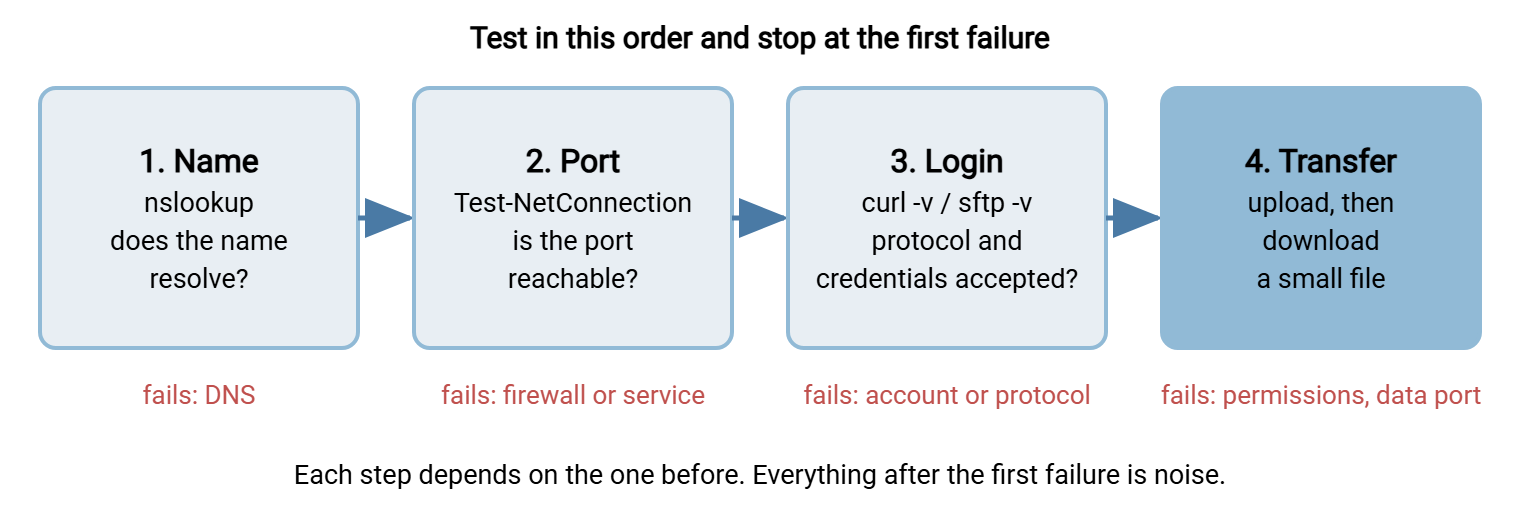
When a connection fails, the instinct is to try the whole thing again with one setting changed. Testing FTP server connectivity goes faster in layers, because each layer depends on the one before. Run these four checks in order and stop at the first failure. That failure is the problem. Everything after it is noise.
The diagram below shows the four layers and what a failure at each one usually means.
REM 1. NAME: does the host name resolve to an address?
nslookup ftp.example.com

REM 2. PORT: can this machine reach the port at all?  (PowerShell)
Test-NetConnection -ComputerName ftp.example.com -Port 21

REM 3. LOGIN: does the server accept the protocol and the credentials?
curl -v --ssl-reqd --user alex ftp://ftp.example.com/

REM 4. TRANSFER: can a file go up and come back?
curl --ssl-reqd --user alex -T test.txt ftp://ftp.example.com/inbound/
curl --ssl-reqd --user alex -O ftp://ftp.example.com/inbound/test.txt
Step 3 is also how to test an FTPS server. The -v option prints the conversation. In it you can see the AUTH TLS command accepted, the TLS version agreed, and the certificate's name and expiry date. If the listing arrives, the passive data connection works too, since a listing travels on it. To test an FTPS connection on the implicit port, use the ftps:// form with port 990 instead.
To test an SFTP server, the same four layers apply with different tools:
nslookup sftp.example.com
Test-NetConnection -ComputerName sftp.example.com -Port 22
sftp -v alex@sftp.example.com
The -v output shows the host key offered, each authentication method tried, and which one succeeded. As a basic SSH server test, a successful port check followed by the key exchange lines in that output proves an SSH service is answering, even before any login is attempted.
Remember: run the tests from the machine that will run the real transfer. A connection that works from your laptop proves the server and the account. It proves nothing about the firewall between the production server and the partner.
Bluewater Bank learned that note the expensive way. A developer built a nightly export to a new clearing partner and tested it thoroughly from a laptop. It connected, logged in, and delivered files every time. On go-live night the same job ran from the production server and timed out. The laptop had been on the office network, which allowed outbound connections freely. The production server sat behind an outbound firewall that allowed almost nothing, and nobody had asked for port 22 to the partner. The first file was nine hours late. Bluewater's change checklist now has a line that reads "tested from the source host," and it is not allowed to be answered with "tested."
What the Errors Mean
Error messages from file transfer clients are terse, but they are specific. Each one points at a layer.
| Message | What it means | What to check |
|---|---|---|
| Could not resolve host | The name is not in DNS, or is misspelled | Spelling; whether the name exists publicly or only inside the partner's network |
| Connection refused | The machine answered and nothing is listening on that port | Wrong port or protocol; service stopped; a firewall configured to reject |
| Connection timed out | No answer at all; the packets were dropped | Firewalls on either side; whether your source address is on their allowlist |
530 Login incorrect, or Permission denied (SFTP) |
The server rejected the credentials | User name, password, key; account locked, expired, or address-restricted |
Login succeeds, listing hangs, or 425 Can't open data connection |
The control connection works and the data connection does not | Passive mode in the client; the server's passive range and announced address |
550 Permission denied |
You are logged in but may not do that, there | The folder; whether the account may write; whether the file already exists |
| Certificate warning (FTPS) | The certificate is expired, self-signed, or issued for another name | Connect by the name on the certificate; ask the server's owner |
| Host key has changed (SFTP) | The server's identity differs from the one your client remembers | Confirm the new fingerprint with the server's owner before accepting |
Two of these deserve a closer look, because they are the ones people search for at eleven at night.
"FTP server refused connection." A refusal is good news of a kind. It means your packet travelled all the way to a machine and received an answer. The answer was "nothing here on that port." The usual causes are simple. You are using port 21 against a server that only offers SFTP on 22, or the reverse. The service is stopped. Or a NAT rule is forwarding the port to the wrong machine. A refusal is rarely caused by your credentials, because the conversation never got far enough to ask for them.
"FTP server 550 permission denied." The 550 reply means the login worked and the specific request did not. You tried to upload into a folder where your account may only read. You tried to overwrite a file you may not replace. Or the path does not exist, which some servers report with the same number. Check which folder you are in, then ask the server's administrator what the account is allowed to do. Reading these numbers is covered in FTP commands and reply codes, and the method for the stubborn cases is the layered troubleshooting method.
A Server to Test Against
Sometimes you want to test a client or a script before the real server exists. Searching for an online FTP server for testing turns up public test servers that anyone may log in to. They are fine for one purpose: confirming that your client program can complete a connection. Treat everything about them as public. Never upload real data, and never use a password you use anywhere else. A public FTP server for testing tells you nothing about your own firewall, your partner's server, or your real account.
Two better options exist. Ask the partner for a test account and a test folder. Item 9 in the email template above does this, and most partners have one. Or build a small server of your own on a spare machine and test against that. It takes less than an hour, and it teaches you what the other side of every future support call looks like. Our FTP lab setup article walks through it.
Once the connection works by hand, the next question is usually how to make it run by itself every night. That is a job for a scheduled, scripted client such as Sysax FTP Automation, not for a person with a reminder in their calendar. Automating FTP downloads, sync, and triggers on Windows shows how.
The Version to Tell a Colleague
To connect to an FTP server you need five things: the address, the protocol, the port, your credentials, and a way to confirm the server's identity. FTP and FTPS use port 21, or 990 for implicit FTPS, plus a second data connection. SFTP uses port 22 and one connection. Browsers no longer open FTP sites, so use a client, curl, or File Explorer for plain FTP. When a connection fails, test in order: name, port, login, transfer. A refusal means nothing is listening on that port, a timeout means a firewall, 530 means credentials, and 550 means permissions. Always test from the machine that will run the real transfer.
When the fault is not obvious, the troubleshooting series takes each layer in turn, starting with is there even a path? The full list of ports is in ports for FTP, FTPS and SFTP, and the catalog of FTP-specific faults is in FTP failure modes.
Frequently Asked Questions
How do I connect to an FTP server?
What is an FTP address?
What does "connection refused" mean on an FTP server?
Can I access an FTP server from a web browser?
How do I test an FTPS or SFTP connection?
What two characteristics describe an FTP connection?
From the Sysax team: we build secure file transfer software for Windows. Sysax Multi Server is an FTP, FTPS, SFTP, and HTTPS server. Sysax FTP Automation handles scheduled, scripted transfers. Free trials are on the download page.